Inbox Tracker shows where your email lands at major mailbox providers such as Gmail, Outlook and Yahoo.
When you run a test, your email is sent to real test mailboxes (seed inboxes) at each provider. Inbox Tracker then reports where each copy arrived (inbox, tab or spam) and what affected the result.
Inbox Tracker is an add-on. Each test uses one placement test from your monthly allowance.
Find problems before you send – Test your campaign and fix issues before it reaches your contacts.
See results by provider – Know exactly which providers put your email in spam.
Understand the cause – Check authentication, spam filter scores, blocklists, images and links in one place.
Know what to fix – Get clear recommendations, ordered by impact.
Log in to your Mailercloud account.
Open your campaign in the campaign editor and add your content.
Click Test inbox rate at the bottom of the editor.

Choose the providers to test, or select All providers.
Click Run placement test.
Results start arriving within minutes. To follow along, click View progress.
When the test is done, the Placement pill shows your inbox rate and the number of issues. Click it to open the full result.
Note: The Test inbox rate button becomes available once your campaign has content. Hover over it to see how many tests you have left this month.
Go to Campaigns.
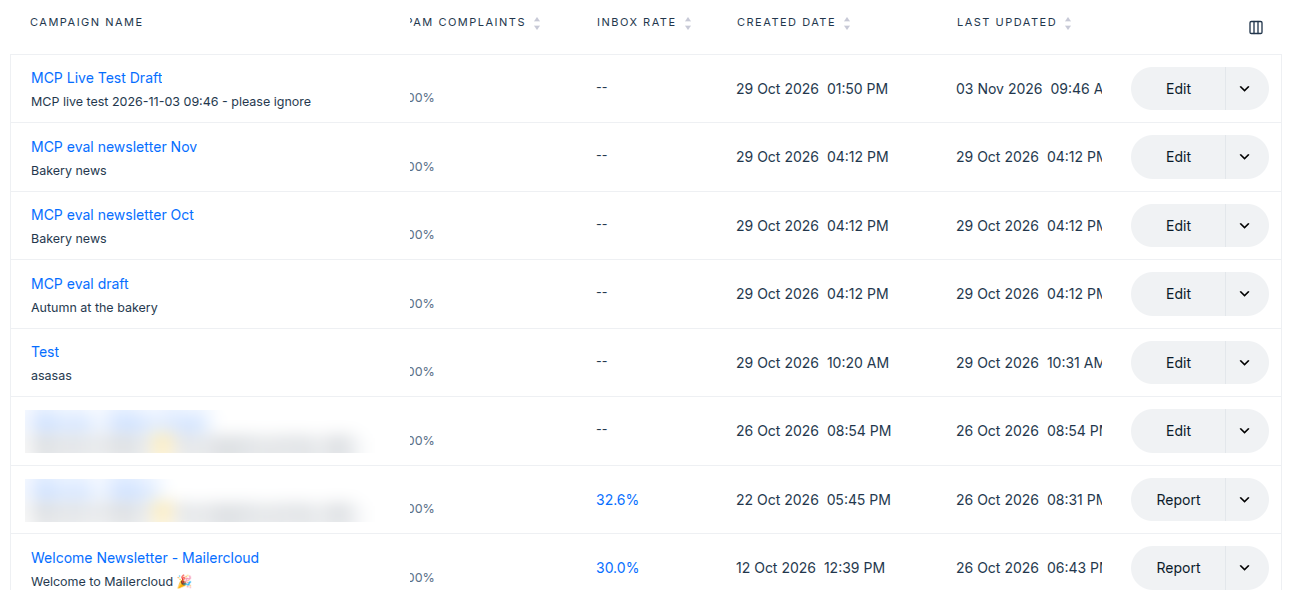
Click the Inbox rate figure for your campaign. You can also open it from the campaign report.
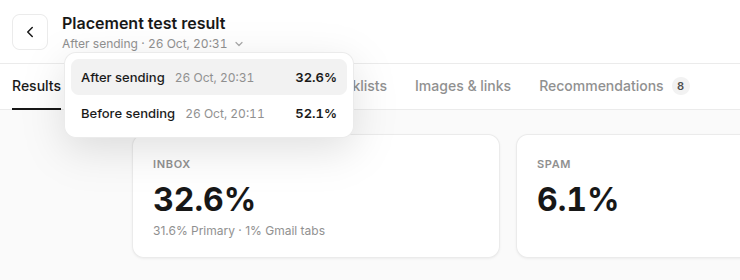
Use the picker at the top of the result to switch between:
After sending – where your sent campaign landed.
Before sending – your latest pre-send test, if you ran one.
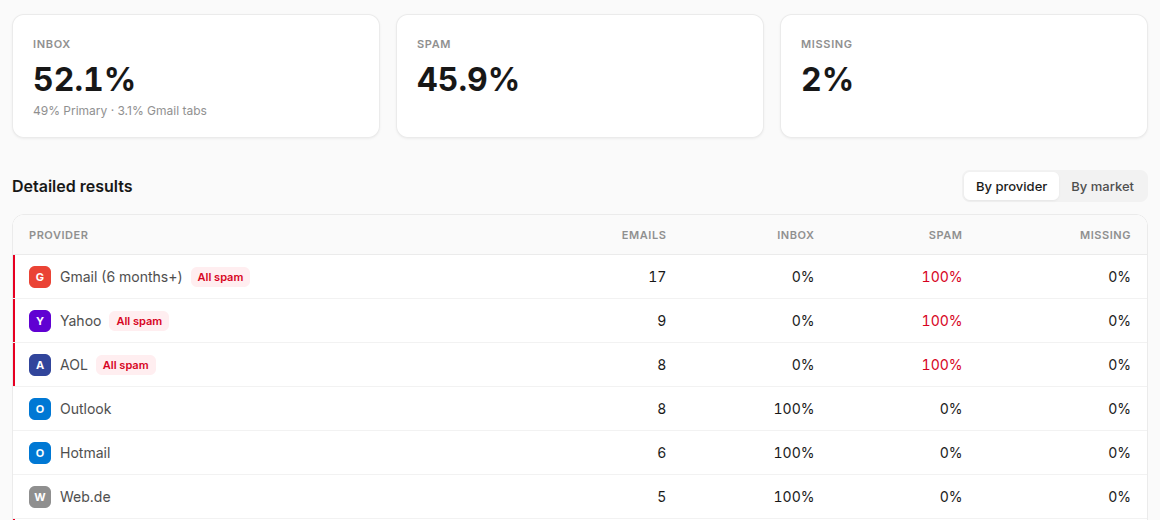
Your result has six tabs.
Shows how many emails landed in Inbox, Spam or Missing at each provider. Gmail rows also show the tab breakdown: Primary, Promotions, Social, Updates and Forums.
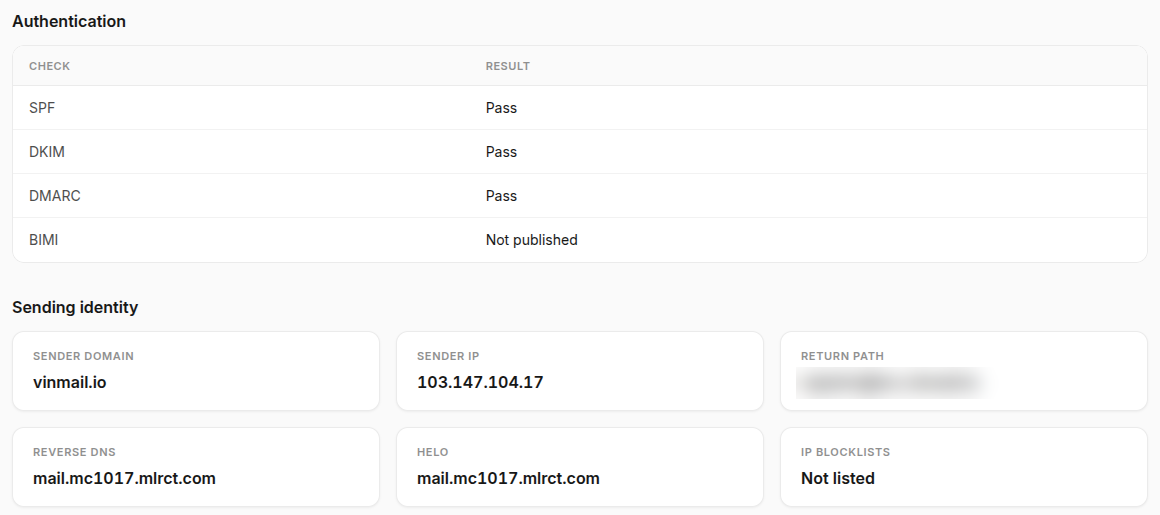
Shows SPF, DKIM, DMARC and BIMI results, and your sending identity: sender domain, sender IP, return path, reverse DNS, HELO and IP blocklist status.
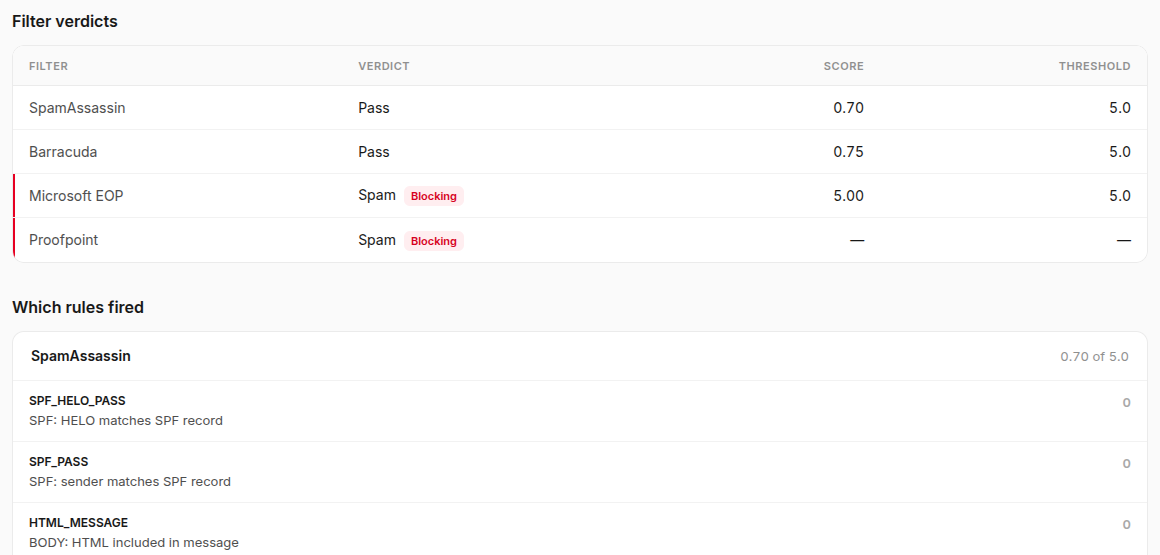
Shows verdicts from major spam filters, and Which rules fired: each matched rule with its score and a short explanation.
Shows whether your sending IPs and domains appear on public blocklists. Shared pool means the IP is shared with other senders.
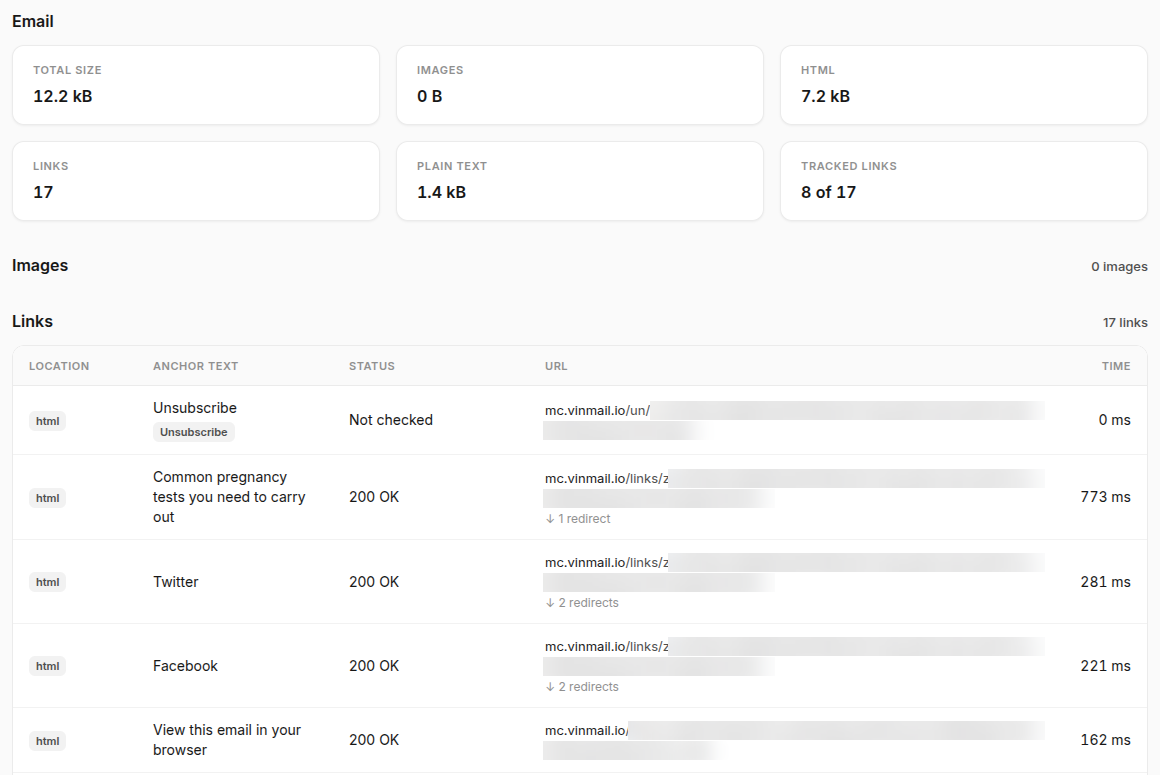
Shows your email size, images and links. Broken images or links are marked Broken.
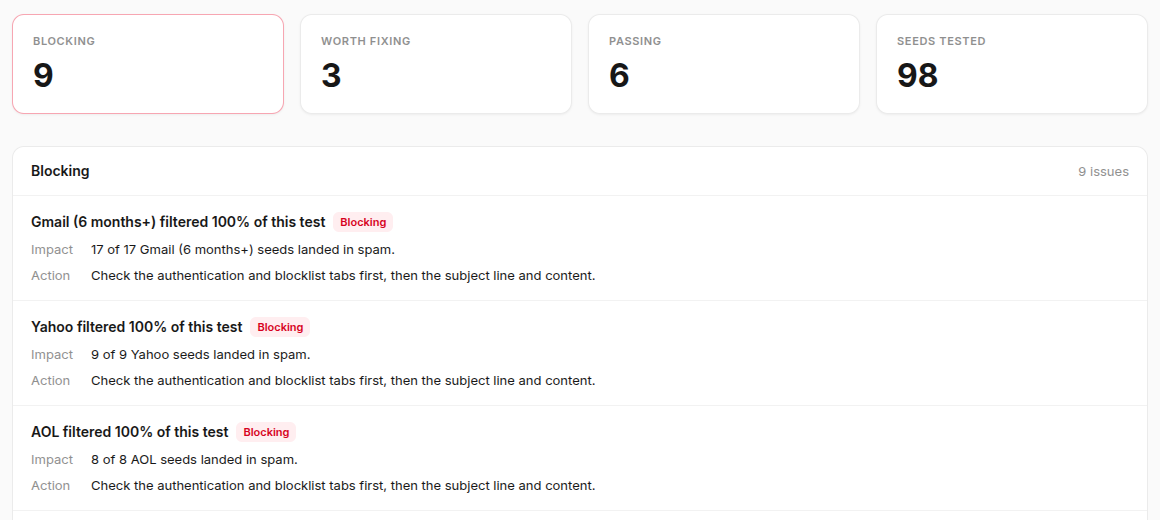
Shows what to fix, grouped as Blocking and Worth fixing, with the impact and action for each.
Running | Results are still arriving. Figures may change until the test finishes. |
Refunded | No test mailbox reported the test within 30 minutes of sending. The test was returned to your allowance. |
Failed | The test could not finish. Run it again. |
Most results arrive within a few minutes. Some smaller providers can take longer, so figures may change while the test shows Running.
The test mailbox has not received the email. This can mean the provider delayed or rejected it.
No. A test is sent only to test mailboxes, never to your contacts.
Yes. Open the result and click Run placement test again. Each run uses one test from your allowance.
The Test inbox rate button shows the date your tests reset. You can upgrade to keep testing before then.
Links are checked automatically. If a website is slow to respond or redirects many times, the check may time out and mark it Broken. Open the link to confirm it works.
If you're unsure how to read your result or what to fix first, contact the Mailercloud support team. We'll review your test and help you improve your inbox placement.