Two-factor authentication (2FA) adds an additional layer of security to your Mailercloud account. When enabled, you must enter a verification code—along with your password—each time you log in. This ensures only authorized users can access the account.
Mailercloud now supports app-based authentication, allowing you to generate secure login codes using trusted authenticator apps such as Google Authenticator, Microsoft Authenticator, or Authy.
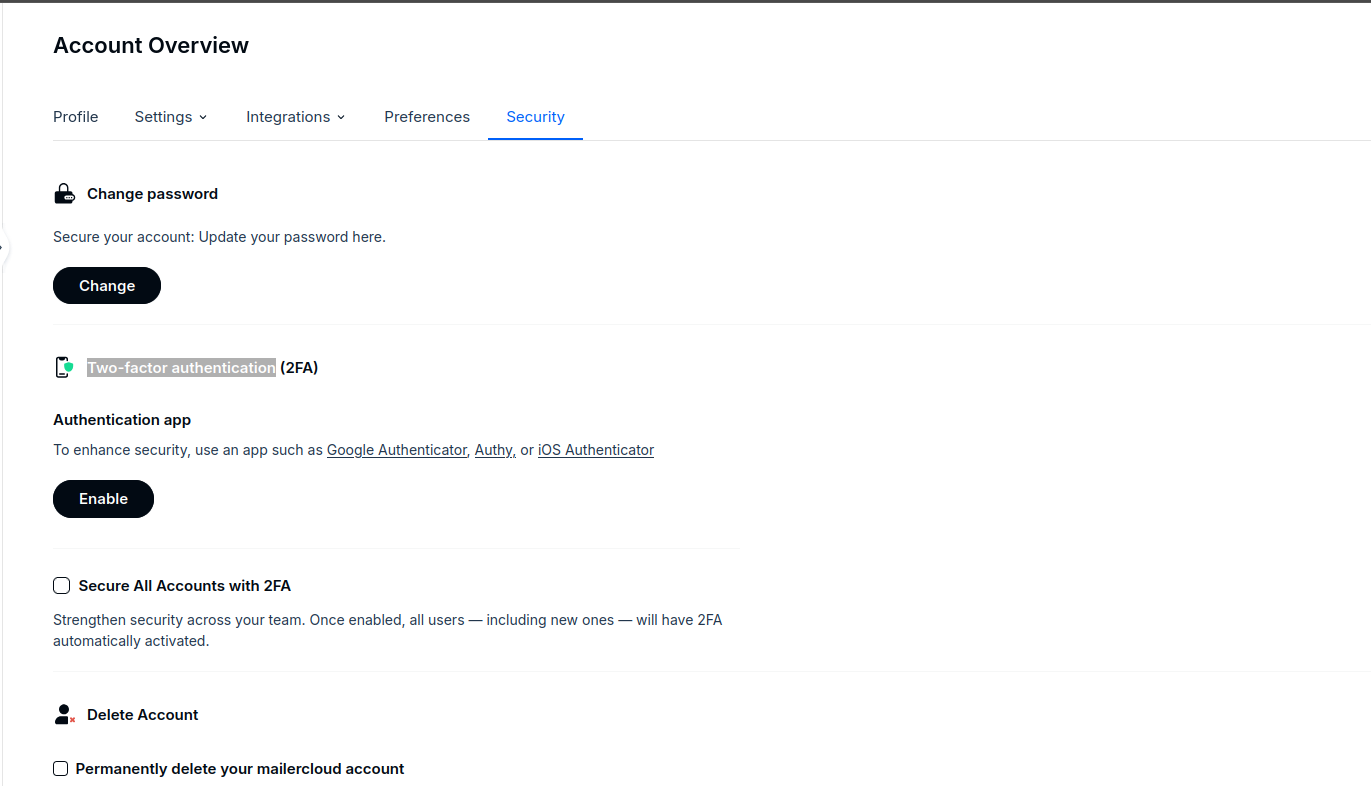
You can enable 2FA from your account settings:
Account → Security → Two-Factor Authentication
Once you click Enable, a setup popup will appear.
Open your authenticator app.
Scan the QR code displayed on the screen.
Enter the 6-digit authentication code shown in the app.
If you prefer manual entry:
Enter the key in your authenticator app.
When prompted, select Time-based as the key type.
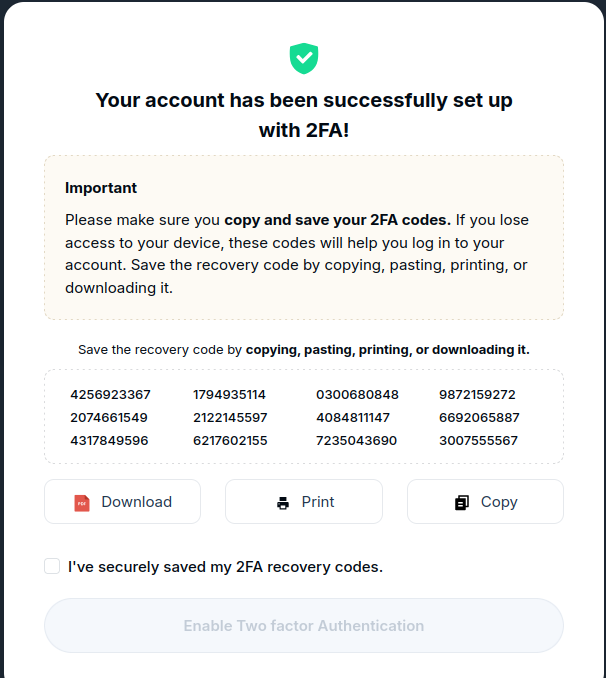
Once verification is completed, you will receive your backup codes.
Backup codes act as a fallback when you cannot access your authenticator app.
Each code can be used only once.
Codes are shown only one time, so save them securely.
You may copy, download, or print the codes for safekeeping.
If you lose or use them all, you can generate new backup codes anytime from the Security tab.
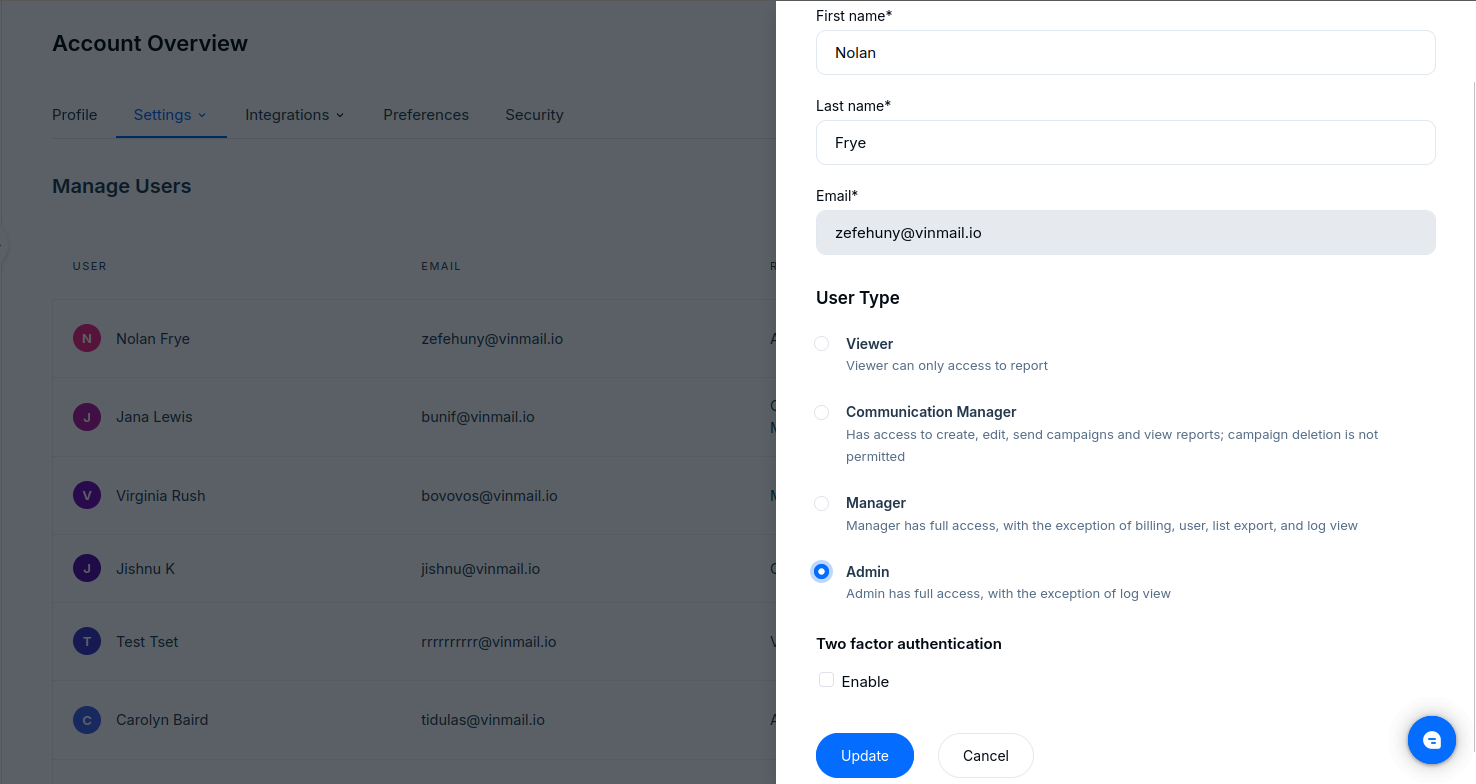
Account owners can manage 2FA settings for each subuser individually.
Go to:
Account → Settings → Users
From here, owners can:
View 2FA status for each subuser
Enable or enforce 2FA for specific subusers
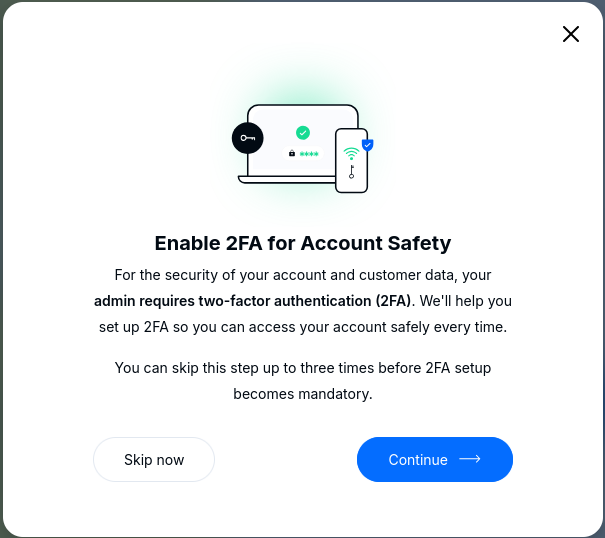
To strengthen your organisation’s security, owners can enforce 2FA for all subusers.
Once team-wide 2FA is enabled:
Subusers will see a mandatory setup popup during their next login.
They can skip the setup up to 3 times.
After 3 skips, setup becomes mandatory and they cannot log in without completing 2FA.
After enabling 2FA:
Enter your username and password as usual.
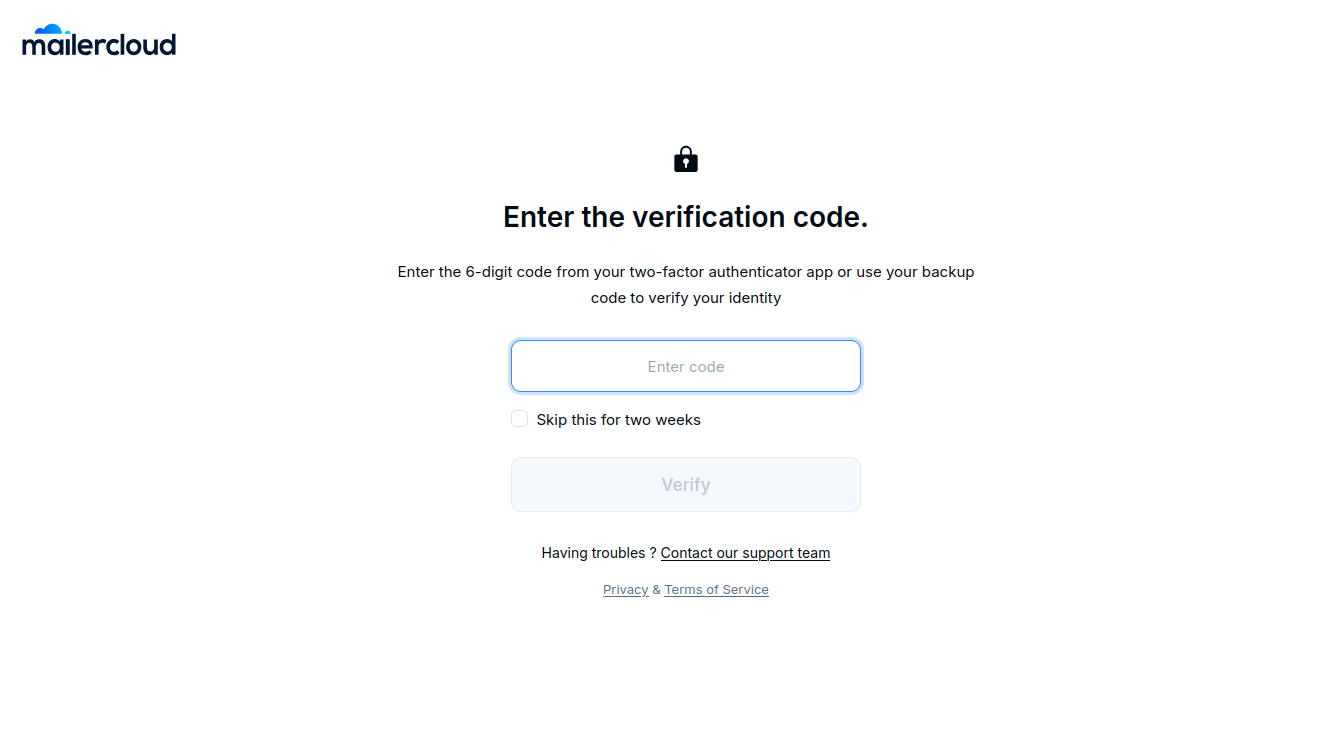
You will be redirected to the 2FA verification page.
On this screen, you can:
Enter the code from your authenticator app, or
Use a backup code if you no longer have access to your app
You may also select Skip for two weeks.
When enabled:
You will not be prompted for a 2FA code on that device and browser for the next 14 days.
Account owners can view 2FA-related activities from:
Logs → Activity Logs
This helps you track login attempts, security updates, and changes made by users.
After 2FA is enabled:
You must enter a valid authentication code to change your password or delete your account.
This additional step ensures enhanced account protection.