Email Verifier is a feature in Mailercloud that checks whether the email addresses on your contact list are real, active, and safe to send to. Before you launch a campaign, verifying your list helps you remove bad addresses that could hurt your sender reputation, increase bounce rates, or get you flagged as spam.
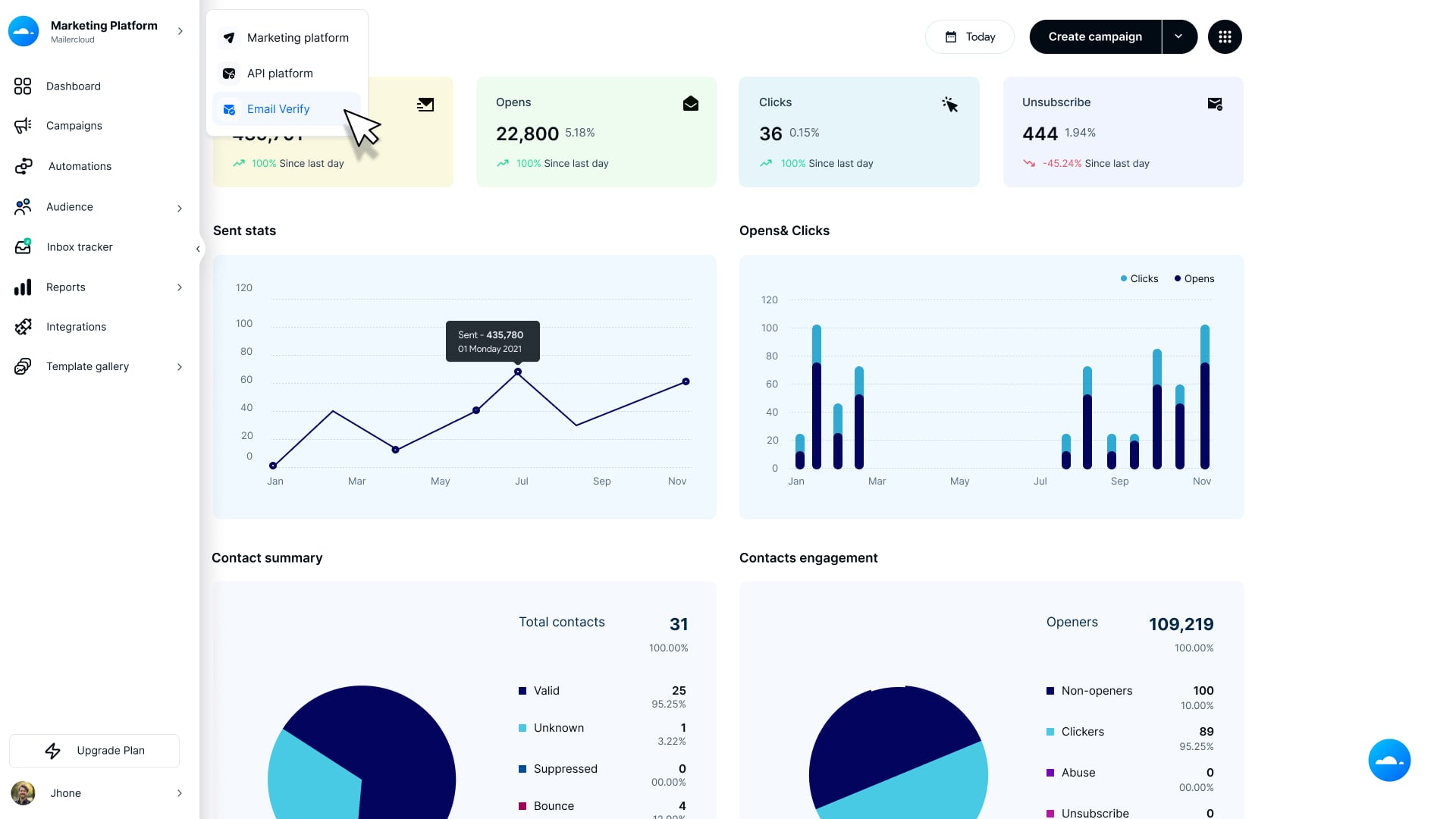
Email Verifier is accessible directly from your Mailercloud dashboard:
Log in to your Mailercloud account.
From your Mailercloud dashboard, navigate to Email Verification in the left sidebar.
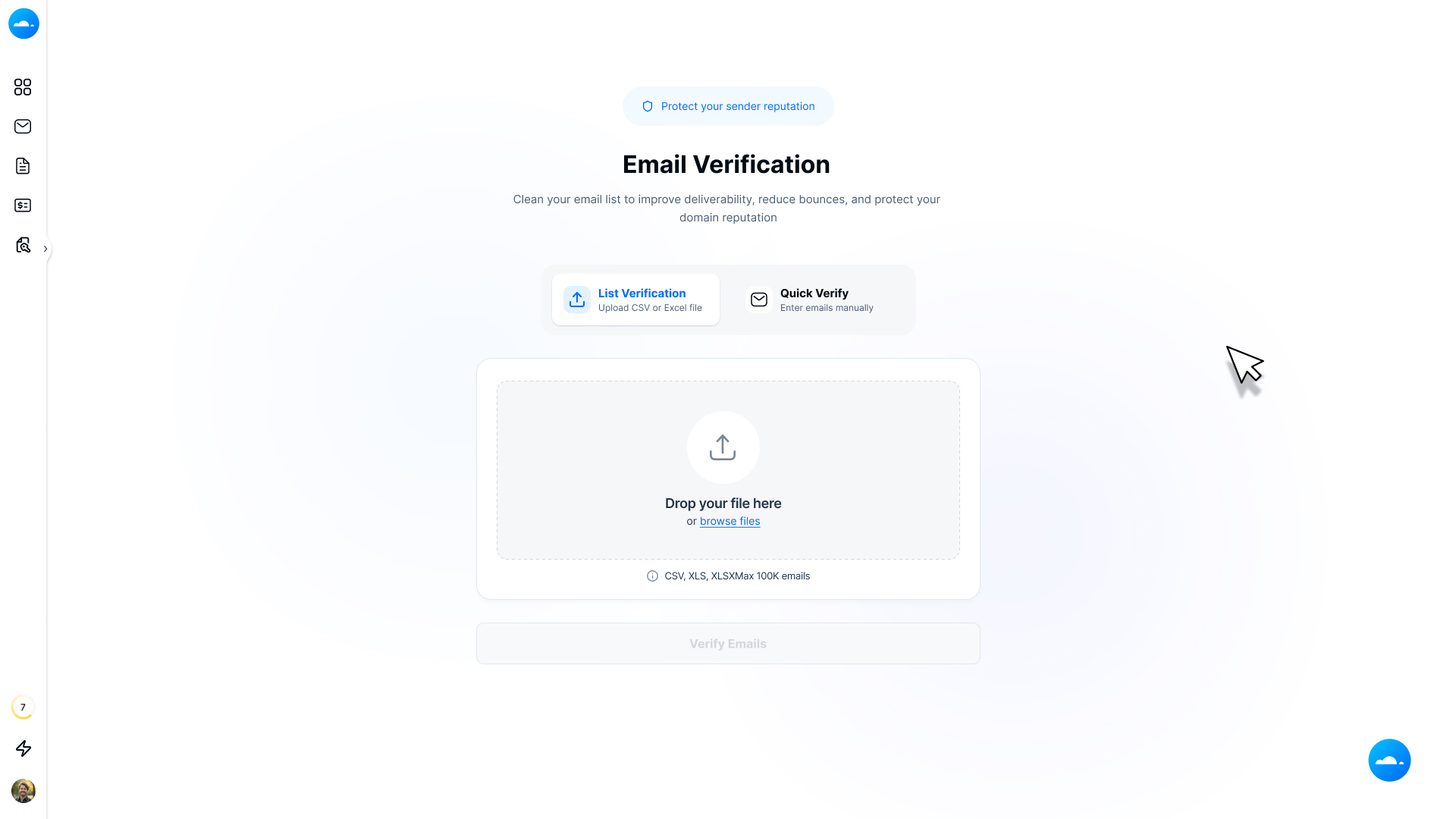
The Email Verification section has five tabs:
Dashboard — Overview of your credits and recent activity
Lists — All your uploaded file verifications
Single Email — Verify up to 50 emails at once without a file upload
Pricing — View and purchase verification credit plans
API Key — Generate keys to integrate verification into your apps
Email Verifier uses a credit-based system. Every email address you verify consumes 1 credit, regardless of the result.
Credits work as follows:
Subscription plans (monthly or yearly): credits renew automatically at the start of each billing cycle.
One-time credit purchases: credits never expire and can be used at any time.
Credits are deducted when verification begins, not when results are ready.
Use List Verification to verify an entire contact list at once. This is the recommended approach if you have more than 50 email addresses to verify.
CSV (.csv)
Excel (.xlsx)
Excel Macro-Enabled (.xlsm)
Note: Your file must contain at least one column with email addresses. Mailercloud will ask you to identify the email column during upload if there are multiple columns.
Go to Email Verification in the left sidebar.
Click Upload File (or the + button).
Select your CSV, XLSX, or XLSM file from your computer.
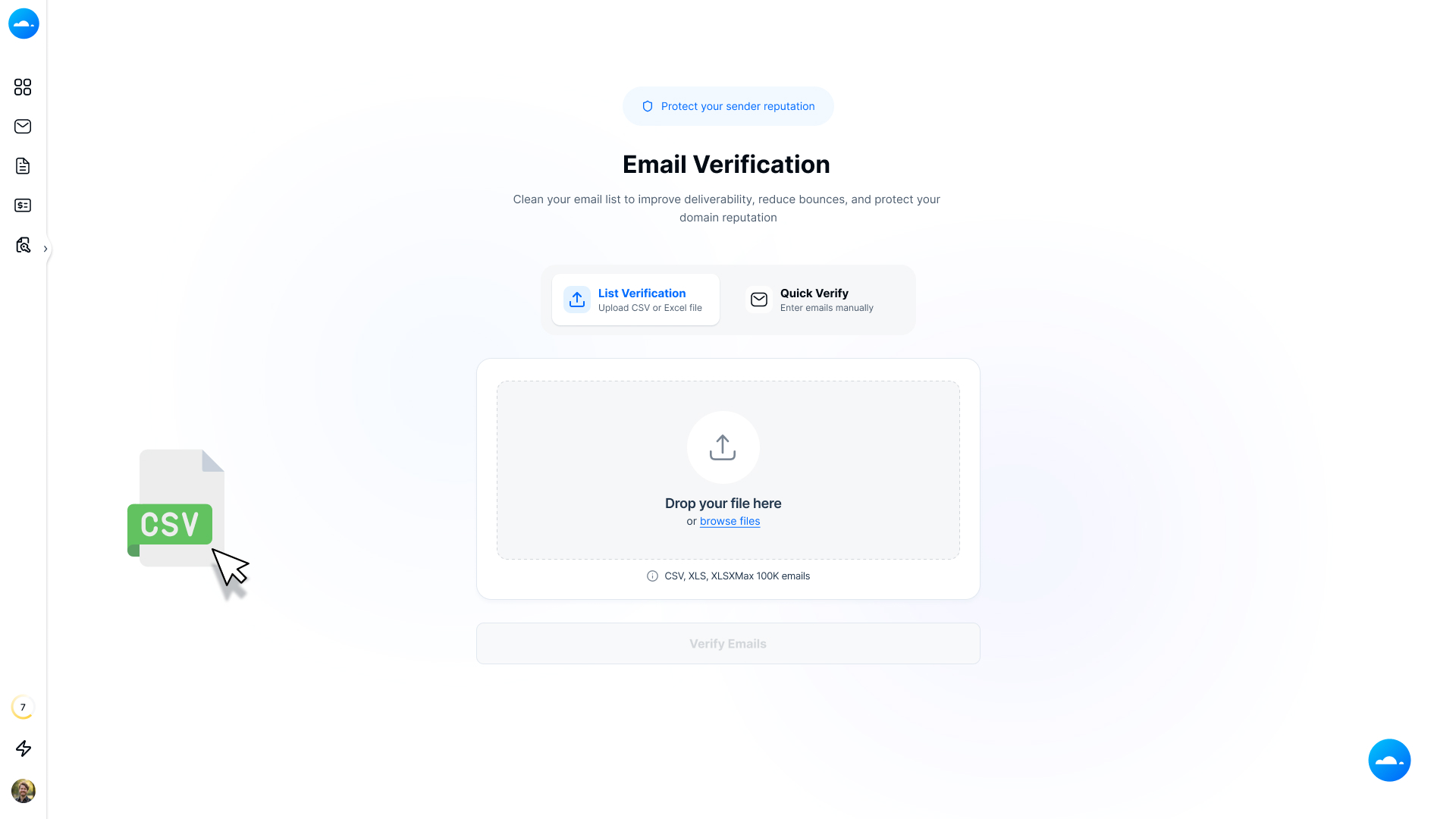
If your file has multiple columns, select the column that contains the email addresses.
Click Verify Emails to begin.
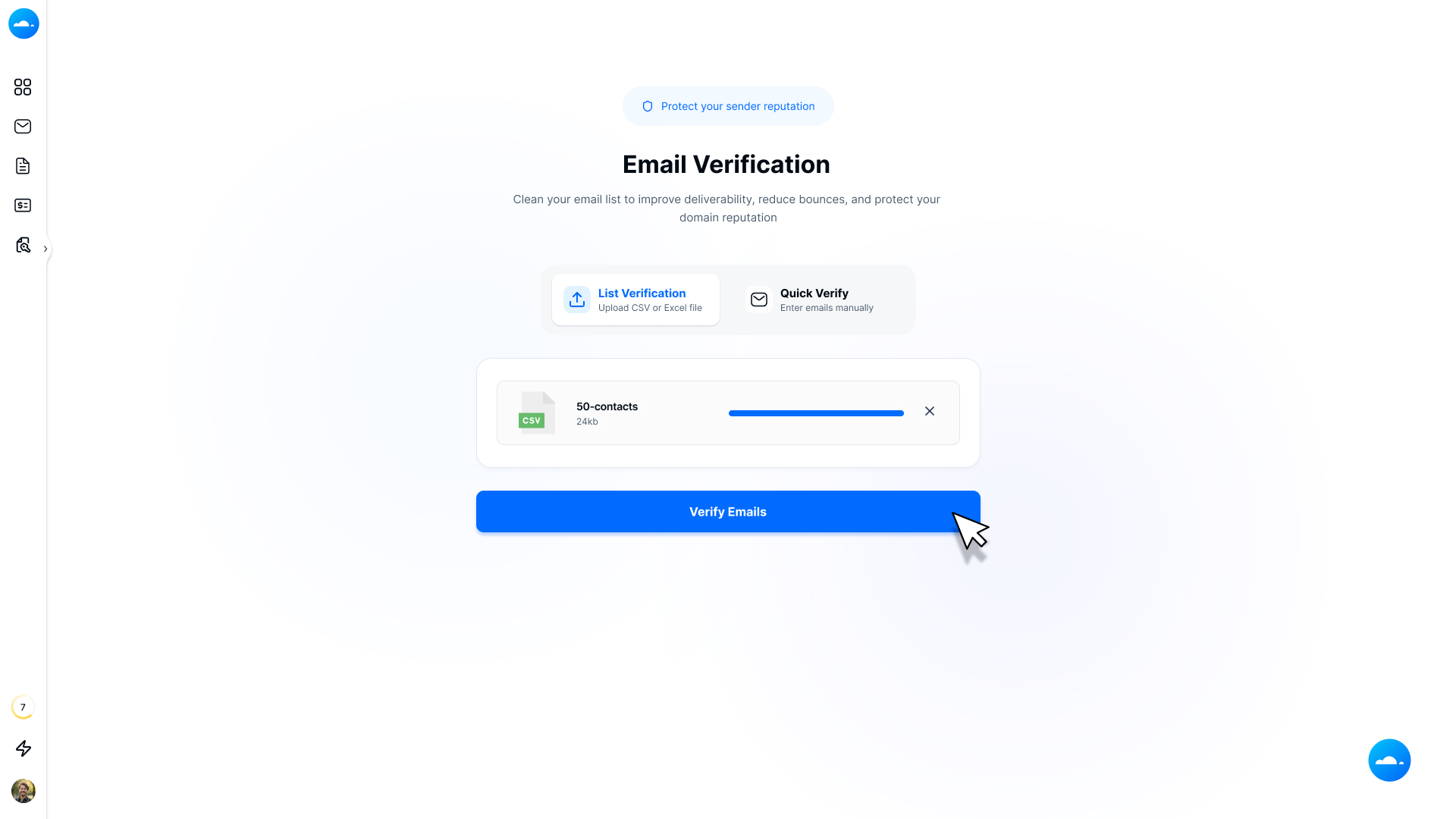
Mailercloud will process your list in the background. Depending on the size of your list, this may take a few minutes to several hours. You will see the progress on the Lists page.
Quick Verify lets you verify a small batch of email addresses without uploading a file. This is ideal for verifying a few addresses on the spot — for example, before manually adding a contact.
Maximum of 50 email addresses per submission.
Each email uses 1 verification credit.
Go to Email Verification in the left sidebar.
Click the Single Email tab.
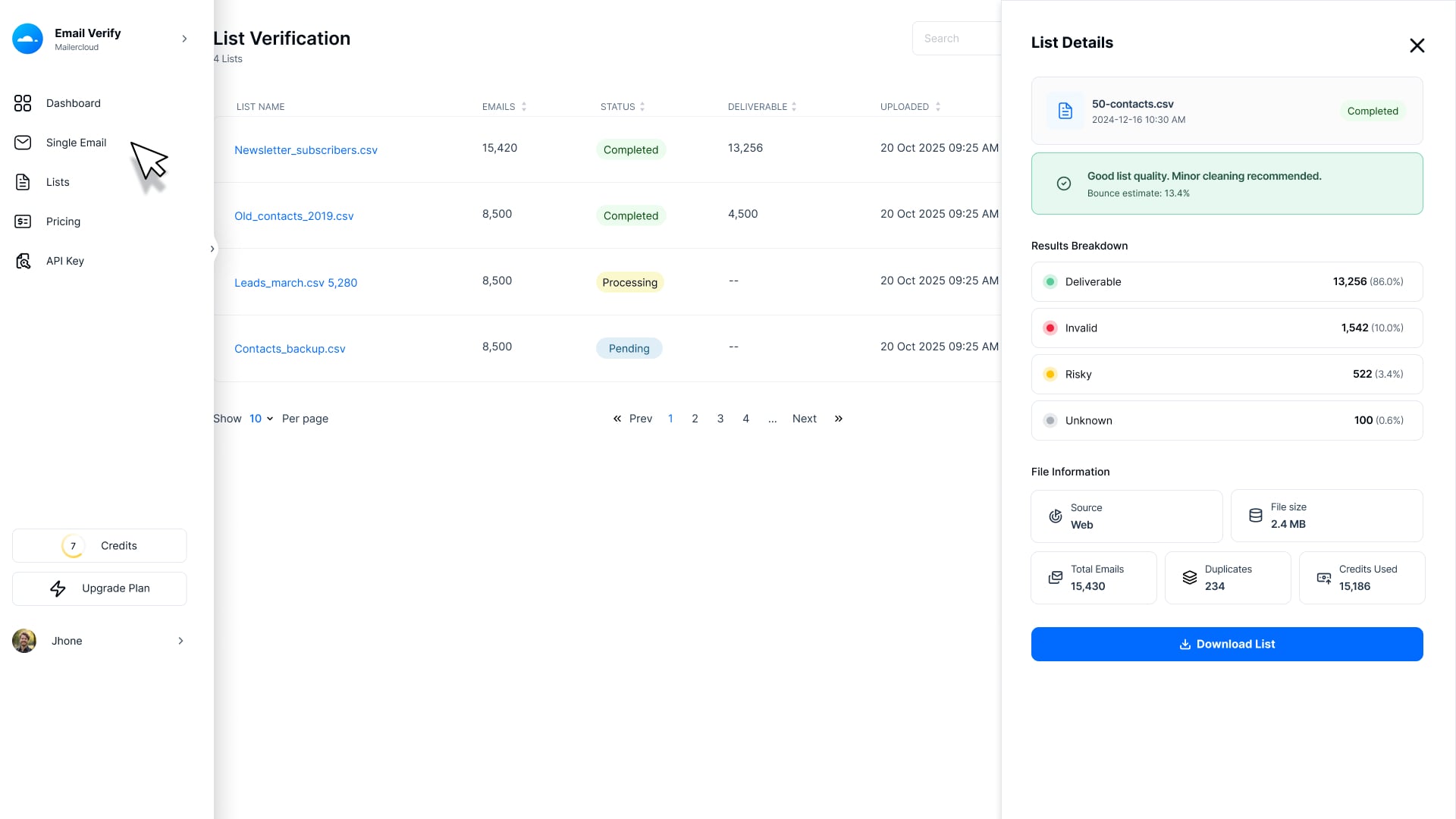
Type or paste your email addresses into the text area (one per line).
Click Verify.
Results will appear on screen once verification is complete.
Limit : If you need to verify more than 50 emails, please use the List Verification (file upload) method instead.
Every email address you verify is assigned one of four result categories. Understanding these categories helps you decide which contacts to keep, which to remove, and which to review before sending.
Deliverable
The email address is valid, the mailbox exists, and the mail server is accepting messages. These addresses are safe to include in your campaigns.
Invalid
The email address does not exist, has a syntax error, or the domain is inactive. Sending to invalid addresses will result in hard bounces. You should remove these from your list immediately.
Risky
The address exists but carries a higher-than-normal risk. Risky emails include:
Temporary/disposable emails — created for single use and quickly abandoned
Role-based addresses — such as info@, support@, admin@, or noreply@. These are not tied to an individual and often ignored or filtered.
Spam traps — addresses set up specifically to catch senders with poor list hygiene. Sending to these can severely damage your sender reputation.
Recommendation: It is strongly recommended to exclude Risky addresses from your campaigns, especially spam traps and role-based emails.
Unknown
Mailercloud could not definitively verify the address. This usually happens when the mail server did not respond or the domain uses security measures that prevent verification. These addresses may or may not be valid. Sending to too many Unknown addresses can raise your bounce rate.
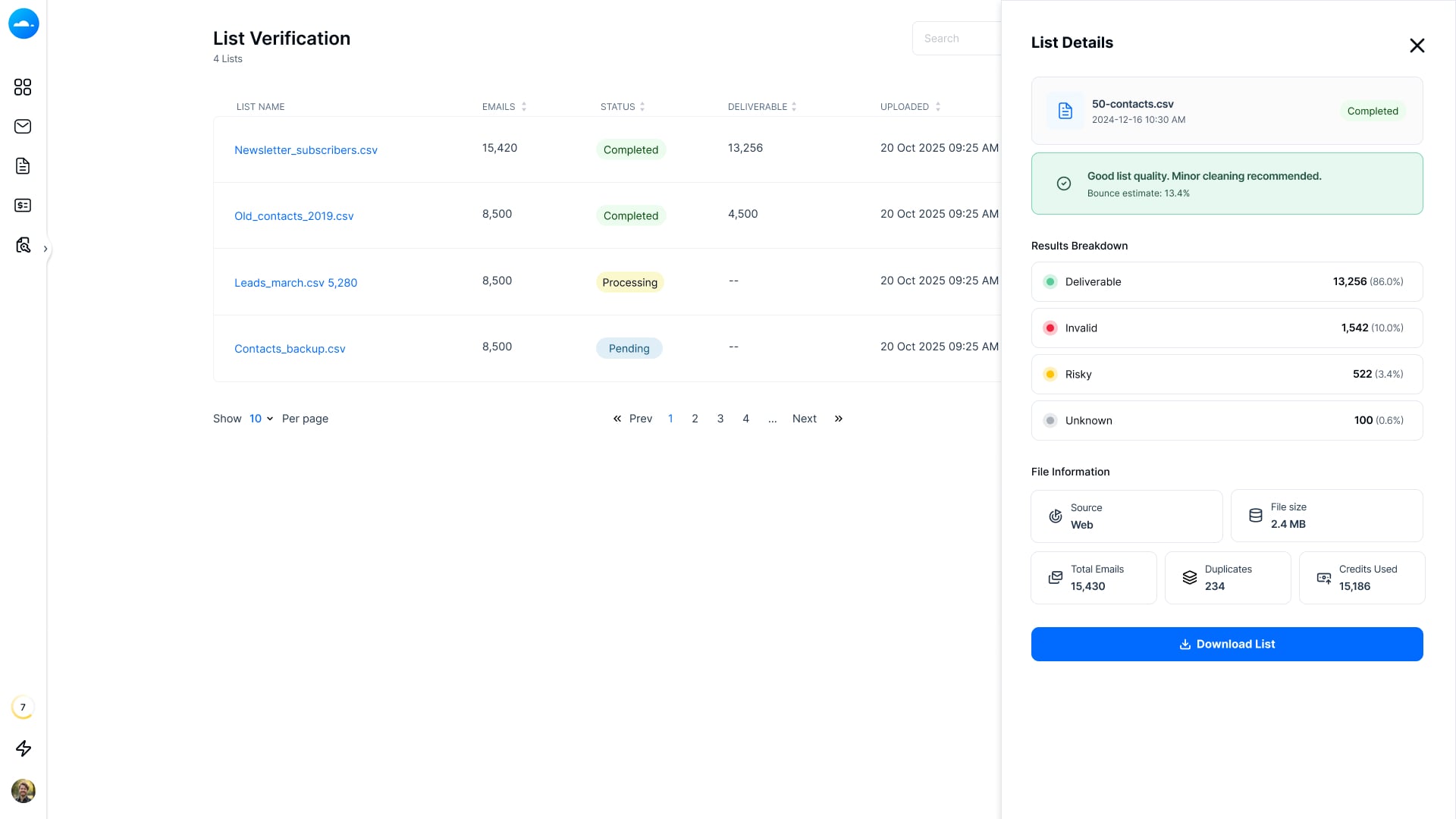
Once verification is complete, you can download your results for use in Mailercloud campaigns or external tools.
Go to the Lists tab in Email Verification.
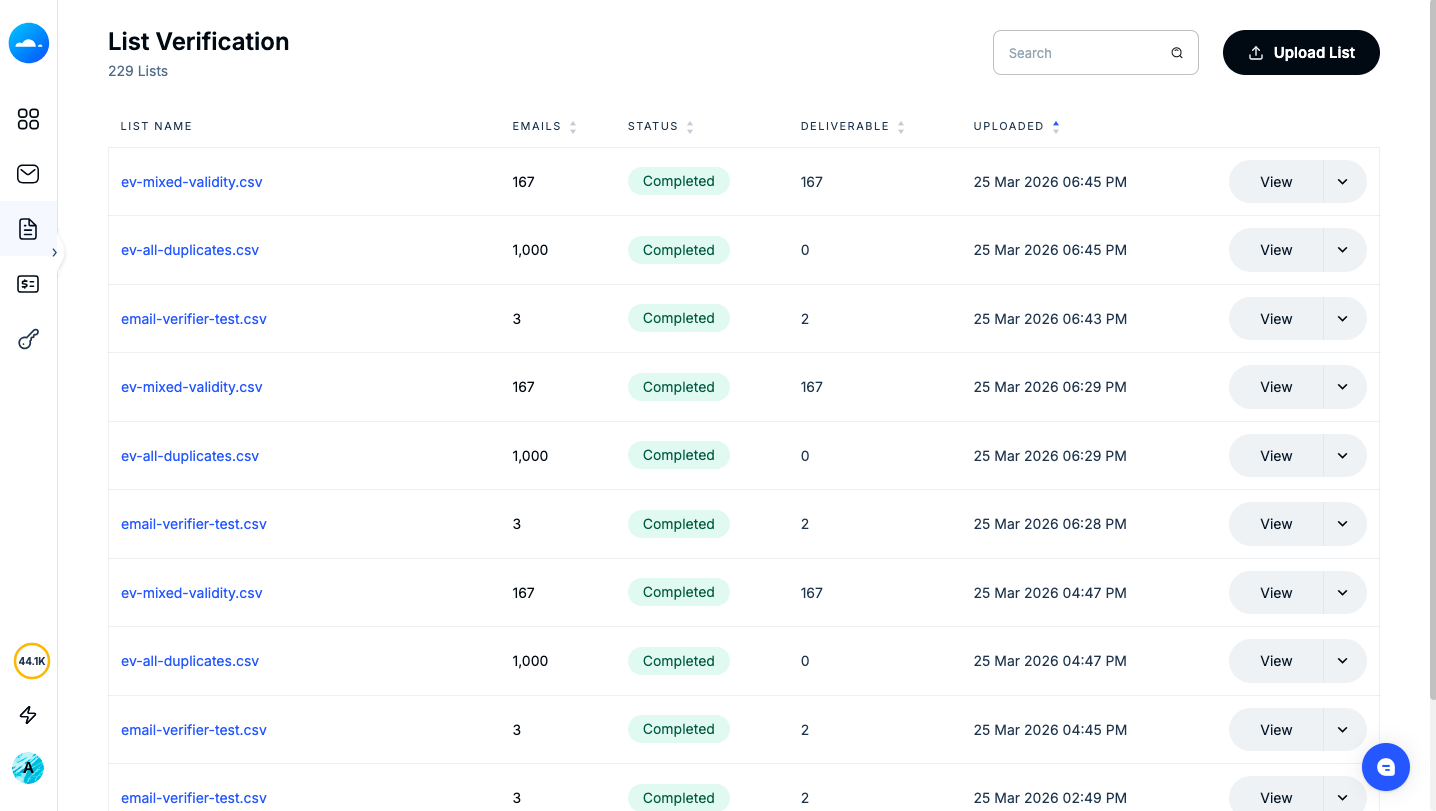
Find your verified list and click the Download button.
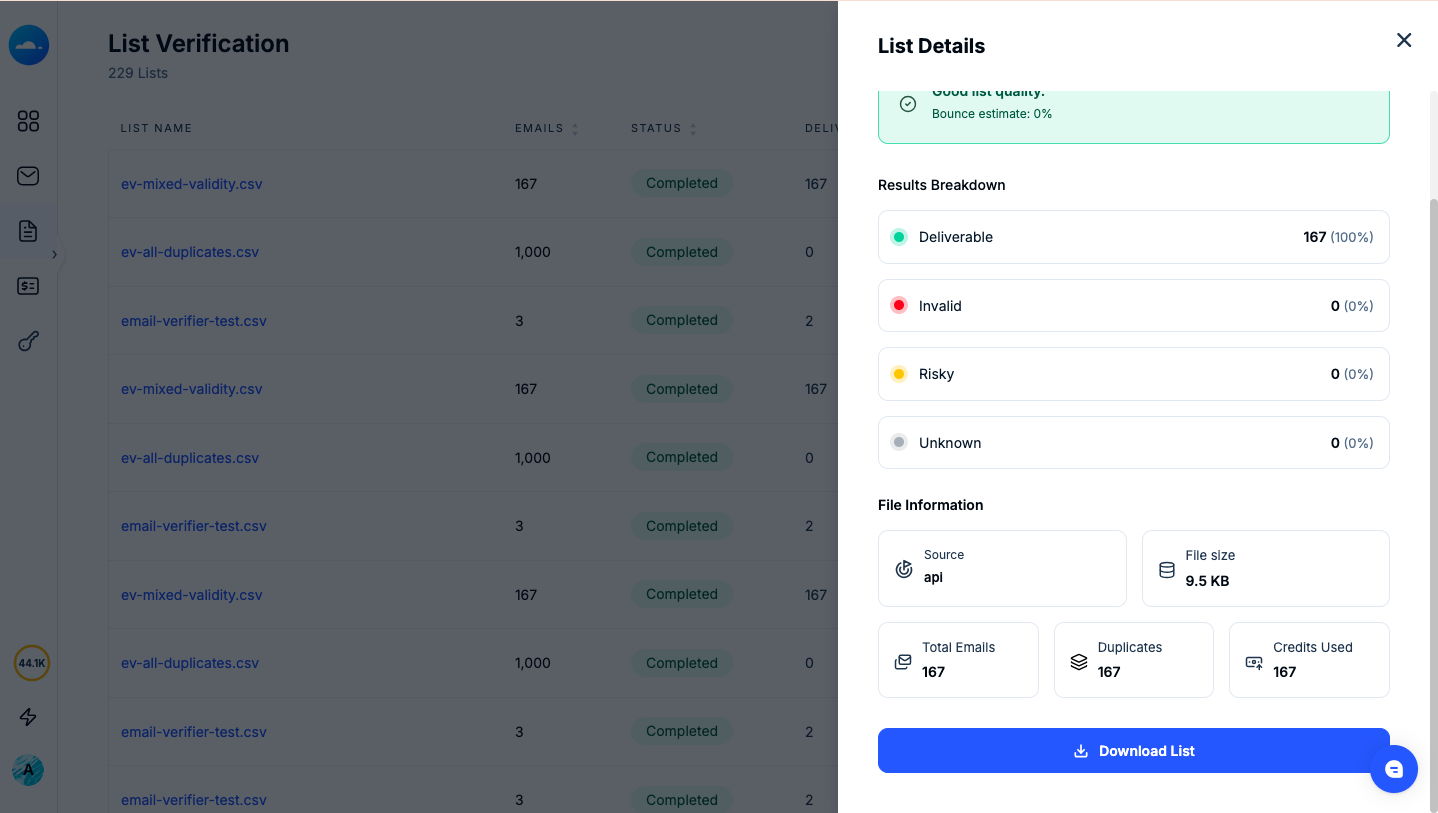
Choose your preferred download option:
The Lists page shows all your file verification jobs. Each row in the table represents one uploaded file.
List Name — The filename of your uploaded file.
Emails — The total number of email addresses in the file.
Status — Current status of the verification (Pending, Processing, or Completed).
Deliverable — The number and percentage of addresses that passed as Deliverable.
Uploaded — The date and time the file was uploaded.
View — Open the full results breakdown for a list.
Download — Export your results (see Section 7 above).
Delete — Permanently remove the list and its results from your account.
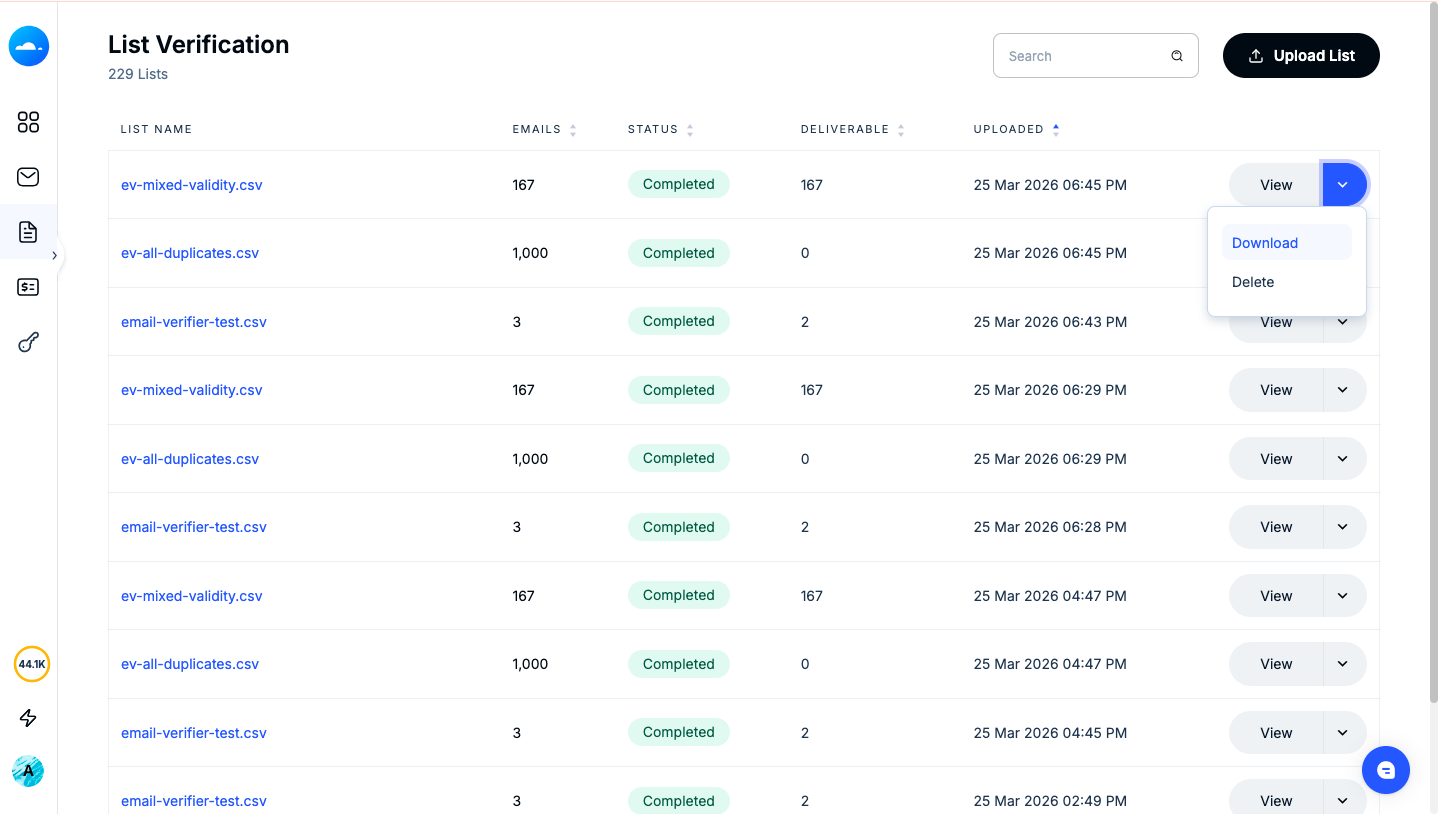
Note : Deleting a list does not restore the credits used to verify it.
You can integrate Mailercloud's Email Verification into your own applications or workflows using the API. This allows you to verify emails programmatically in real time — for example, when a user signs up on your website.
Go to Email Verification in the left sidebar.
Click the API Key tab.
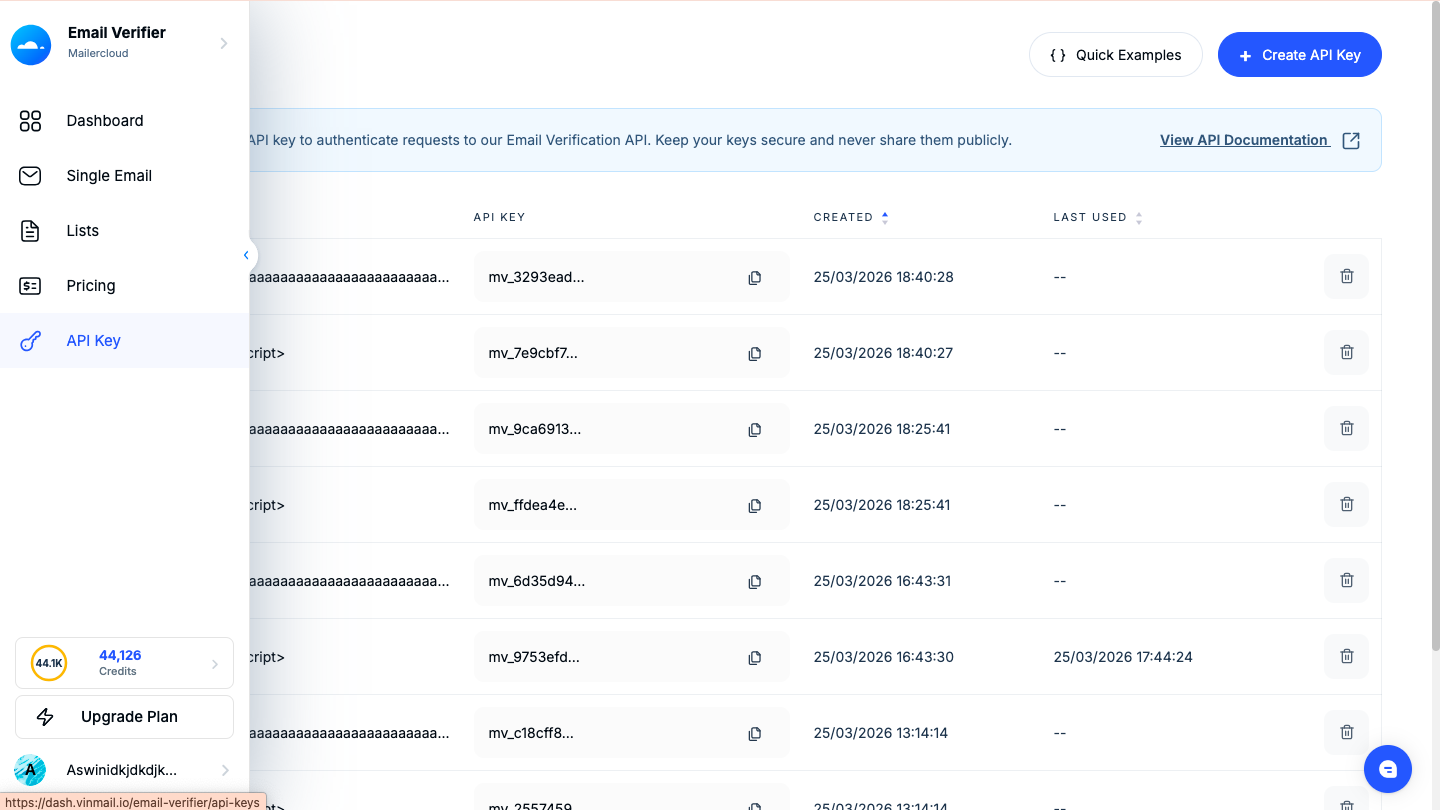
Click the + Create button and Enter a name for your key (e.g., "Website Signup Form").
Click Create.
Copy your API key immediately. For security reasons, it will not be shown again after you leave the page.
Security: Keep your API key private. Do not share it publicly or include it in client-side code. If a key is compromised, delete it and create a new one.
Refer to the Mailercloud API documentation for full endpoint details, request formats, and code examples. The API uses standard REST conventions and returns JSON responses.
How accurate is Email Verifier?
Mailercloud Email Verifier delivers high accuracy by running multi-step checks including syntax validation, domain DNS lookup, and live mailbox verification via SMTP. While no verification tool can guarantee 100% accuracy for every address, the system is designed to minimize false positives and false negatives.
How long does verification take?
Verification time depends on the size of your list and the responsiveness of the mail servers being checked. A small list of a few hundred addresses typically takes just a few minutes. Larger lists of tens of thousands may take an hour or more. You can leave the page while verification runs — results will be ready in the Lists tab when complete.
Does Email Verifier send any emails to my contacts?
No. Email Verifier uses silent SMTP-level checks that do not deliver any messages to the addresses being verified. Your contacts will not know their address has been checked.
What happens to credits if an address returns Unknown?
Credits are consumed for every verification attempt, including addresses that return an Unknown result. This is because the verification process still runs even if a definitive result cannot be obtained.
Can I re-verify a list?
Yes. You can upload the same file again at any time to re-verify. This is useful if some time has passed and you want to refresh the results, as email addresses can change status over time. Each re-verification will consume credits for every address in the list.
What file size is supported for uploads?
Mailercloud supports CSV, XLSX, and XLSM files. The file must contain at least one email column. For very large files, allow more time for processing. If you encounter any issues with a file upload, please contact Mailercloud support.
Why do I see role-based addresses flagged as Risky?
Role-based addresses like info@, support@, or admin@ are typically not monitored by a single person and often have lower engagement. Many email providers also filter bulk email sent to these addresses more aggressively. Mailercloud flags them as Risky to help you make an informed choice about whether to include them in your campaigns.
How do I contact support?
If you need help with Email Verifier or any other Mailercloud feature, you can reach the support team via the Contact Us page at mailercloud.com or by using the chat widget within your Mailercloud account.