Every email you send travels through an IP address.
On standard Mailercloud plans, emails are sent through shared IP pools. These high-quality IPs are used by multiple senders, and their reputation is managed by the Mailercloud team.
A Dedicated IP is an IP address assigned exclusively to your account. Your sending reputation on that IP is built entirely by your own email-sending practices, ensuring that no other sender can impact your deliverability.
Using a Dedicated IP provides several advantages:
Full reputation control – Your deliverability depends only on your own sending behavior.
Consistent sender identity – Mailbox providers such as Gmail, Outlook, and Yahoo recognize a stable and predictable sending source.
Better for high-volume sending – Regular email activity helps build a strong reputation that grows with your business.
Isolation from other senders – Your reputation is not affected by the actions of other users.
A Dedicated IP is recommended if you:
Send emails consistently and at high volumes (typically 100,000+ emails per month).
Want complete control over your sender reputation.
Maintain stable and predictable sending patterns.
If you send low email volumes or send emails irregularly, a shared IP pool may provide better deliverability results. Dedicated IPs require consistent traffic to maintain a healthy reputation.
If you're unsure which option is best for your account, contact our support team for guidance.
Monthly | $50/month |
Yearly | $480/year (Save 20%) |
You can purchase multiple Dedicated IPs.
Each IP is billed at the same per-IP rate.
The selected billing cycle applies to all Dedicated IPs within the subscription.
You can switch between monthly and yearly billing at any time.
Log in to your Mailercloud account.
Navigate to Billing & Usage → Add-ons.
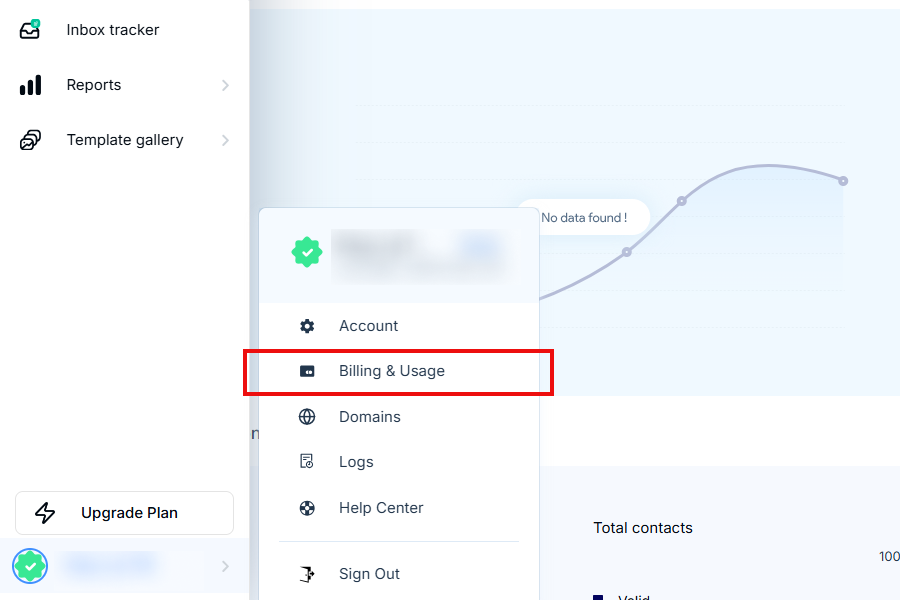
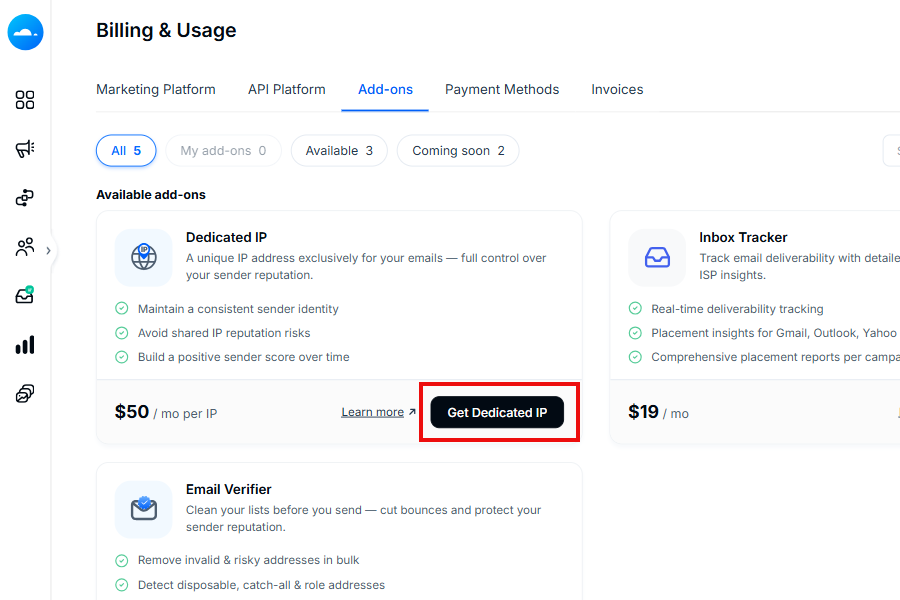
Locate the Dedicated IP card.
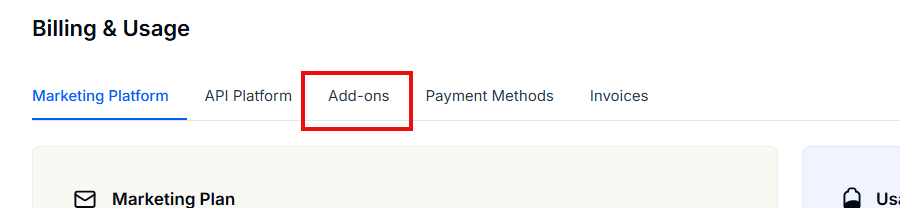
Click Purchase.
You will be redirected to a secure Stripe checkout page.
Select the number of IPs you want using the quantity selector.
To receive a 20% discount, switch to Yearly Billing.
Enter your payment details.
Click Confirm to complete the purchase.
Note: Payments are securely processed through Stripe. Mailercloud does not store your card information.
After completing your purchase:
The Dedicated IP card displays the status Setting up.
Our team provisions and assigns your Dedicated IP(s).
Once assigned, each IP appears with the status Warming up.
After the warm-up period is complete, the status changes to Active.
No manual configuration is required during this process.
To view IP statuses:
Navigate to Billing & Usage → Add-ons.
Open Dedicated IP.
Click Manage IPs.
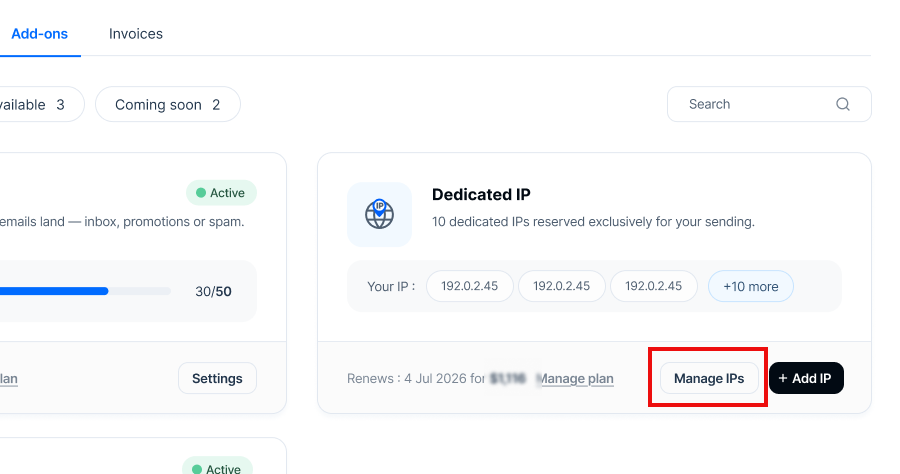
Setting up | Your purchase is being processed and an IP will be assigned shortly. |
Warming up | The IP has been assigned and is building its sender reputation. |
Active | The IP is fully warmed up and operational. |
Cancelling · until {date} | The IP is scheduled for cancellation and remains active until the displayed date. |
Cancelled | The IP is no longer included in your subscription. |
New IP addresses have no sending history. Mailbox providers evaluate new IPs cautiously until they establish a reputation.
To achieve the best results during warm-up:
Start by sending to your most engaged contacts.
Gradually increase email volume over 2–4 weeks.
Avoid sending your entire email volume on the first day.
Maintain a consistent sending schedule.
Regular sending activity helps build trust faster than sporadic email bursts.
All Dedicated IP management options are available from:
Billing & Usage → Add-ons → Dedicated IP
Click Manage IPs.
View the list of assigned IP addresses, statuses, and creation dates.
Click + Add IP.
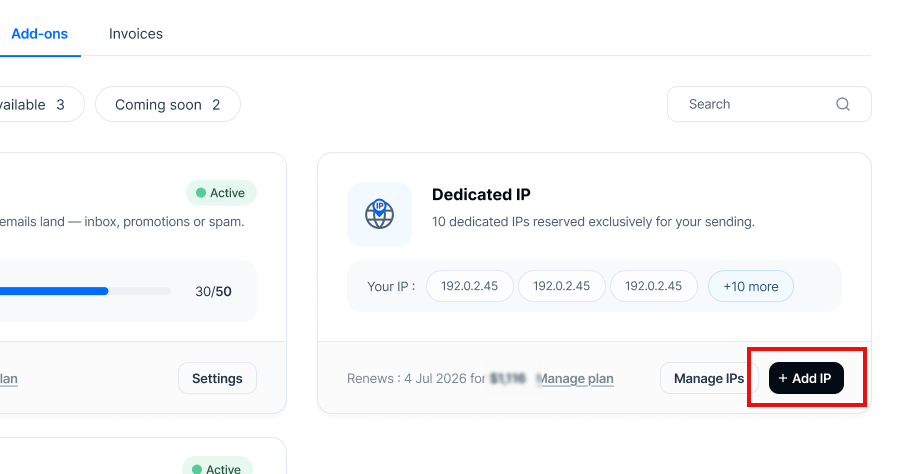
You will be redirected to Stripe's subscription management page.
Increase the IP quantity.
Click Confirm.
Note: When adding IPs during an active billing cycle, Stripe immediately charges the prorated amount for the remainder of the current billing period.
Click + Add IP to open the subscription management page.
Select the preferred billing cycle.
Confirm your changes.
Your existing IPs and their statuses remain unchanged.
Open Manage IPs.
Click Cancel IP next to the IP you wish to remove.
Review the Stripe confirmation page.
Click Confirm.
After cancellation:
The IP status changes to Cancelling · until {date}.
The IP remains fully functional until the end of the current billing period.
Future renewals include only the remaining IPs.
Note: Stripe displays the quantity of IPs that will remain after renewal, not the number of IPs being cancelled.
If you reactivate the IP before the cancellation period ends, the same IP address and its existing reputation will be restored.
Click Manage on the Dedicated IP card to access your billing portal.
From there, you can:
Cancel the entire Dedicated IP subscription.
Update your payment method.
View invoices.
Download invoices.
Cancelled IPs remain active until the current billing cycle ends.
If your Dedicated IP subscription has been fully cancelled, you can purchase Dedicated IPs again at any time.
A new purchase creates a new Dedicated IP subscription and begins a fresh billing cycle.
No. Dedicated IPs are assigned from Mailercloud's premium IP pool. Every assigned IP is reviewed to ensure a clean sending history.
IP assignment is handled shortly after purchase. Once assigned, the IP will appear in the Manage IPs section.
No. Once your Dedicated IP becomes active, Mailercloud automatically routes your email campaigns through it.
Yes. You can purchase multiple IPs during checkout or add more later using the + Add IP option.
Yes. You can send emails normally during the warm-up period. However, gradually increasing your sending volume is recommended.
No. The IP remains active until the end of the billing period already paid for.
No. Dedicated IP cancellations take effect at the end of the current billing period, and no partial refunds are provided.
The Dedicated IP add-on is available through the Add-ons section of your Mailercloud account. If you do not see the option, please contact our support team.
If you're unsure whether a Dedicated IP is the right choice for your business, contact the Mailercloud support team. We'll review your sending volume and recommend the most suitable setup for your needs.