Every Mailercloud workspace has a built-in access control system that lets the workspace Owner give every team member exactly the access they need — and nothing more.
When you add a teammate to your account, you assign them a role that decides which pages they can open and which actions they can take. You can further fine-tune access on a per-user basis using the Permission Picker.
Assign one of five preset roles to every team member (Owner, Admin, Manager, Analyst, Viewer)
Customise the default role on a per-user basis through the Permission Picker
Restrict access at the page level (campaigns, audiences, billing, etc.) and the action level (send a campaign, delete a contact, export a report)
Let any teammate raise a "Request access" notification to the Owner with one click
Enforce the same rules on the customer-facing API so external integrations can't bypass them
Log in to your Mailercloud account.
Click the user avatar in the sidebar, then choose Account.
Open Settings → Users.
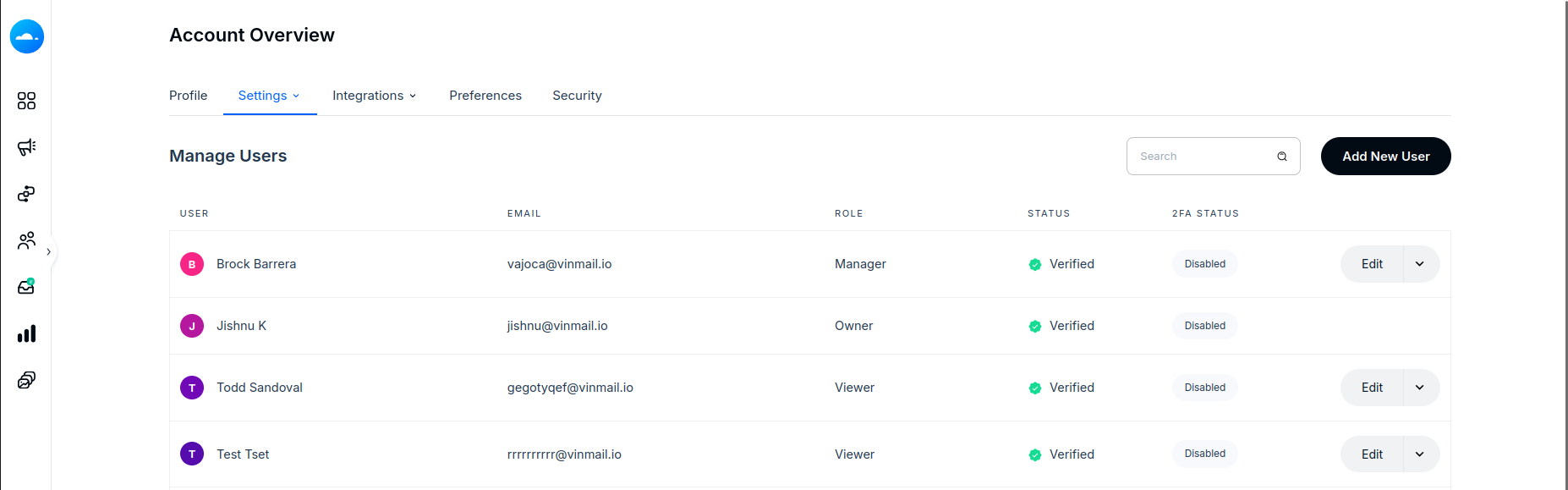
Click Add New User in the top-right.
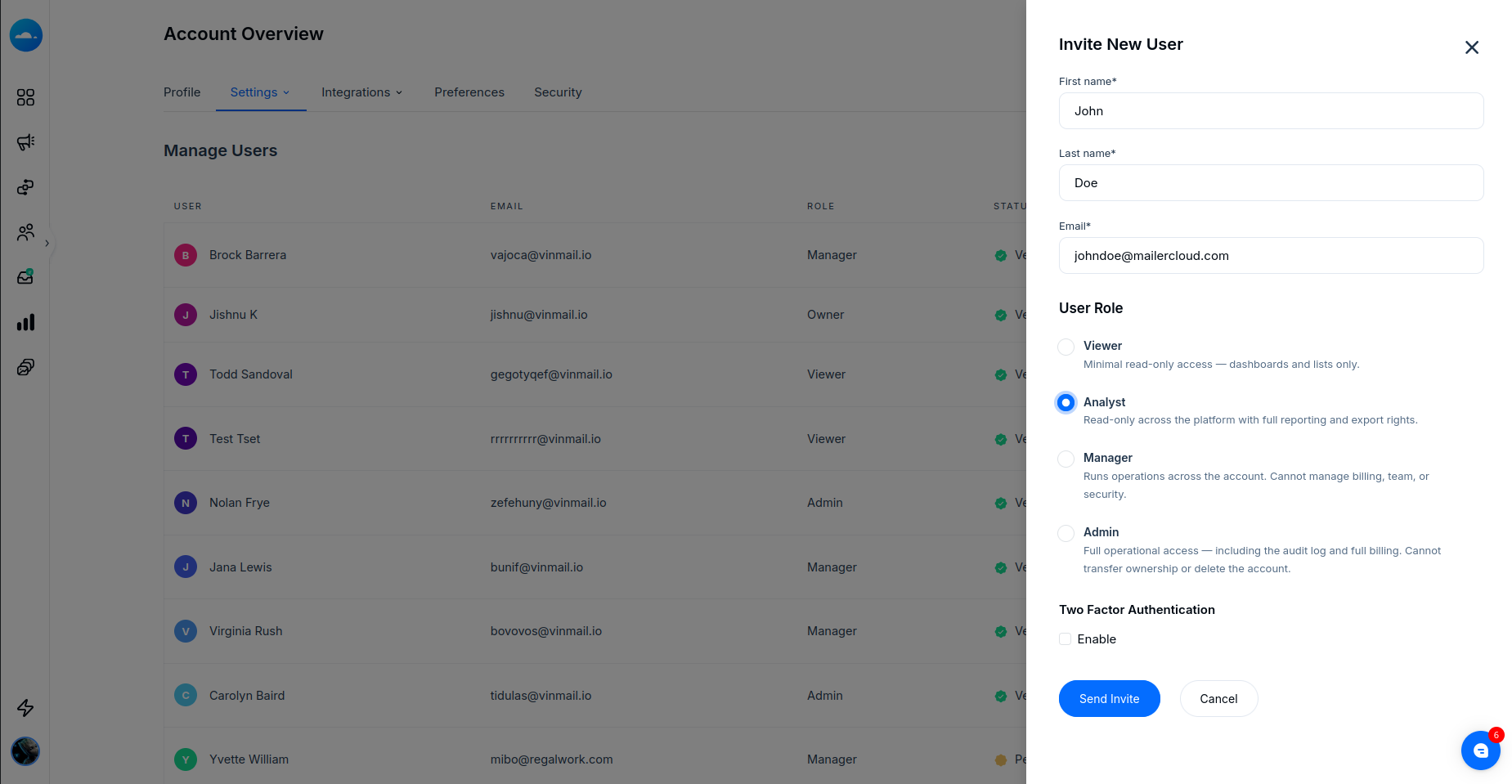
Enter the teammate's name, email address, and pick one of the four assignable roles (Admin, Manager, Analyst, or Viewer).
Click Send Invite — they'll receive an email to set their password and join your workspace.
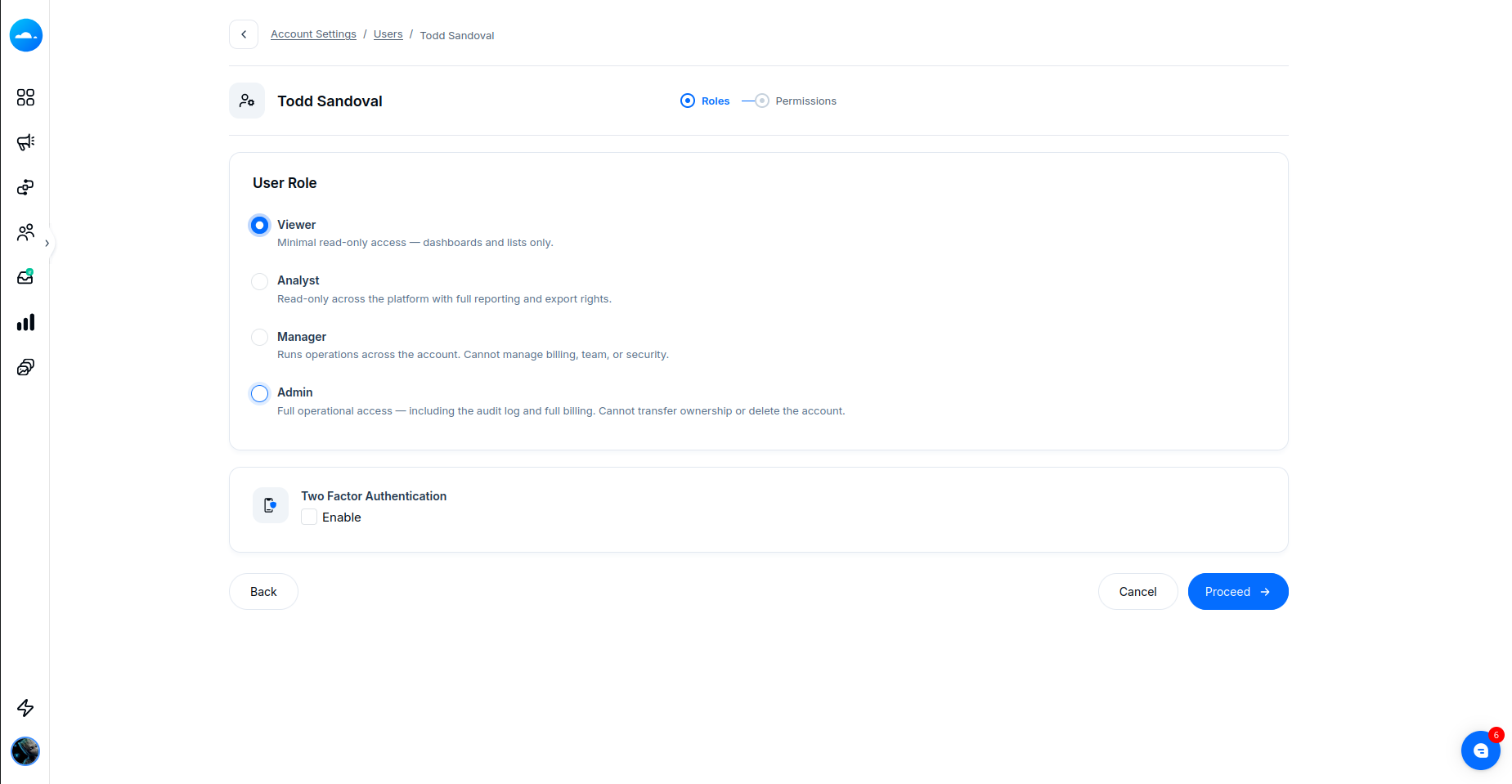
From the Users list, click Edit on the user's row.
Step 1 (Roles): Change the role if needed. If 2FA is enforced for your team, the Two-Factor Authentication toggle is visible here.
Click Proceed to open the Permission Picker (Step 2).
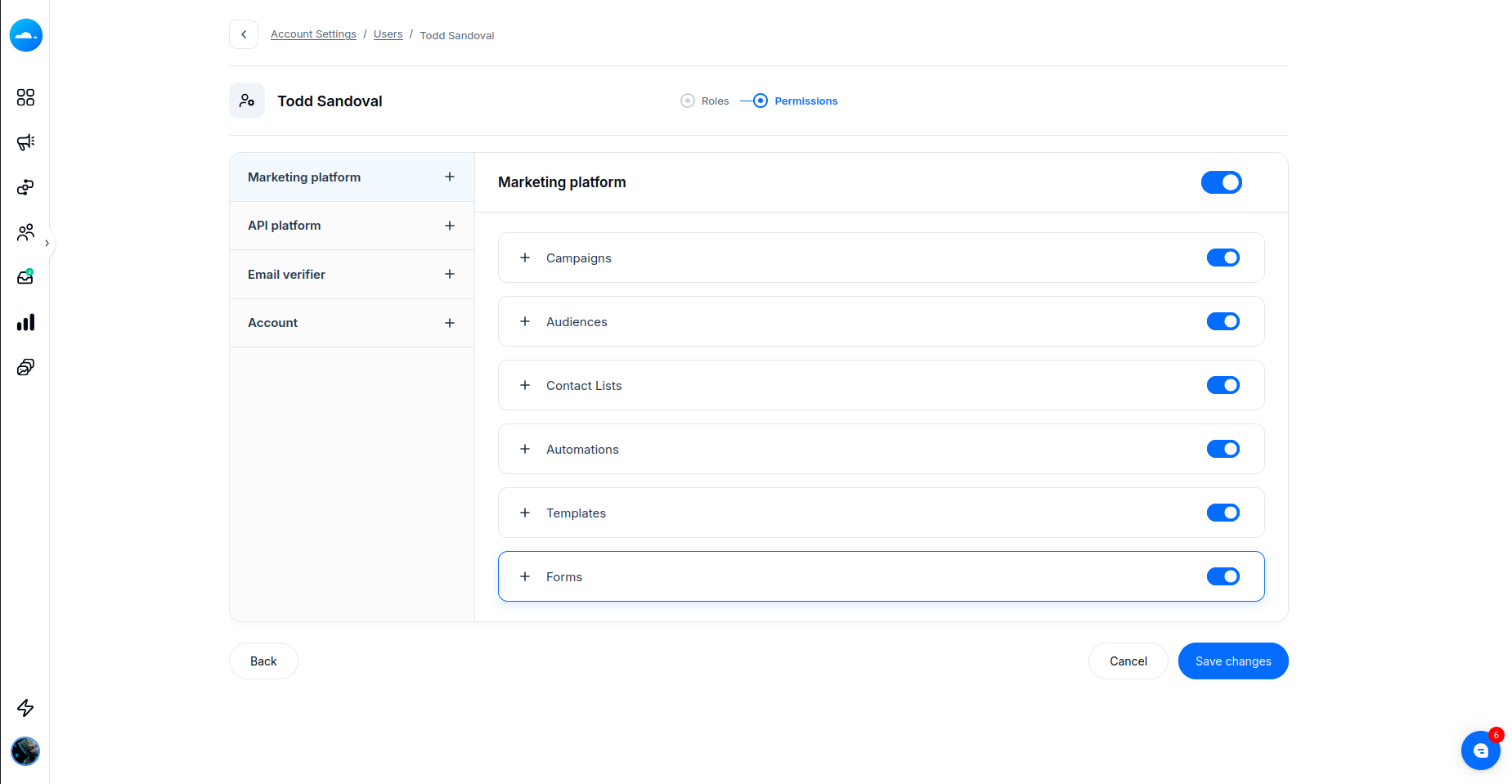
Expand any module (Campaigns, Audiences, Billing, etc.) and toggle individual View / Edit / Delete / Send / Publish / Export rights.
Click Save changes — the new permissions take effect on the user's next page load.
Role | Access Level | Customisable? |
Owner | Full access — one per workspace | No |
Admin | Full operational access, including audit log and billing | No |
Manager | Day-to-day operations (campaigns, audiences, automations, templates) | Yes |
Analyst | Read-only with full reporting and export rights | Yes |
Viewer | Minimal read-only (dashboards, lists, campaigns, audiences) | Yes |
One per workspace — always has full access.
Cannot be customised and cannot be re-assigned from the Edit User wizard.
The only role that receives "Request access" notifications from teammates.
Full operational access, including the audit log and full billing management.
Cannot transfer ownership or delete the account.
Cannot be customised through the Permission Picker.
Runs day-to-day operations across the workspace — campaigns, audiences, automations, templates, transactional API, and email verifier.
Cannot manage billing, the team, or workspace security settings.
Fully customisable per user.
Read-only access across the platform, with full reporting and export rights on contacts, activity logs, and the audit log.
Cannot create, edit, send, or delete anything.
Fully customisable per user.
Minimal read-only access — dashboards, lists, campaigns, and audiences.
No editing, no exports, no billing visibility.
Fully customisable per user.
When a user tries to open a page they don't have access to, the sidebar and header remain intact — there's no confusing redirect. Instead, the page body displays a clear "Admin access needed" card with a Request access button.
Any teammate can click Request access from any denial card. This instantly sends a notification to the workspace Owner showing exactly which page or action the user tried to reach — no tickets, no chasing. The Owner can respond directly inside Mailercloud.
No. There is only one Owner per workspace, and ownership cannot be transferred through the Edit User wizard.
No. The Admin role cannot be customised through the Permission Picker. If you need granular control, assign the Manager, Analyst, or Viewer role instead.
Changes take effect the next time the user loads a page in their browser session.
No. The same permissions are enforced on the customer-facing API, so external integrations respect the same access rules as your team members.
No. The Viewer role has no export access. If a teammate needs export rights, assign the Analyst role or customise their permissions using the Permission Picker.
If you're unsure which role is right for a team member, or need help configuring custom permissions, contact the Mailercloud support team. We'll help you set up the right access structure for your workspace.