Single Sign-On lets you access Mailercloud using an account you already have with Google or Microsoft, instead of creating and remembering a separate Mailercloud password.
It's useful because it lets you:
Sign up and log in in one click — no password to create or reset.
Keep your account secure — sign-in is handled by Google or Microsoft, including their own protections.
Stay flexible — you can still set a Mailercloud password later and use either method (this is called dual login).
You can use SSO whether you're a brand-new user, an existing Mailercloud customer, or a teammate who was invited to an account.
Go to the Mailercloud Sign up page.
At the top of the form, click Google or Microsoft.
In the window that opens, choose the Google or Microsoft account you want to use and approve access.
That's it — your Mailercloud account is created and you're taken straight to your dashboard. There's no password to set and no activation email to wait for.
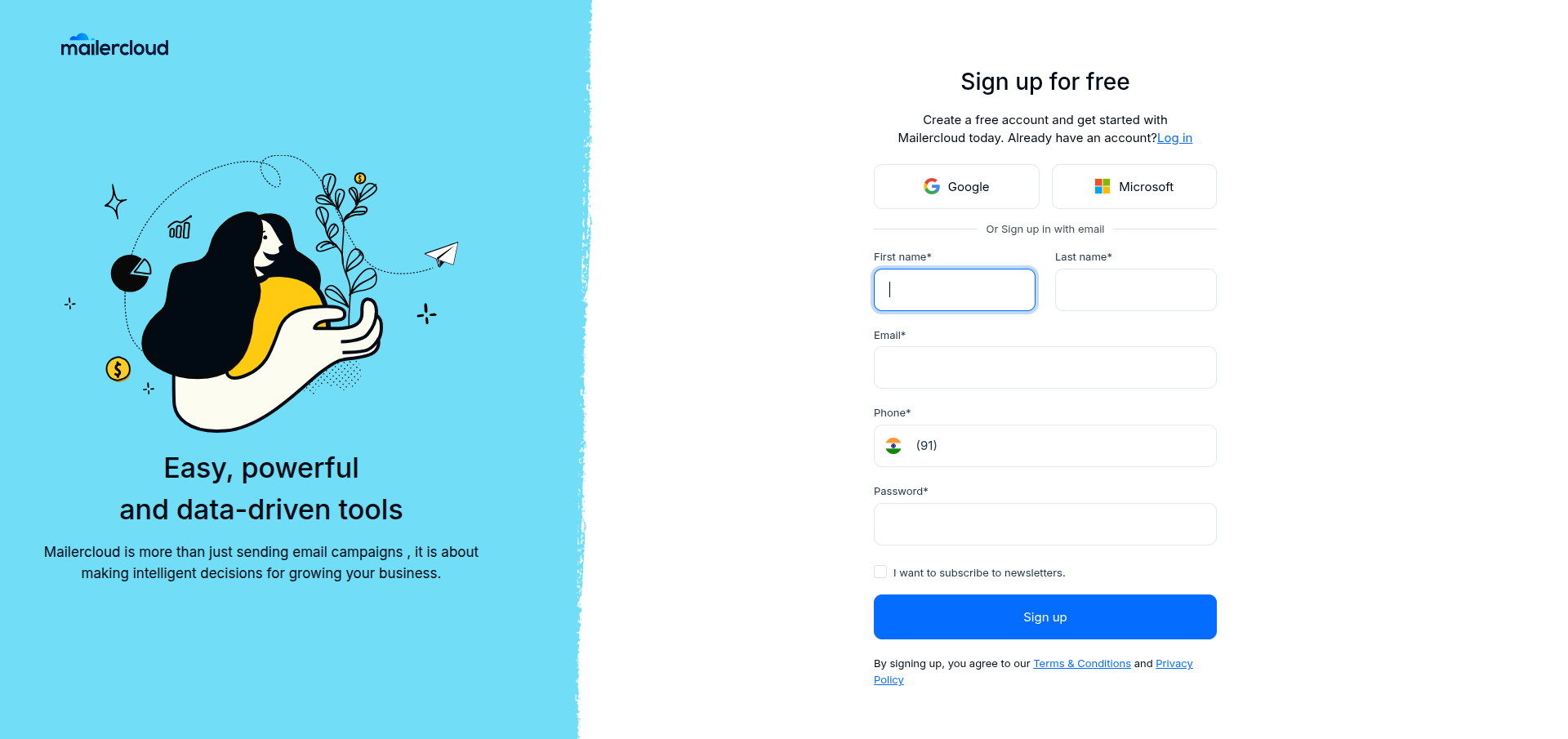
Tip: Use the same email address you'd normally use for work, so it's easy to find later and so teammates can recognise you.
Go to the Mailercloud Log in page.
Below the email and password fields, under Or sign in with, click Google or Microsoft.
Choose your account in the Google or Microsoft window and approve access.
You'll be signed in and taken to your dashboard.
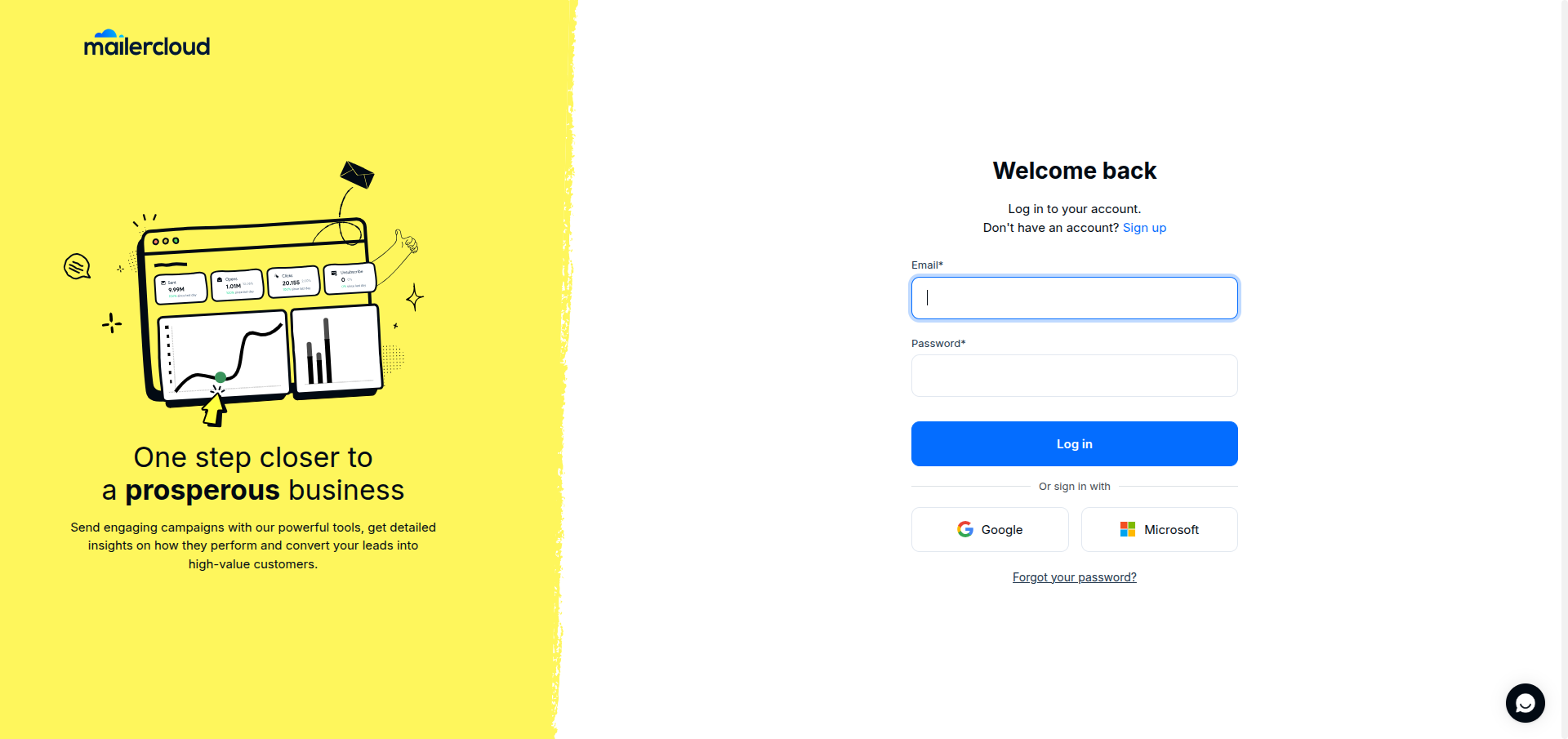
Note: If you have two-factor authentication (2FA) turned on, you'll be asked for your 6-digit verification code after signing in with Google or Microsoft — just as you would with a password login.
If you already signed up with an email and password, you can still use SSO. The first time you click Continue with Google (or Microsoft) using the same email address as your existing account, Mailercloud automatically connects that provider to your account and logs you in. No duplicate account is created.
After that, you can sign in either way — with your password, or with Google/Microsoft.
Note: For your security, automatic linking only happens when the provider has verified that the email belongs to you. If it can't be verified, you'll be asked to log in with your password first, and then connect the provider from your settings.
If you signed up with Google or Microsoft and would also like to log in with an email and password:
Go to Account → Security.
In the Password section, click Set. (An SSO-only account shows Set a Password instead of Change Password.)
Enter and confirm your new password, then save.
From then on, you can log in with either your password or your Google/Microsoft account.
Note: Setting a password is also required before you can change your account's email address. This makes sure you can never get locked out of your account.
Invited team members can join your account with SSO too. On the invitation page they can choose Continue with Google, Continue with Microsoft, or set a password — whichever they prefer. They must accept the invite using the same email address it was sent to.
To learn how to invite teammates and assign roles, see How to set multi-user permissions on Mailercloud.