Connect your Meta ad account to Mailercloud and let your automations keep your Facebook and Instagram audiences up to date — retarget people who clicked, stop paying to advertise to customers who already bought, and drop unsubscribes out of your ad targeting automatically.
A Custom Audience is a list of people you upload to Meta so you can target — or deliberately exclude — them in your Facebook and Instagram ads.
Keeping those audiences current is normally manual: export a CSV, upload it to Ads Manager, repeat. This integration does it from inside your automations instead. Add an Add to Meta audience or Remove from Meta audience step to any automation, and every contact reaching that step is synced to Meta on its own.
Typical uses:
Retarget engaged contacts — someone clicks a campaign link, so they enter your retargeting audience.
Suppress buyers — a purchase tag is added, so they come out of retargeting and go into an exclusion audience. You stop paying to advertise to people who already converted.
Keep ad targeting clean — unsubscribed and bounced contacts are removed from every audience automatically.
Sync runs one way — Mailercloud to Meta. Meta does not allow anyone to read a Custom Audience's members back, so Mailercloud can never import an audience or tell you who is in one on Meta's side. Everything Mailercloud shows you is what it sent.
You will need:
A Meta Business account with at least one ad account.
Permission to manage that ad account, so you can grant access during the Facebook login.
The Custom Audience Terms accepted for that ad account. If you have never created a Custom Audience before, Meta will not let anything be created until you accept them once in Ads Manager. Mailercloud tells you if this is outstanding and links you straight there.
Go to Account settings → Plugins.
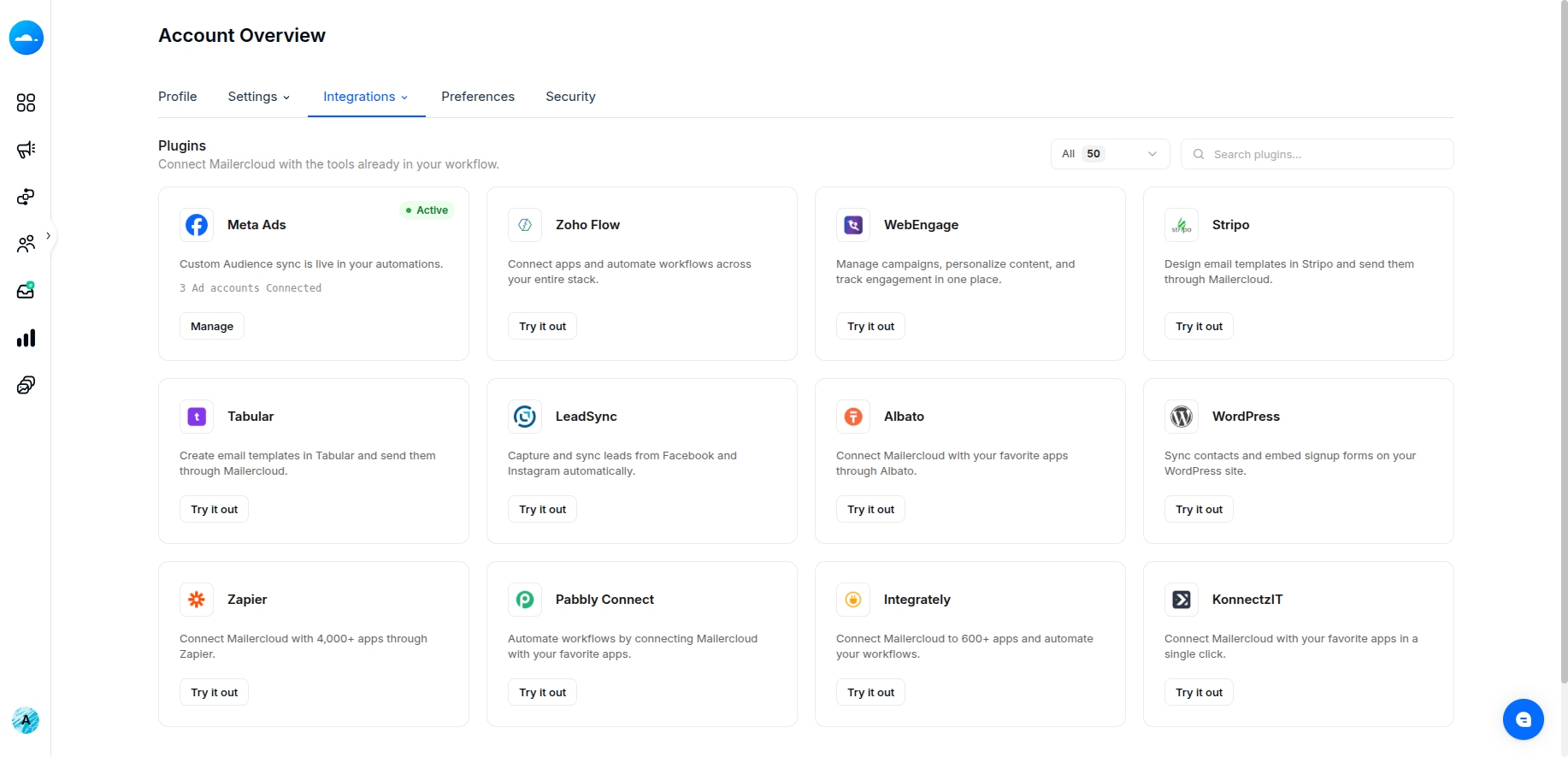
Find the Meta Ads card and click Try it out.
A Facebook window opens. Sign in, then choose which ad accounts Mailercloud may use.
Approve, and the window closes on its own. The card now shows Active and the number of ad accounts connected.
Straight after connecting you will see a short What's next panel offering two routes: start from a ready-made Meta template, or add the action to an automation you already have. Nothing has synced at this point — contacts only sync when they reach a Meta step.
If the window is blocked, allow popups for Mailercloud and click Try it out again. On a narrow screen the flow uses a full-page redirect instead and returns you to Plugins when it finishes.
Open Automations and create or edit an automation.
In the step list on the left, open the Meta Ads group.
Drag in Add to Meta audience (or Remove from Meta audience).
In the step panel, choose an Ad account, then a Custom Audience.
Click Save step.
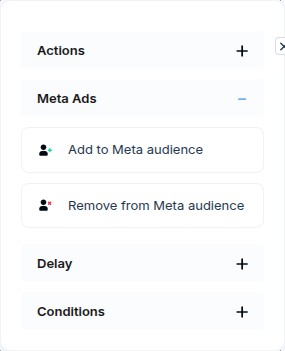
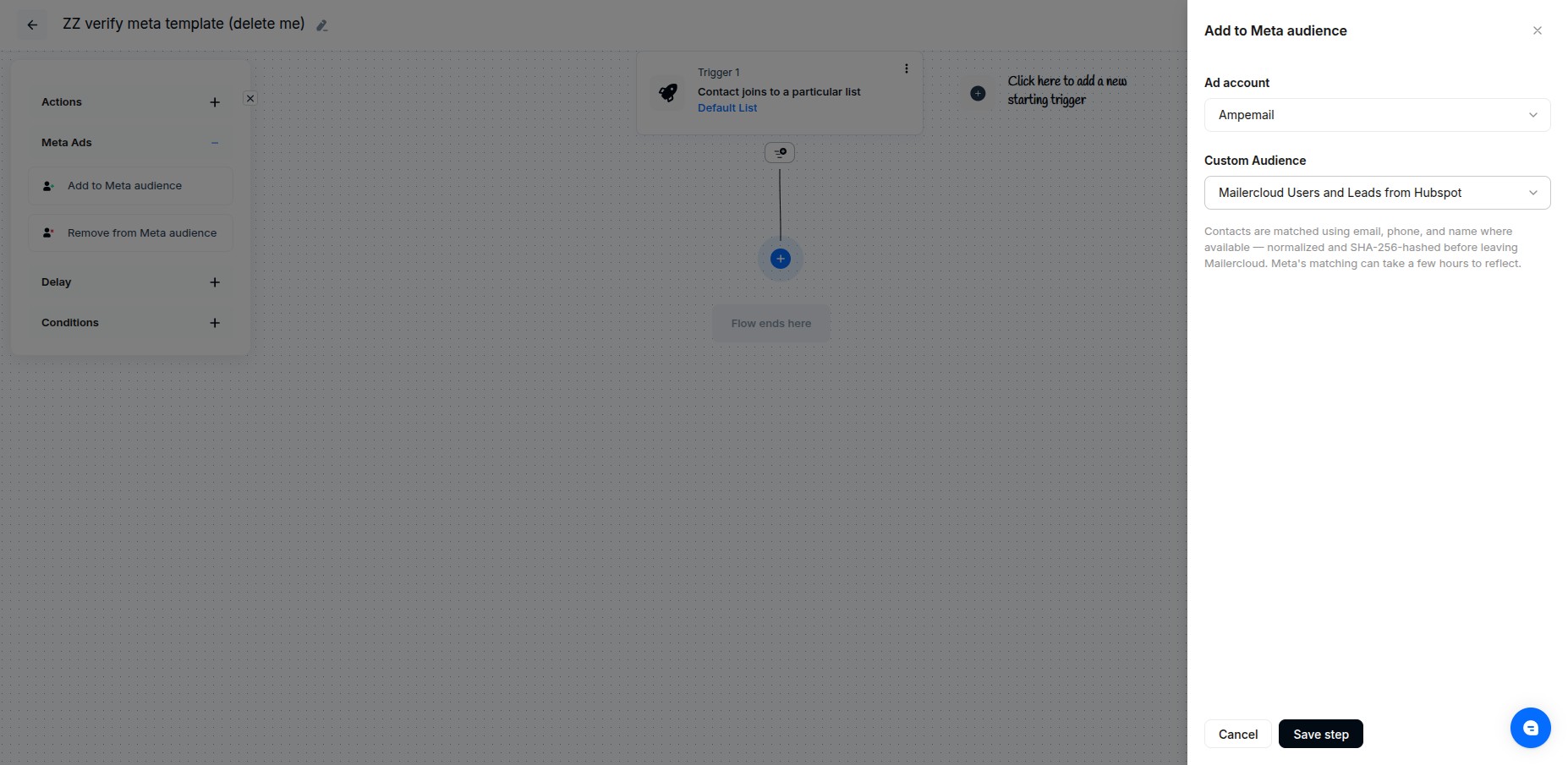
Only Customer List audiences appear in the picker — those are the only kind that accept uploaded contacts. Ad accounts Meta has disabled are left out, since nothing can sync to them.
Until you choose an audience the step is marked incomplete and the automation cannot be activated.
If the audience does not exist yet, click Create new audience at the bottom of the audience list, give it a name and an optional description, and click Create audience. It is created empty in the ad account you selected and starts filling as contacts reach the step.
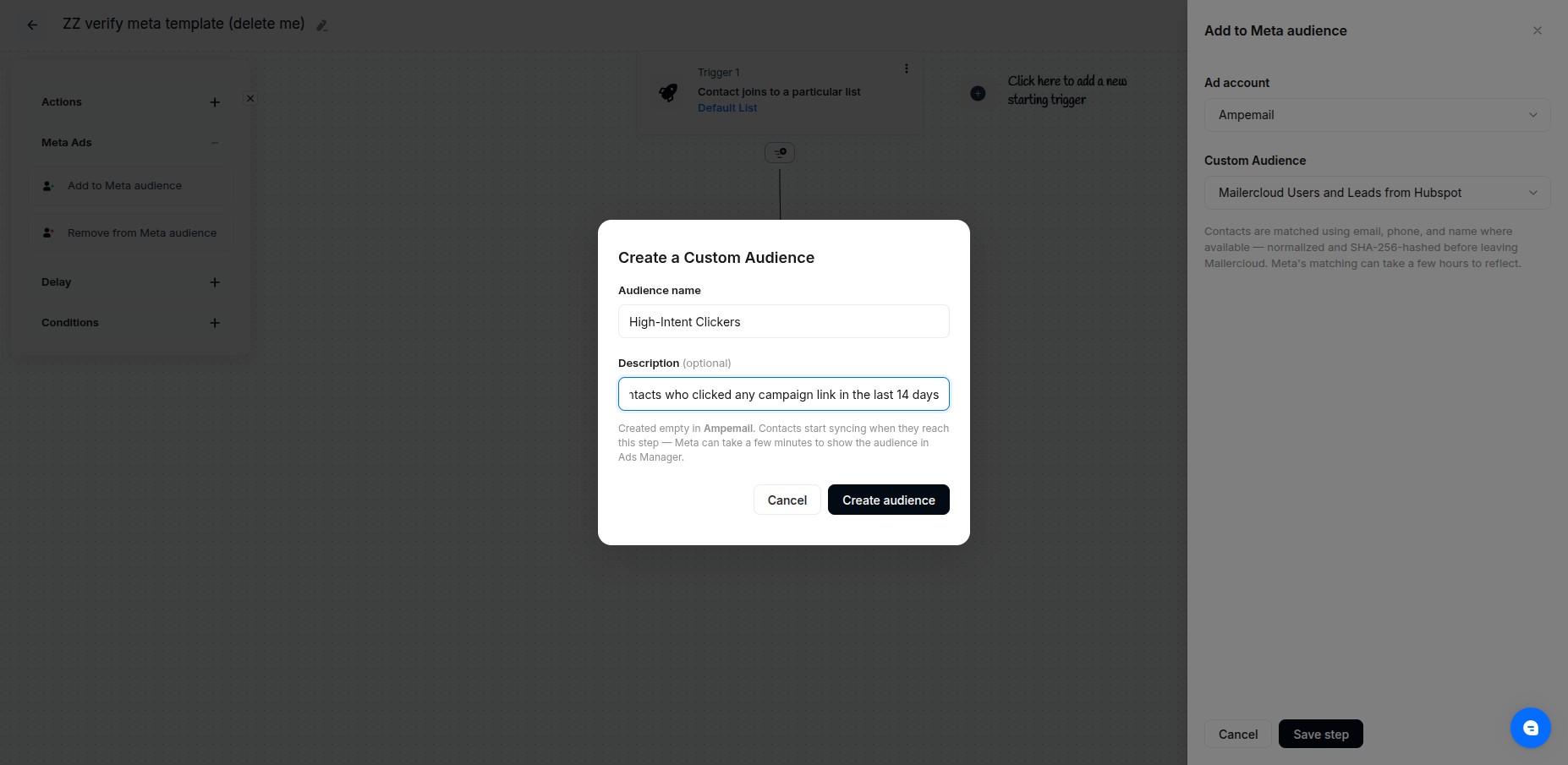
For each contact reaching the step, Mailercloud sends the identifiers it holds — email, phone and name, where you have them. Every value is normalised and hashed before it leaves Mailercloud; raw email addresses and phone numbers are never transmitted.
Two things follow from how Meta matches:
The audience size in Ads Manager will be smaller than the number Mailercloud added. Meta can only match people who have an account with matching details. This is normal and not a sync failure.
It is not instant. An audience can take a few hours to reflect new contacts, and a newly created one takes a few minutes to appear in Ads Manager at all.
Contacts Meta has nothing to match on are skipped rather than retried — there is nothing a retry could fix.
Click the contact counter on a Meta step to open its contact list — the same list every other automation step uses. It shows each contact's email, their status at that step and when they reached it, and you can search it by email.
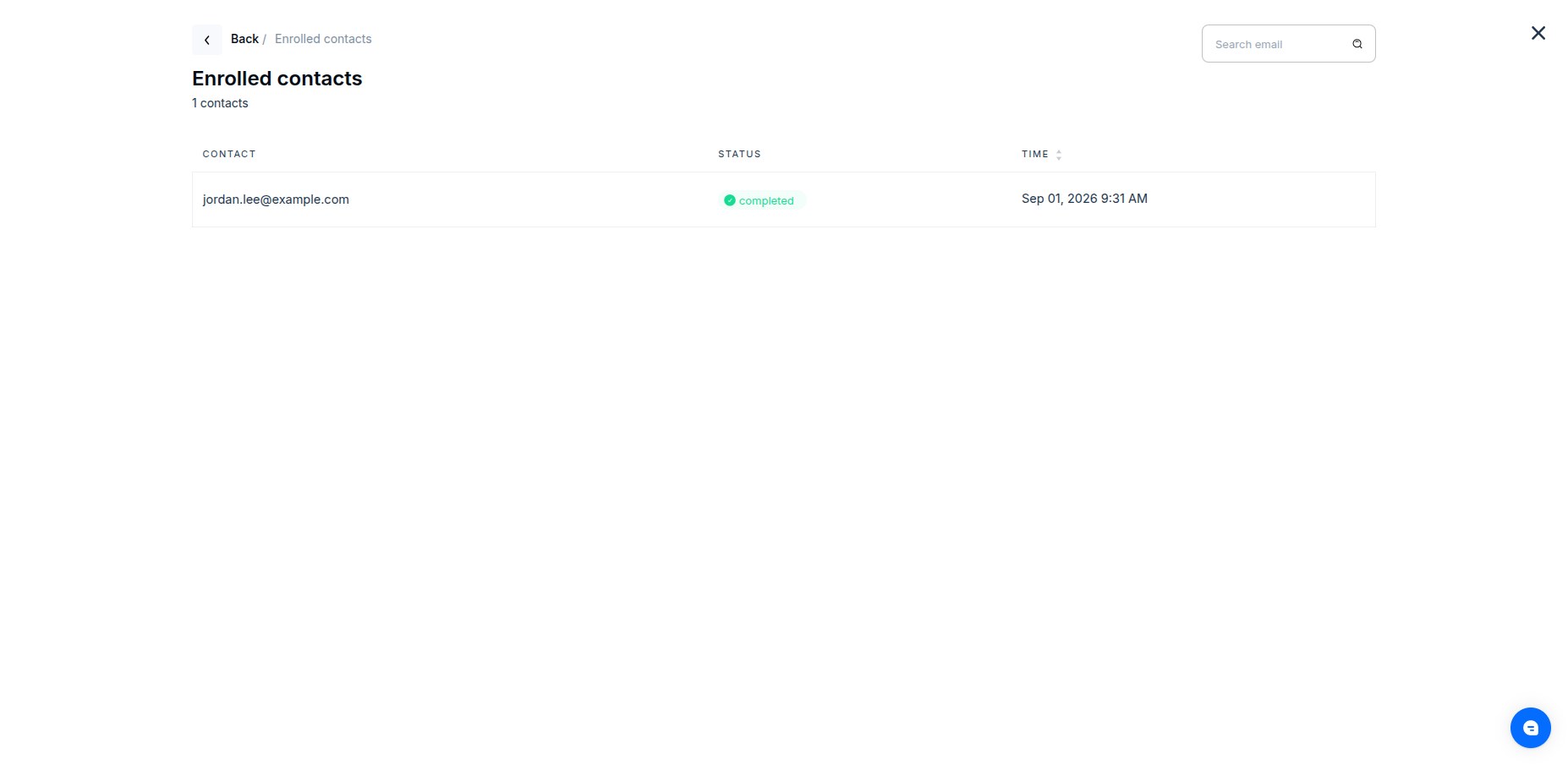
A failure at Meta never holds up a contact. They move on through the automation immediately, and the sync is retried in the background. Contacts appear in this list once the step has finished with them, so one still syncing may not be listed yet.
Click Manage on the Meta Ads card.
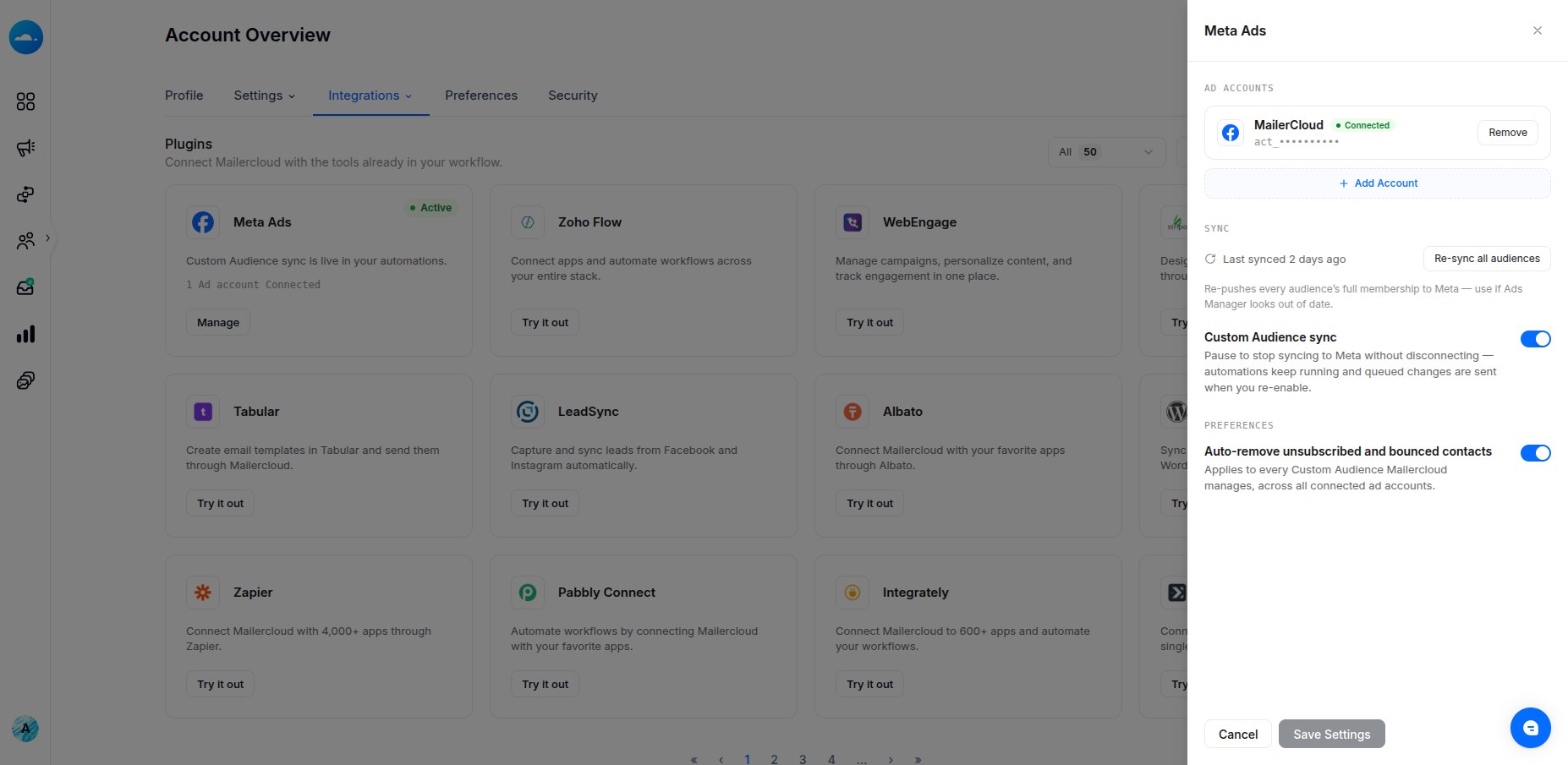
Ad accounts — every connected account with its name, its Meta ad account id and its status. An account Meta has disabled is labelled Disabled by Meta: nothing can sync to it until you resolve it in Ads Manager and reconnect.
Remove stops syncing to one account. Before it goes ahead, Mailercloud tells you how many automations use audiences there — those steps pause and contacts wait at them, nothing is deleted from your Meta audiences, and your other ad accounts carry on. Reconnecting resumes them.
Add Account takes you back to Facebook to grant more accounts. Your existing selections stay connected.
Re-sync all audiences re-sends every audience's full membership — use it if Ads Manager looks out of date.
Custom Audience sync — pause this to stop sending to Meta without disconnecting. Your automations keep running and contacts keep moving; changes queue up and are sent when you switch it back on.
Auto-remove unsubscribed and bounced contacts — when on, anyone who unsubscribes or hard bounces is removed from every Custom Audience Mailercloud manages, across all connected ad accounts.
Both toggles apply when you click Save Settings. To disconnect entirely, remove every ad account.
You can build segments from what Mailercloud has sent to Meta. In the segment builder, choose the Meta audiences → Meta audience field. Four operators are available: is in, is not in, is in any audience and is not in any audience.
This reads Mailercloud's own record of what it sent, not Meta's side — so it reflects what you synced, not who Meta was able to match.
Meta steps sync going forward only. Adding the step does not sync contacts who already passed that point, or who are already on a list.
Removing an ad account in Mailercloud does not change anything on Meta's side. Your audiences and their members stay exactly as they are; only the syncing stops.
Your Meta access stays granted until you change it at Meta. If you reconnect, Facebook shows every ad account you have already shared with Mailercloud. Accounts you removed in Mailercloud stay removed here — but if you remove all of them the connection ends, and reconnecting starts fresh with everything you have granted. To change what Mailercloud may reach at all, edit it in your Meta Business settings.
Nothing is deleted in Mailercloud. A Remove from Meta audience step removes the contact from that one audience only; the contact, their lists and their other audiences are untouched.
"Meta Ads is not available on this account." The integration is not enabled for your account — contact support and we will sort it out.
The audience list will not load, or mentions the Custom Audience Terms. Meta requires those terms to be accepted once per ad account. Follow the link shown to accept them in Ads Manager, then try again.
A step says the ad account is no longer available. The ad account was removed or disabled since the step was built. Choose another ad account and audience, and save the step again.
An ad account shows "Disabled by Meta". Meta has disabled it, so nothing can sync there. Resolve it in Ads Manager, then reconnect.
Ads Manager shows fewer people than Mailercloud added. Expected — see What gets sent to Meta above. Allow a few hours before comparing.
Need a hand? Reach out to our support team.