Duplicating a campaign is the quickest way to reuse one that worked. Mailercloud makes a copy as a new draft, and you choose which parts of the original to keep. By default everything is kept, so an exact copy is one click away.
Go to the Campaigns page.
Click the arrow next to the campaign's action button and select Duplicate.

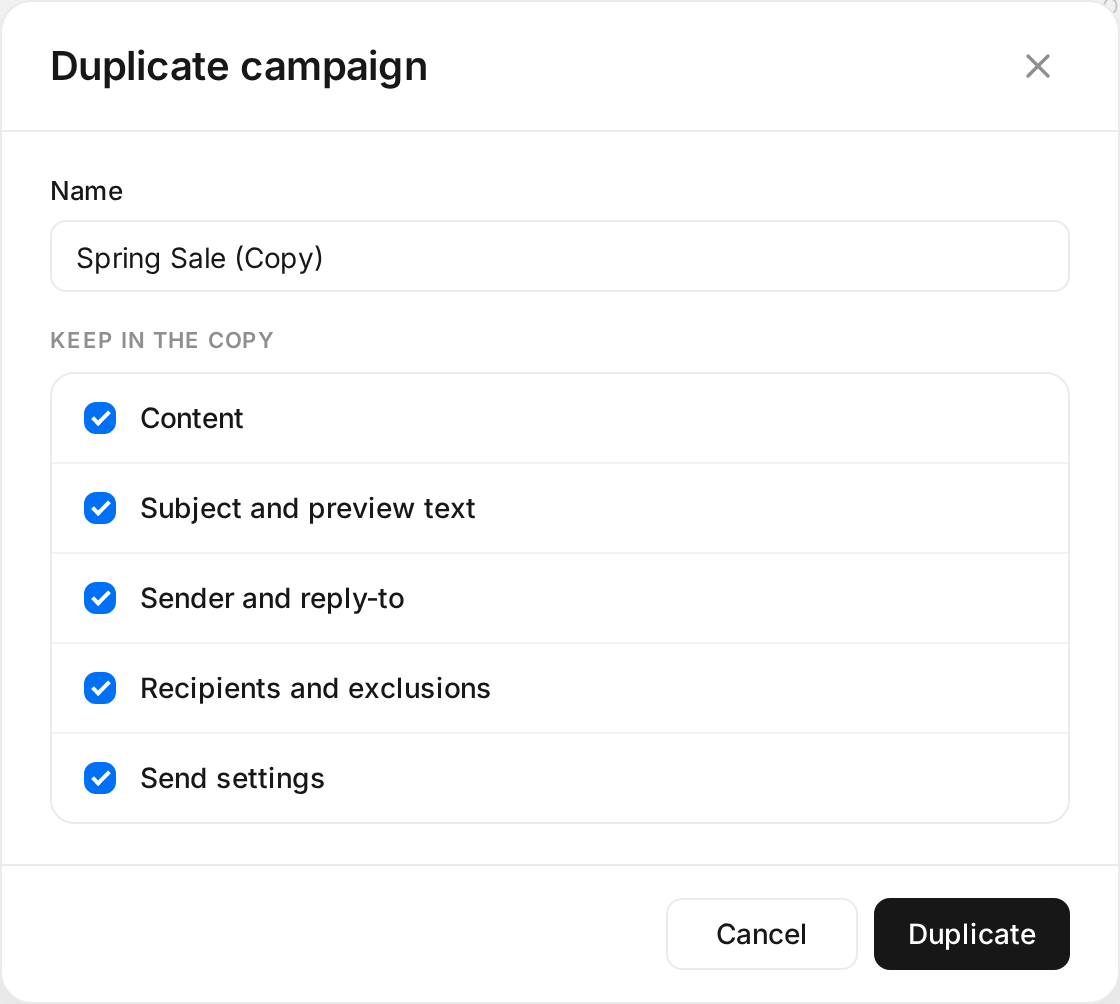
In the Duplicate campaign pop-up, check the name. It is filled in as the original name followed by "(Copy)", for example "Spring sale (Copy)". You can change it; names can be up to 150 characters.
Under Keep in the copy, untick anything you don't want carried over. Keep at least one option ticked; Duplicate stays disabled until you do. See What each option keeps below for what each option copies.
Click Duplicate.
The copy is created as a draft and opens in the campaign editor, so you can make your changes straight away. You can duplicate a campaign in any status: draft, scheduled, sent, paused or aborted.
Content: the email design and plain text. Untick it to start the copy without a design and choose a new template in the editor.
Subject and preview text: the subject line and the preview text. Untick it to write new ones, for example for a variation.
Sender and reply-to: the sender name, sender email address (including multiple senders) and reply-to address. Untick it to send the same email from a different sender.
Recipients and exclusions: the lists, segments and tags the campaign is sent to, and the ones it excludes. Untick it to send the same email to a different audience.
Send settings: the timezone, Optimized Sending (send time optimization) and time-based sending. A scheduled date and time is copied only if it is still in the future; otherwise you choose a new one when you schedule the copy.
A/B test setup (A/B campaigns only): the split percentage and how long the test runs before a winner is picked. See Duplicating an A/B test below.
The copy starts as a draft. Nothing is sent until you schedule it.
Reports start empty. Opens, clicks and other results stay with the original campaign.
The spam check runs again on the copy. Blacklist and broken-link results come across with the content, which is copied unchanged.
You are shown as the creator of the copy.
The campaign tag, conversion tracking, view-in-browser link, report-spam link, preference centre and permission reminder are copied.
When you duplicate an A/B campaign, the A/B test setup option lets you choose how to copy it:
Whole test: copies both versions with their own subject lines and content, plus the test settings, so you can run the same test again.
Winner only: creates a regular campaign from the winning version, so you can send the proven email to more people. This choice appears only after the test has picked a winner.
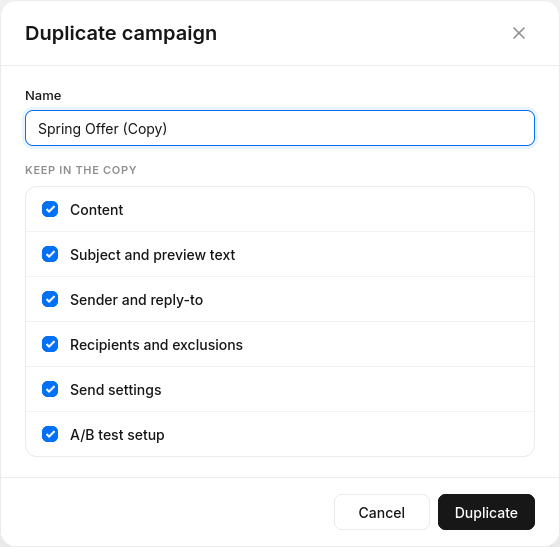
If you untick A/B test setup, both versions are still copied, but you set the split and test duration again.
Will the copy be sent automatically?
No. Every copy is a draft. It is only sent after you review and schedule it, even if the original was already sent or scheduled.
Are the original campaign's reports copied?
No. The copy starts with empty reports, and the original keeps its own results.
Will people who received the original get the copy too?
If you keep Recipients and exclusions, the copy goes to the same audience. To reach different people, untick that option or change the recipients in the copy before you schedule it.
Does the copy need a different name?
No. Names don't have to be unique, but a clear name helps you tell your campaigns apart in the list.
If you have questions or need assistance at any point, don't hesitate to reach out to our support team — we're here to help.
Happy emailing! 🚀