Segmentation lets you divide your audience into smaller, targeted groups based on who your contacts are and how they have engaged with your emails. A segment is dynamic: Mailercloud re-checks its conditions for you, so contacts join and leave the segment automatically as their data and behaviour change.
This article lists every condition you can set in the segment builder, along with the operators and values each one accepts.
Log in to your Mailercloud account.
Select Audience from the left sidebar, then click Segments.
Click Create Segment at the top right.
Enter a Segment name (up to 60 characters).
Choose your Audience source. Select All contacts to include every contact in your account, or Specific lists to limit the segment to the lists you choose.
Click Add Conditions, then click Choose filter and select a condition.
Choose an operator and enter a value for the condition.
Click Save segment.
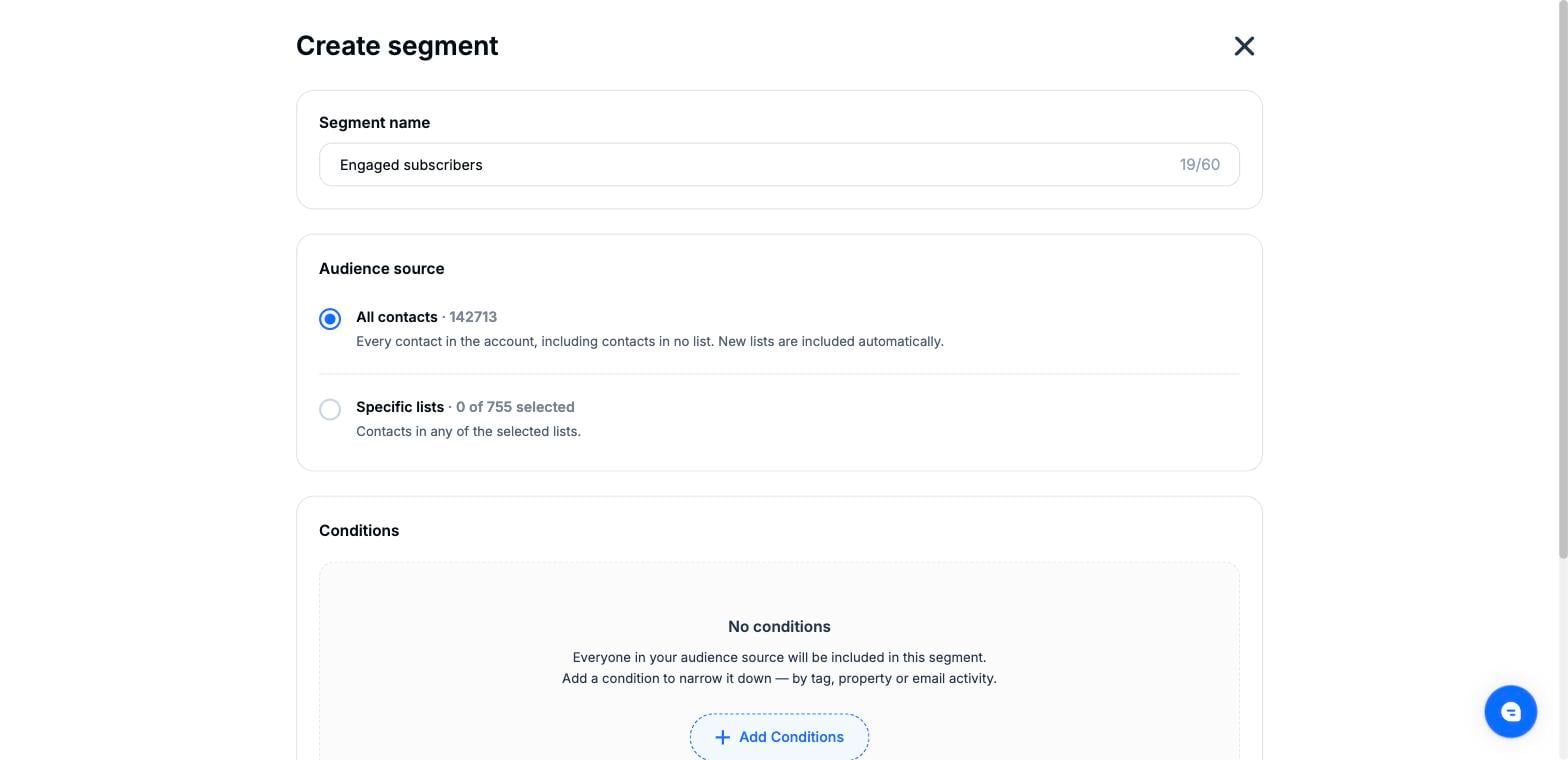
The Create segment screen — name, audience source and conditions.
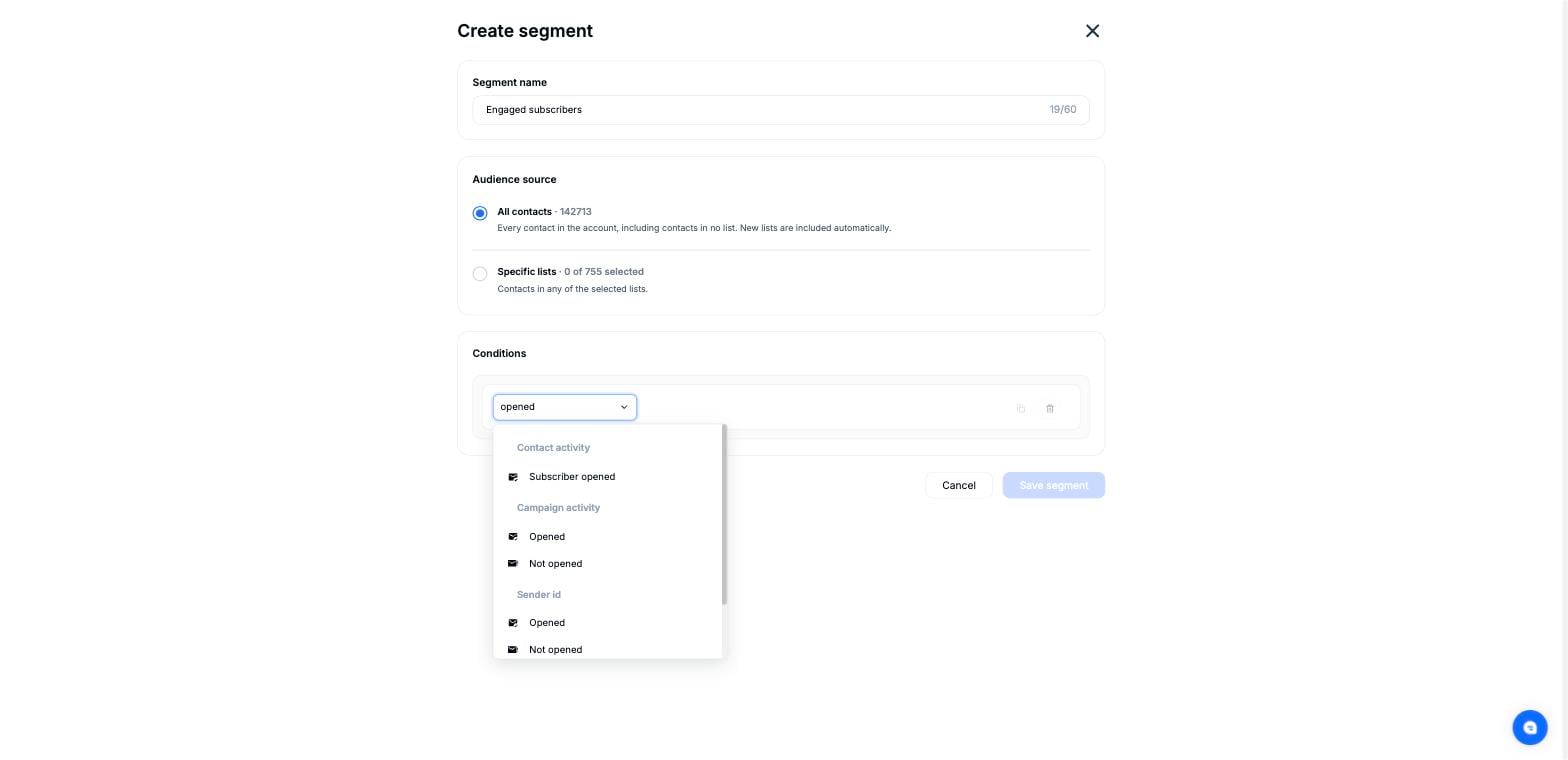
Typing in Choose filter narrows the list to matching conditions.
When you add a second condition, an AND label appears between the two. Click it to switch between:
AND — a contact must satisfy every condition. Each condition you add makes the segment smaller.
OR — a contact needs to satisfy only one condition. Each condition you add makes the segment larger.
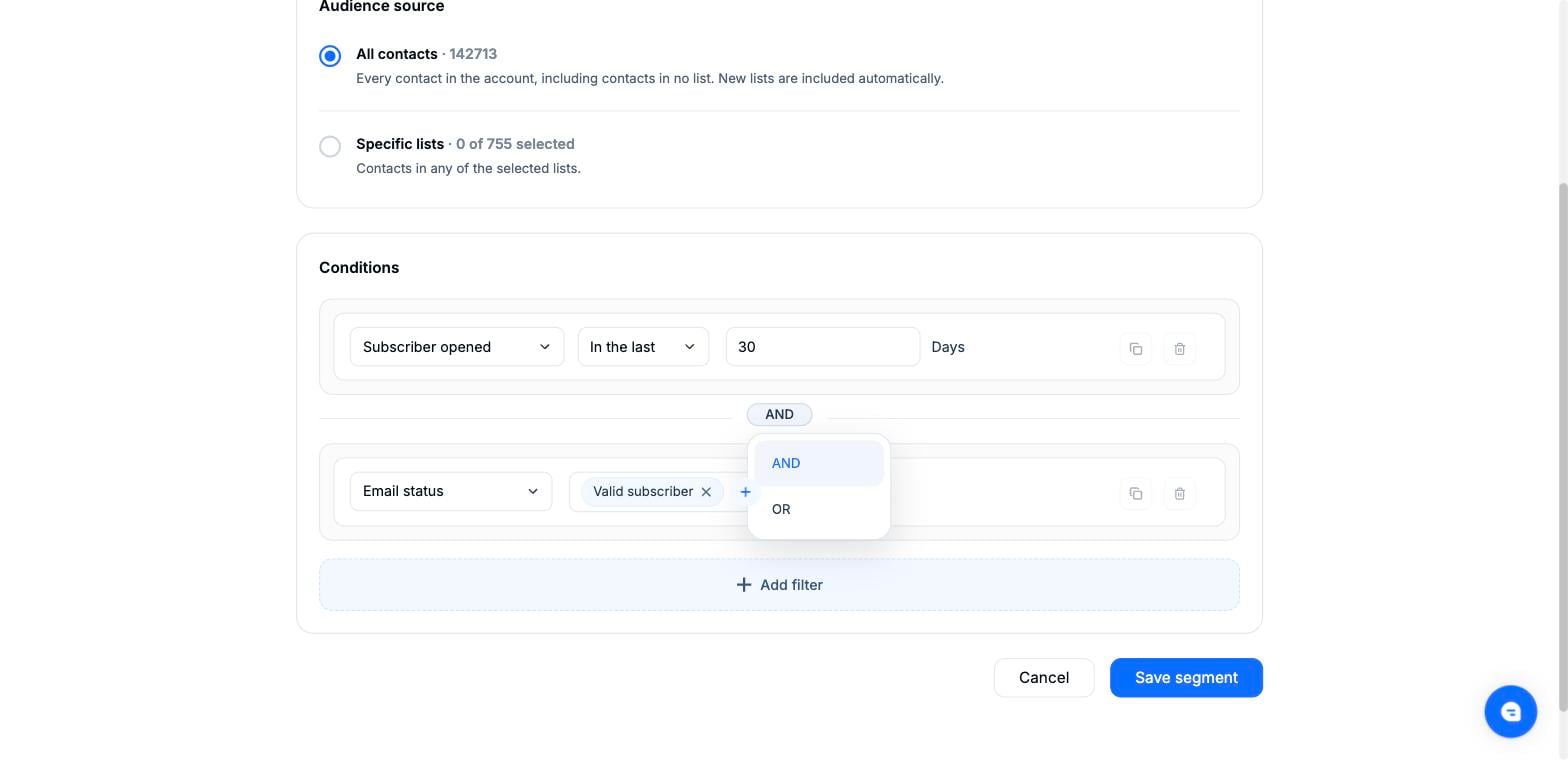
Click the AND label between two conditions to switch it to OR.
Conditions are grouped by what they describe. Each group below lists the conditions available, the operators they accept and the values you can enter.
These are the details stored on the contact record, including the default fields and any custom contact properties you have created. Custom fields appear under the names you gave them.
Default properties:
Email Address, First Name, Middle Name, Last Name, Phone
Mailbox Provider, Country, State, City, Postal Code
Company Name, Job Title, Department, Industry, Salary
Lead Source
Open Tracking Consent, Open Tracking Consent Source, Open Tracking Consent Date
Email Preference, Email Frequency
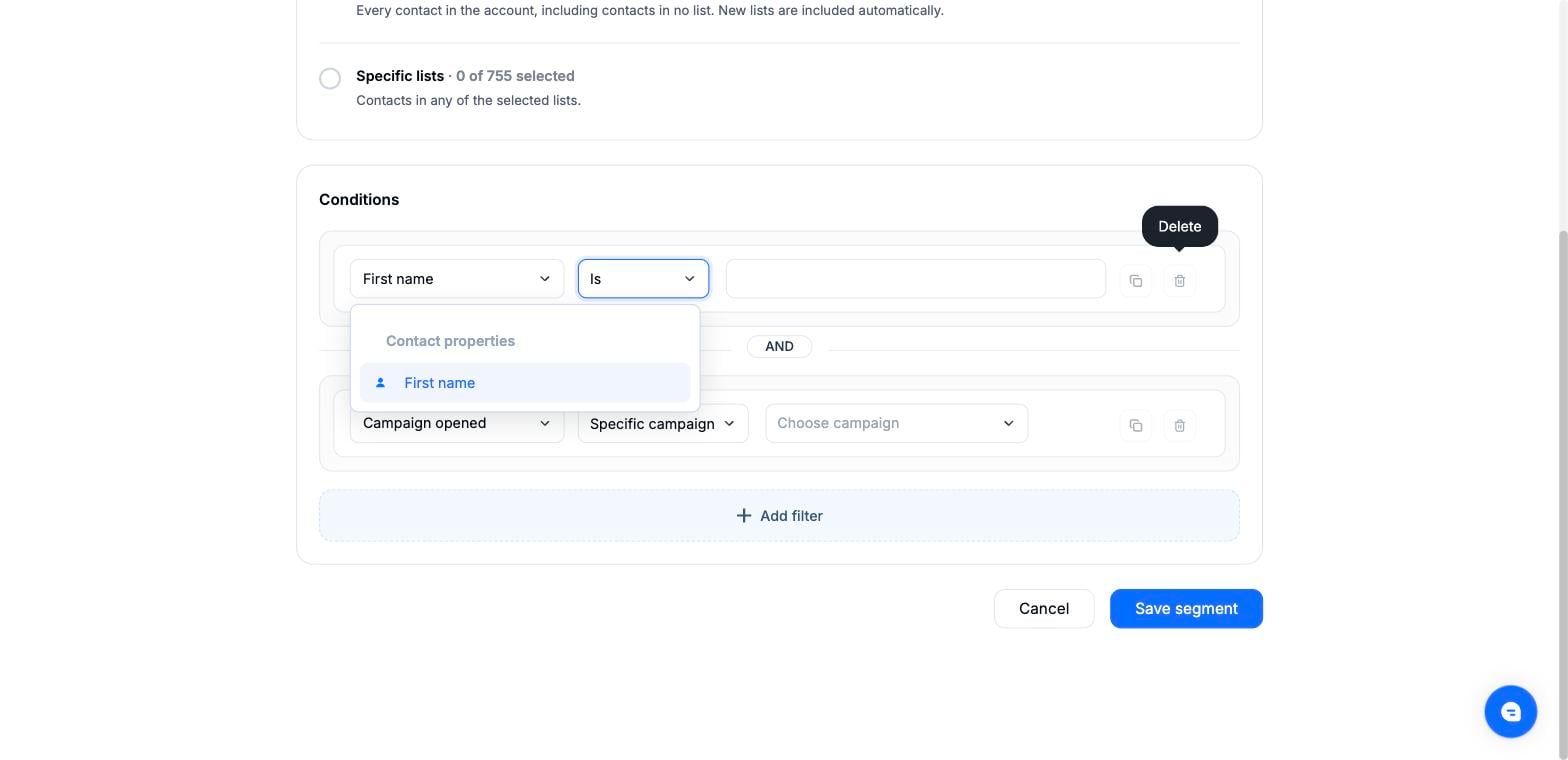
Contact properties appear in the Choose filter list, followed by the operators for that property type.
The operators available depend on the type of the property.
Text properties (for example First Name, Company Name)
Is / Is not
Contains / Does not contain
Starts with / Ends with
Is known / Is unknown
Number properties (for example Salary, Postal Code)
Equal to
Greater than / Less than
Between
Is known / Is unknown
Date properties
On a specific date
Is before / Is after
Between
In the last / Not in the last
Is not
Is known / Is unknown
Dropdown and Radio properties
Is / Is not
Is any of / Is none of
Is known / Is unknown
Multi-select and Checkbox properties
Is any of / Is none of
Is known / Is unknown
Boolean properties
Is / Is not
Is known / Is unknown
Consent and preference properties
Open Tracking Consent — Is / Is not / Is known / Is unknown. Values: Granted, Denied.
Open Tracking Consent Source — Is / Is not / Is known / Is unknown. Values: Form, Preference center, Revocation link, Import, API, Manual.
Open Tracking Consent Date — uses the date operators listed above.
Email Preference — Was / Was not. Values: your own preference categories.
Email Frequency — Is / Is not / Is known / Is unknown. Values: Daily, Weekly digest, Monthly.
Email Status — Valid subscriber, Unknown subscriber, Bounced, Suppressed, Unsubscribed, Blacklisted, Account level bounced. You can select more than one value.
Email Domain — Is / Is not, Contains / Does not contain, Starts with / Ends with.
Created Date — On a specific date, Is before / Is after, Between, In the last / Not in the last, Is not.
Modified Date — same operators as Created Date.
Signup Source — Was / Was not. Choose from the sources listed in the dropdown.
Contact Rating — Equal to, Not equal to, Greater than, Less than, Between.
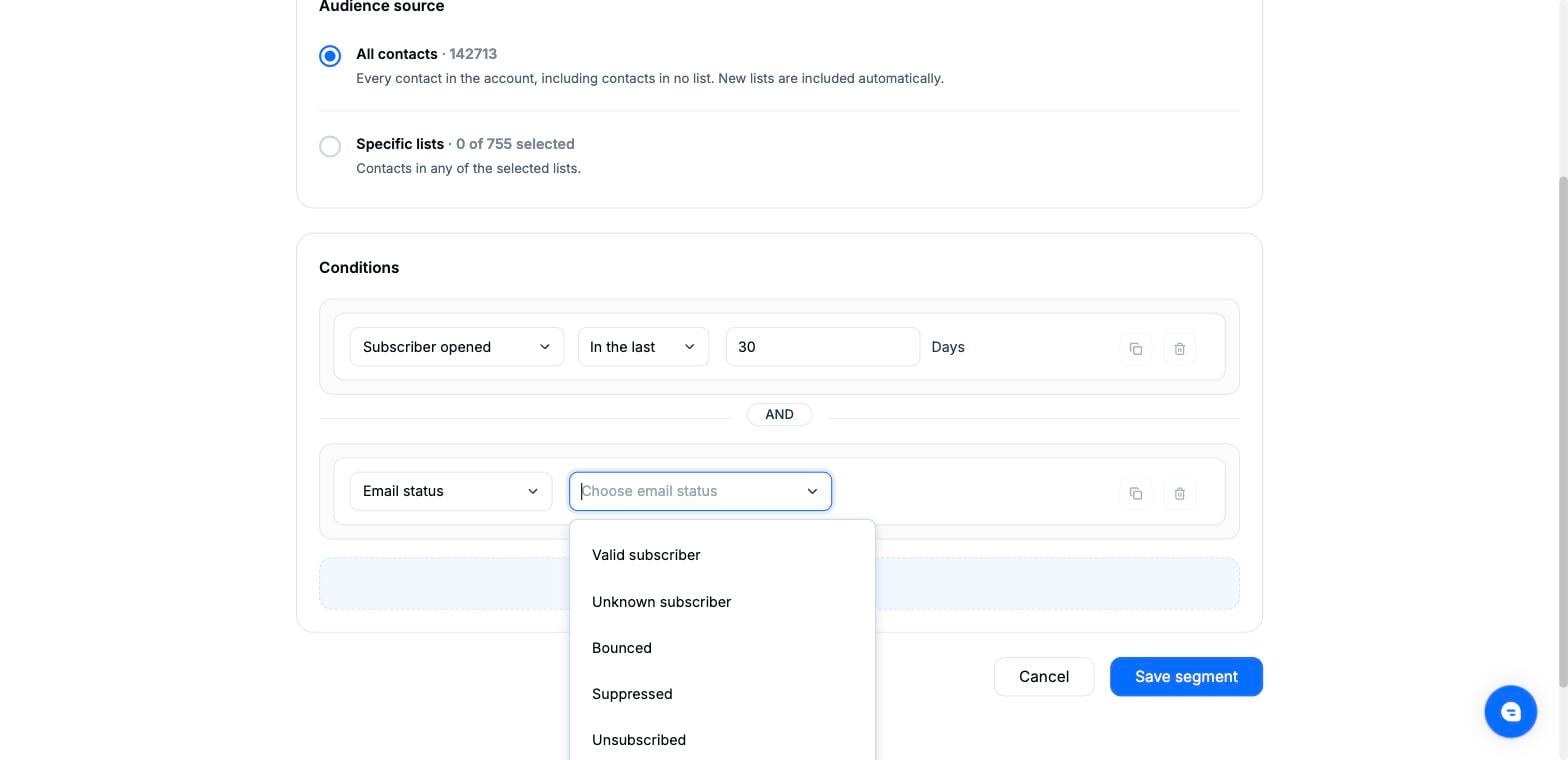
Email Status lets you pick one or more statuses.
These conditions use the results of Mailercloud's email verification and apply only to addresses that have already been verified.
Verification Result — Is / Is not / Is known / Is unknown. Values: Valid, Invalid, Risky, Unknown.
Verification Detail — Is / Is not / Is known / Is unknown. Values: Deliverable, Mailbox not found, Dead server, Invalid MX, Invalid syntax, Typo, Email disabled, Catch-all, Mailbox full, Disposable, Spamtrap, Role-based, Antispam system.
Deliverability Score — Equal to, Greater than, Less than, Between, Is known / Is unknown.
Risk Level — Is / Is not / Is known / Is unknown. Values: Low, Medium, High.
Email Type — Is / Is not / Is known / Is unknown. Values: Personal, Business, Role, Disposable, Unknown.
Verification Source — Is / Is not / Is known / Is unknown. Values: List upload, Single verify, Signup form, Automation, Import API.
Verification Status — Is / Is not / Is known / Is unknown. Values: Never, Verifying, Verified, Stale, Failed.
Email is Valid, Email is Deliverable, Role-based Email, Free Email Provider, Catch-all Domain, Disposable Email — Equal to (Yes / No), Is known / Is unknown.
MX Server — Is / Is not, Contains / Does not contain, Is known / Is unknown.
Last Verified — uses the date operators.
a) Contact activity
Subscriber Opened — In the last, Not in the last, Count, Count between, Order by count, Between date, After, Before, Between time.
Subscriber Clicked — In the last, Not in the last, Count, Count between, Order by count, Between date, After, Before.
Subscriber Sent — In the last, Not in the last, Count, Count between, Order by count, Between date, After, Before.
Engagement Status — Opened, Clicked, Not opened, Not clicked.
Subscriber In Portion — Between.
Global Engagers — Equal to, Not equal to, Greater than, Less than, Between, Order by, In the last, Not in the last.
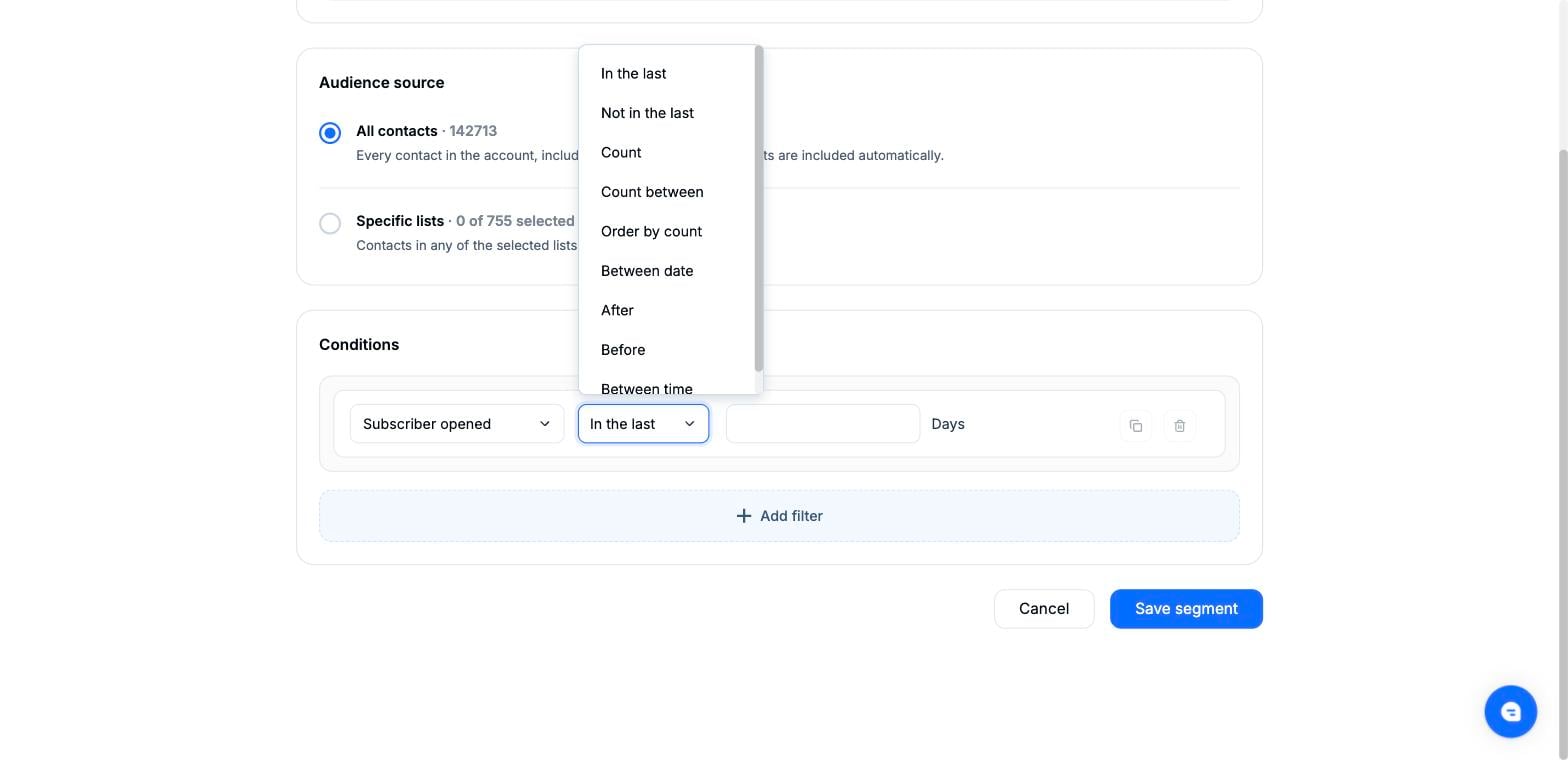
Operators available for Subscriber Opened.
In the last / Not in the last take a number of days and move forward with time — “Opened in the last 30 days” always means the most recent 30 days.
Count and Count between filter on how many times the activity happened, which helps you separate regular clickers from one-time clickers.
Between time is available for opens only and filters by time of day.
Subscriber In Portion takes a percentage range and returns an even slice of your audience. Use it to build a holdout group or split a list for testing.
b) Campaign activity
Conditions: Opened, Clicked, Sent, Not opened, Not clicked, Not sent.
Operators:
Specific campaign — choose one or more campaigns by name
Any of the last 5 campaigns
All of the last 5 campaigns
Any of the campaign sent in the last 7 days
Any of the campaign sent in the last 1 month
Any of the campaign sent in the last 3 months
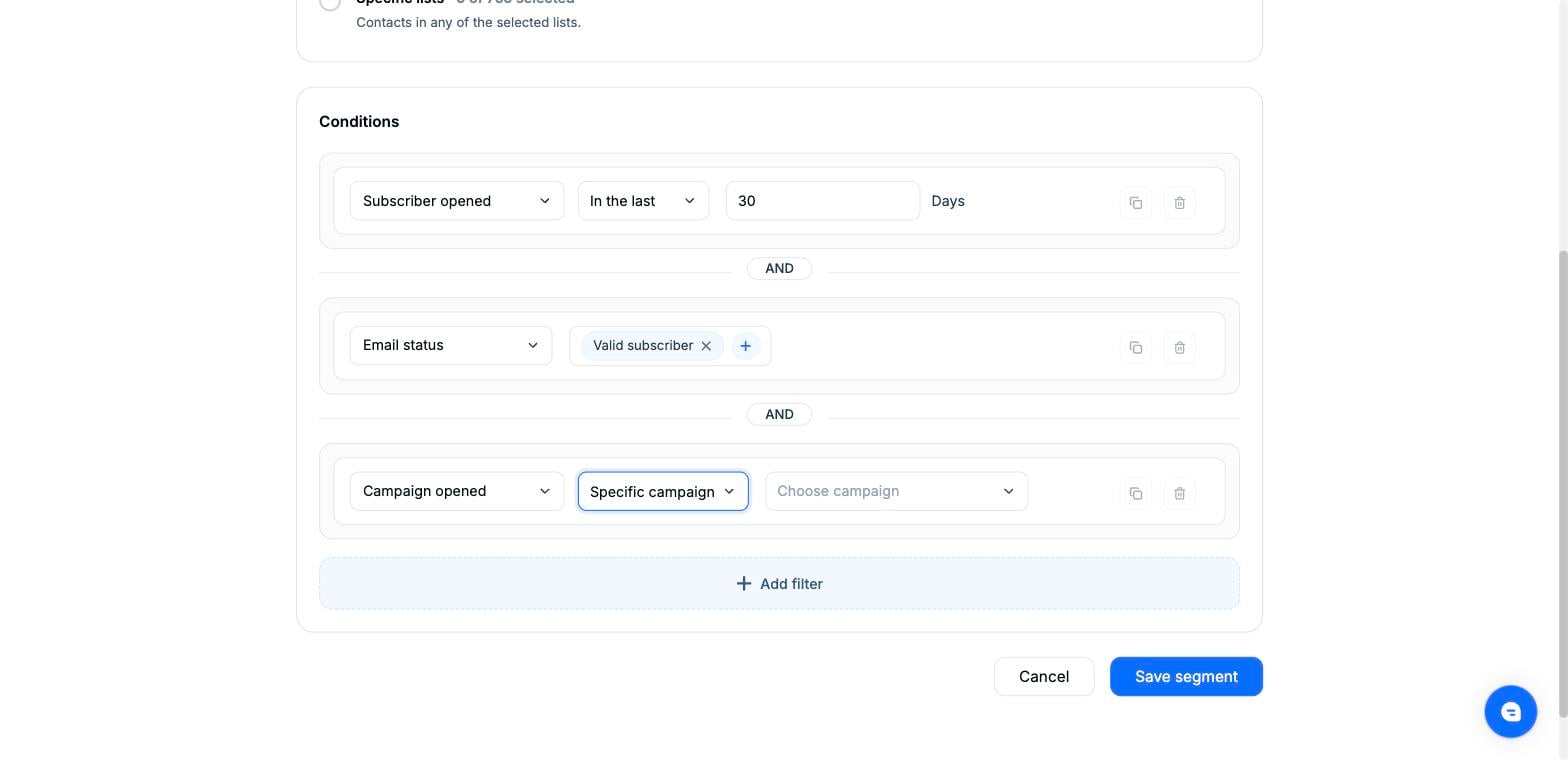
A campaign-activity condition with the Specific campaign operator.
c) Sender ID activity
Conditions: Opened, Clicked, Sent, Not opened, Not clicked, Not sent, each using the Specific operator. These are scoped to the sender address a campaign was sent from, which is useful when your account sends under more than one brand.
d) Automation activity
Started automation / Not started automation
Completed automation / Not completed automation
Currently in automation / Not currently in automation
Dropped off automation
Entered via trigger
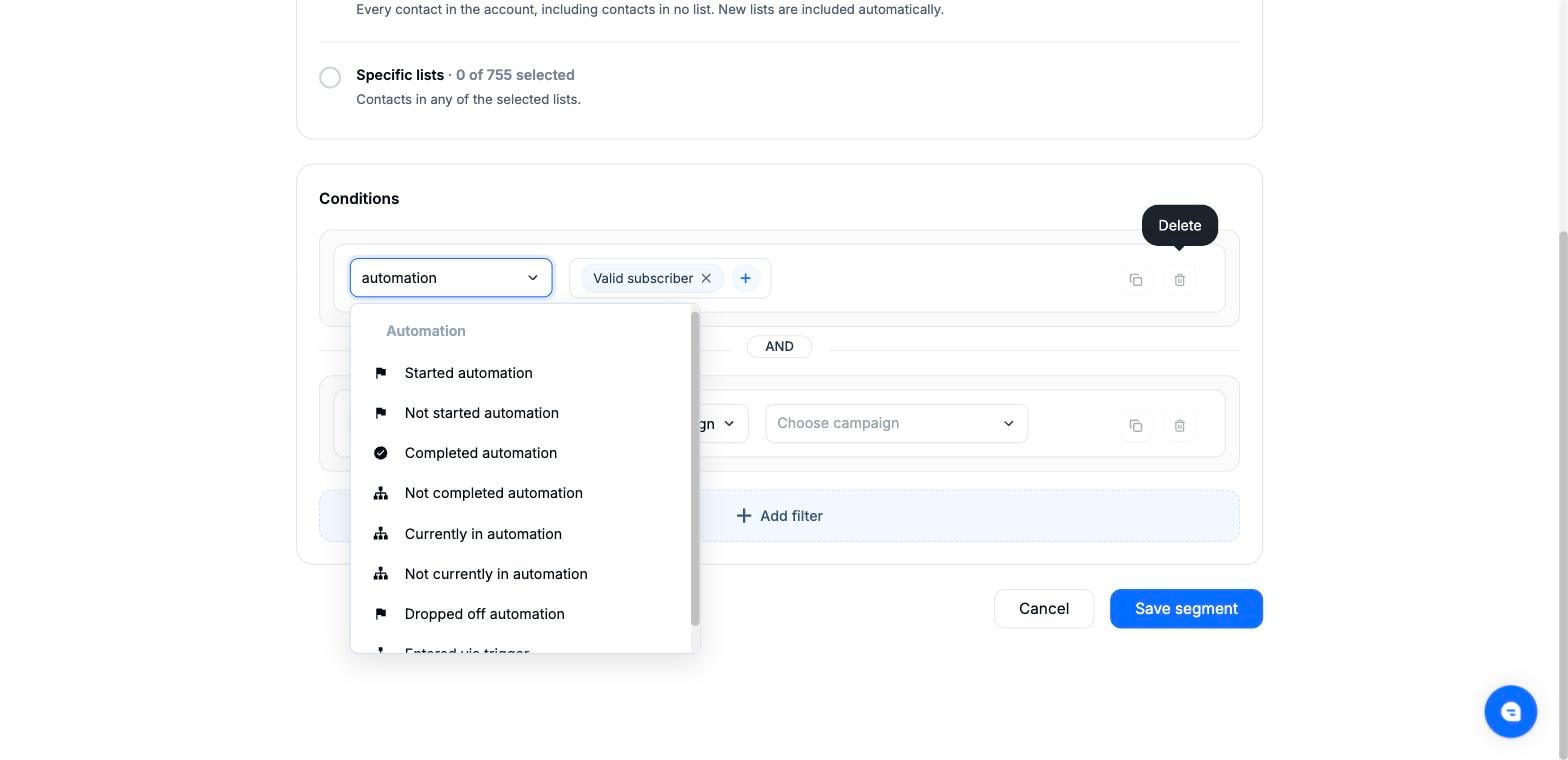
Automation conditions in the Choose filter list.
Each uses the Specific operator, where you choose the automation. Entered via trigger also asks you to choose which trigger added the contact to the automation.
e) Conversion activity
Has happened — Specific, In the last, On, After, Between.
Not happened — Specific.
Is tagged — Any of, All of.
Is not tagged — Any of, All of.
Opened — Is.
Clicked — Is.
Engaged subscribers — Subscriber Opened in the last 30 days AND Email Status is Valid subscriber.
Lapsed subscribers — Subscriber Opened not in the last 90 days AND Email Status is Valid subscriber.
New contacts — Created Date in the last 7 days.
Interested but not converted — Campaign tag Clicked is pricing AND Conversion Not happened.
Business addresses only — Free Email Provider equal to No.
Two regions — Country is India OR Country is Singapore.
10% holdout group — Subscriber In Portion between 0 and 10.
1. Number of conditions — A segment can hold a limited number of conditions, depending on your plan. Once you reach the limit, no further conditions can be added.
2. Activity conditions and OR — Contact activity conditions such as Subscriber Opened, Clicked and Sent cannot be combined using OR. Use AND when your segment includes one of them.
3. Segment counts — The contact count shown is from the last refresh, not a live count. Refresh the segment from the segment list to update it.
4. Empty segments — If a segment returns no contacts, check whether you have used AND where OR was intended.
5. Audience source — If your segment is scoped to specific lists, activity from contacts outside those lists is not considered.
6. Verification conditions — These return no contacts if the addresses in your account have not been verified yet.
If you have any questions or need assistance, contact us at [email protected] — the Mailercloud support team is ready to help.
Happy emailing! 🚀