Every contact count in an automation can be opened to see the people behind it, and exported. Counts appear in two places: the four summary cards on the report, and on each individual trigger and step in the automation flow. This article covers both.
Open your automation report. The "Overview" tab shows four counts: "Total Contacts," "Active," "Skipped" and "Completed."
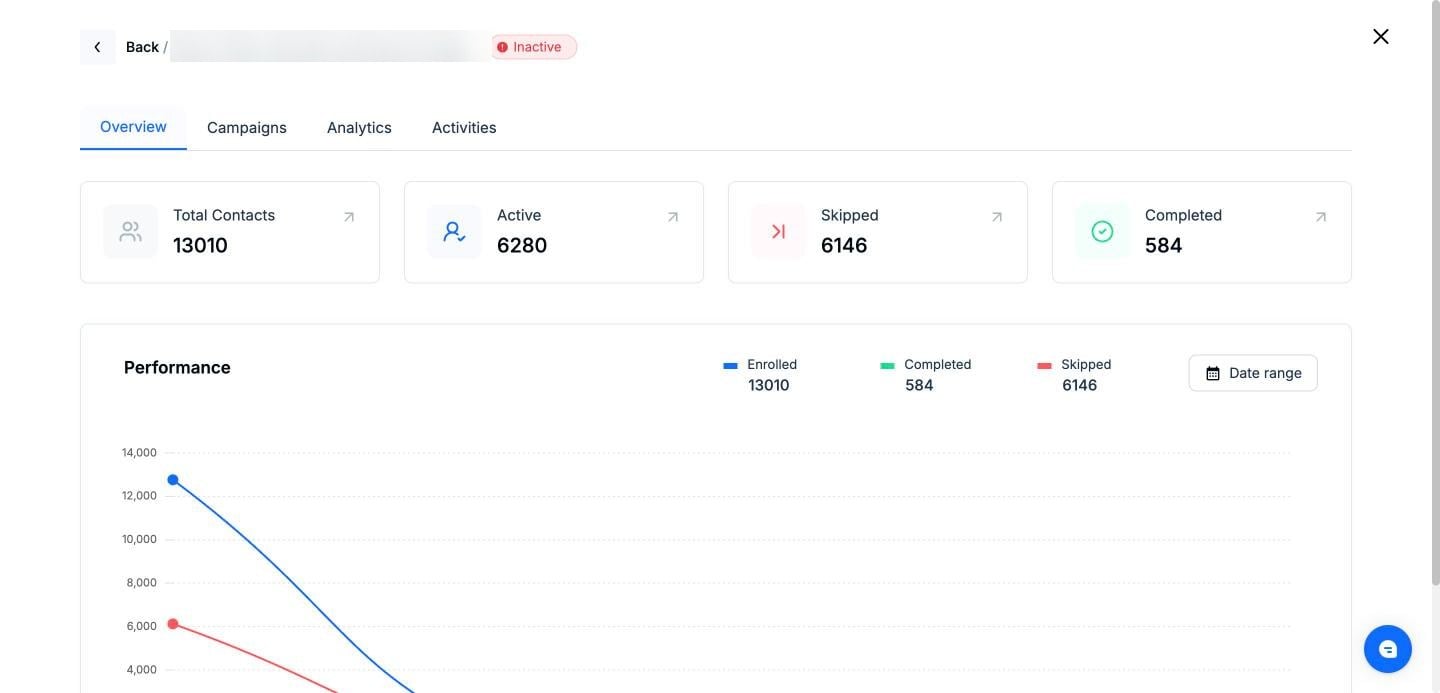
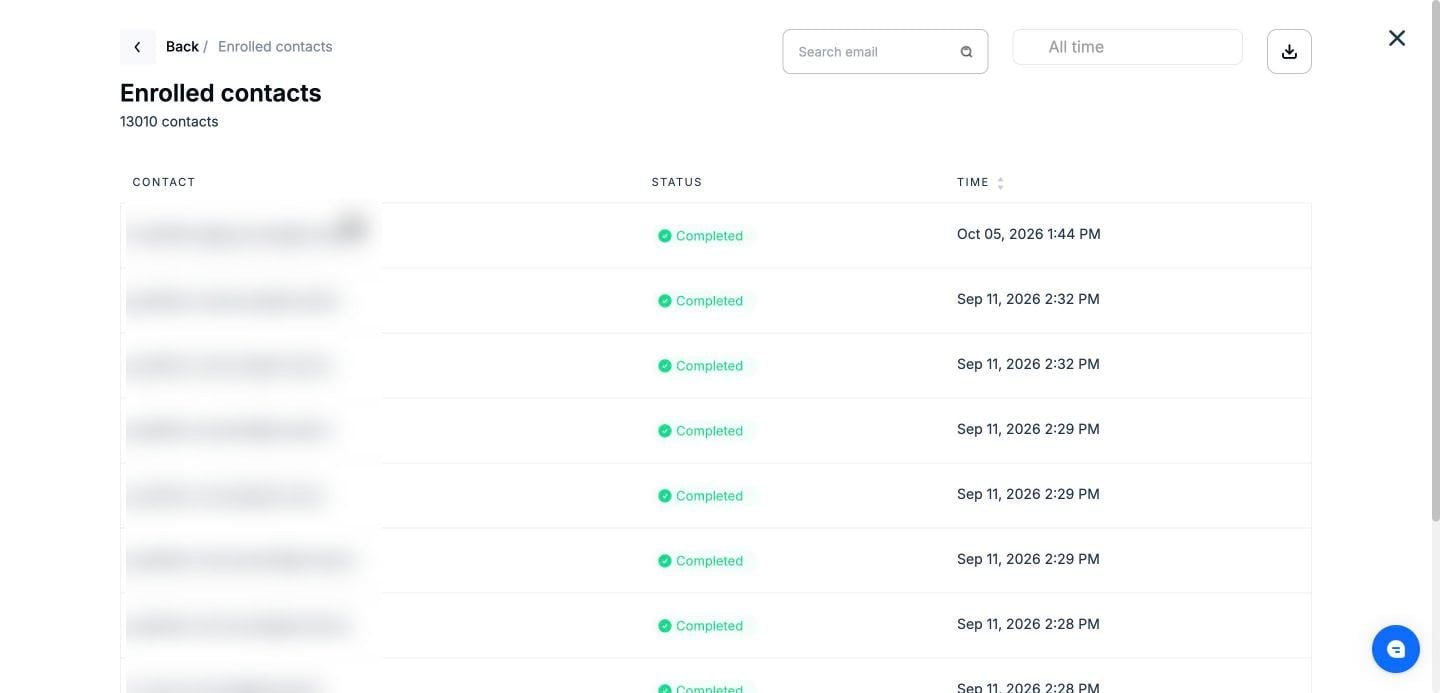
Click on the arrow on any of these cards to open the contacts behind that count. The heading tells you which list you are looking at and how many contacts it holds.
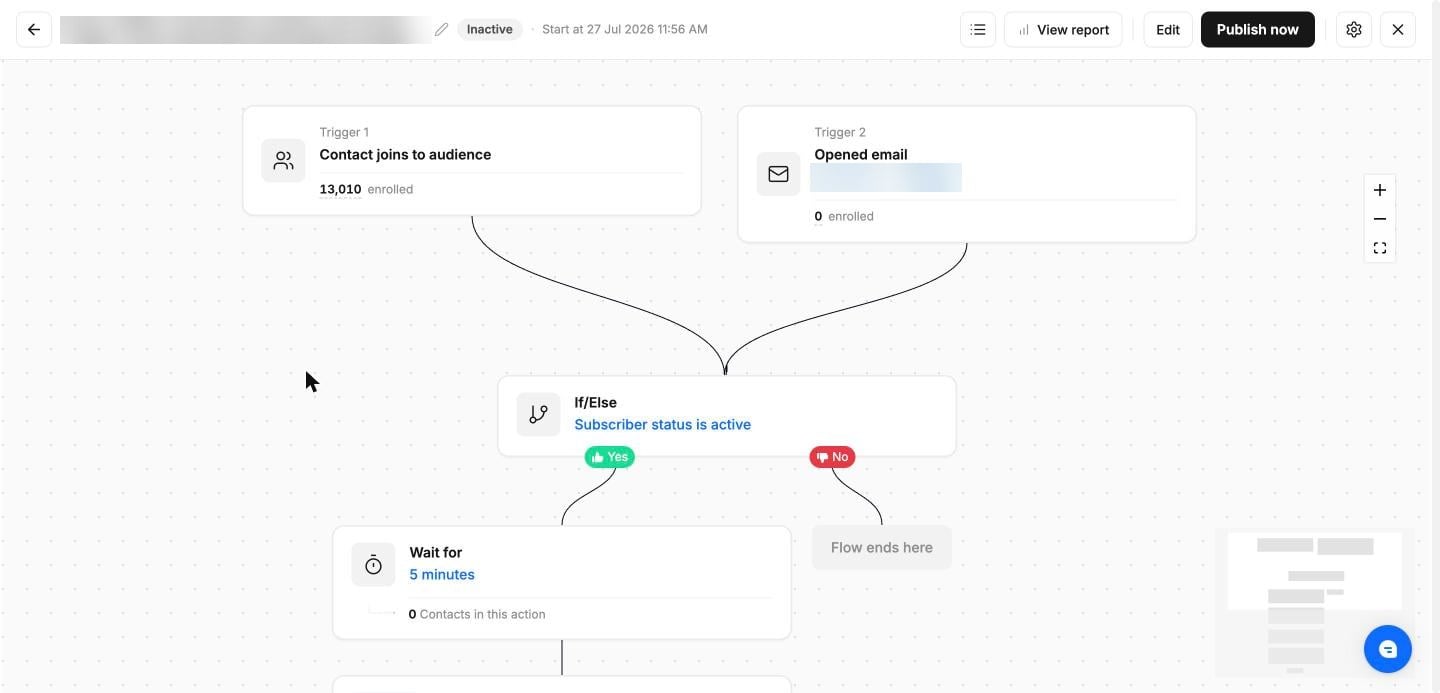
You can also go step by step. Every trigger and every action in your flow reports its own count, so you can see exactly who reached that point instead of only the totals.
Open the automation to view its flow. Each trigger shows how many contacts it enrolled, and the count is underlined wherever you can click it.
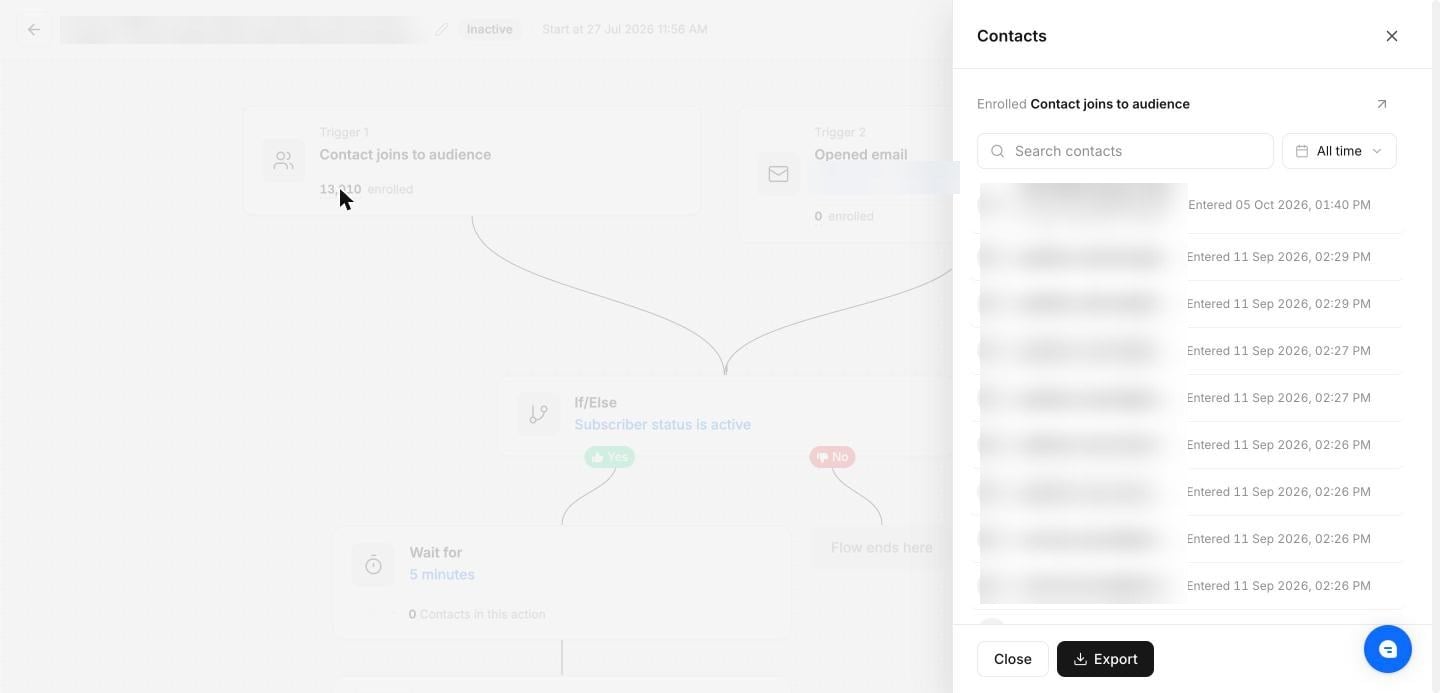
Click on the count to open the "Contacts" panel for that step only. The line above the list names the step and the count you opened, for example "Enrolled - Contact joins to audience," and the arrow beside it takes you to the same contacts in the "Activities" tab.
Scroll down the flow to see the rest of the steps. Each one reports the count that suits it: a wait step shows "Contacts in this action," an email step shows "Sent" and "Opens," and an update-contact step shows how many contacts it updated.
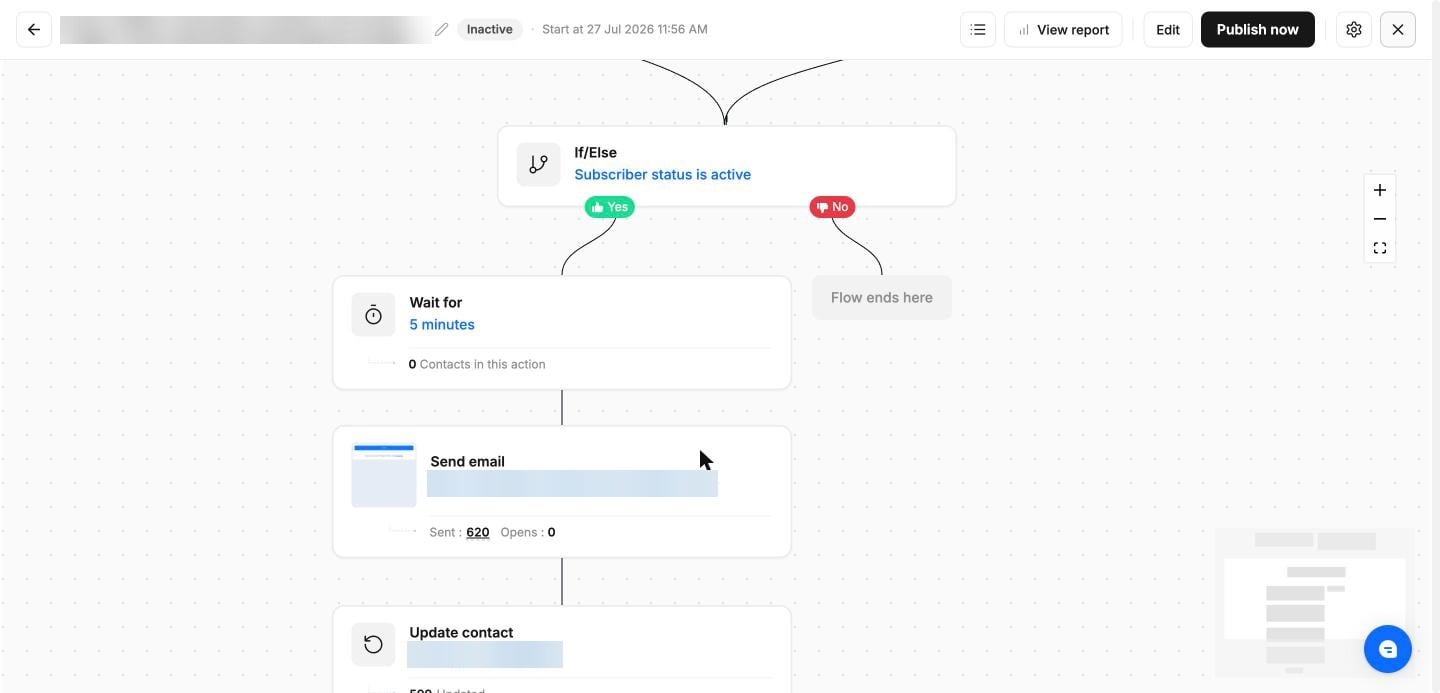
Click on any of those counts to see just those contacts. Opening the "Sent" count on an email step, for example, lists the contacts that email went to and when each one was sent.
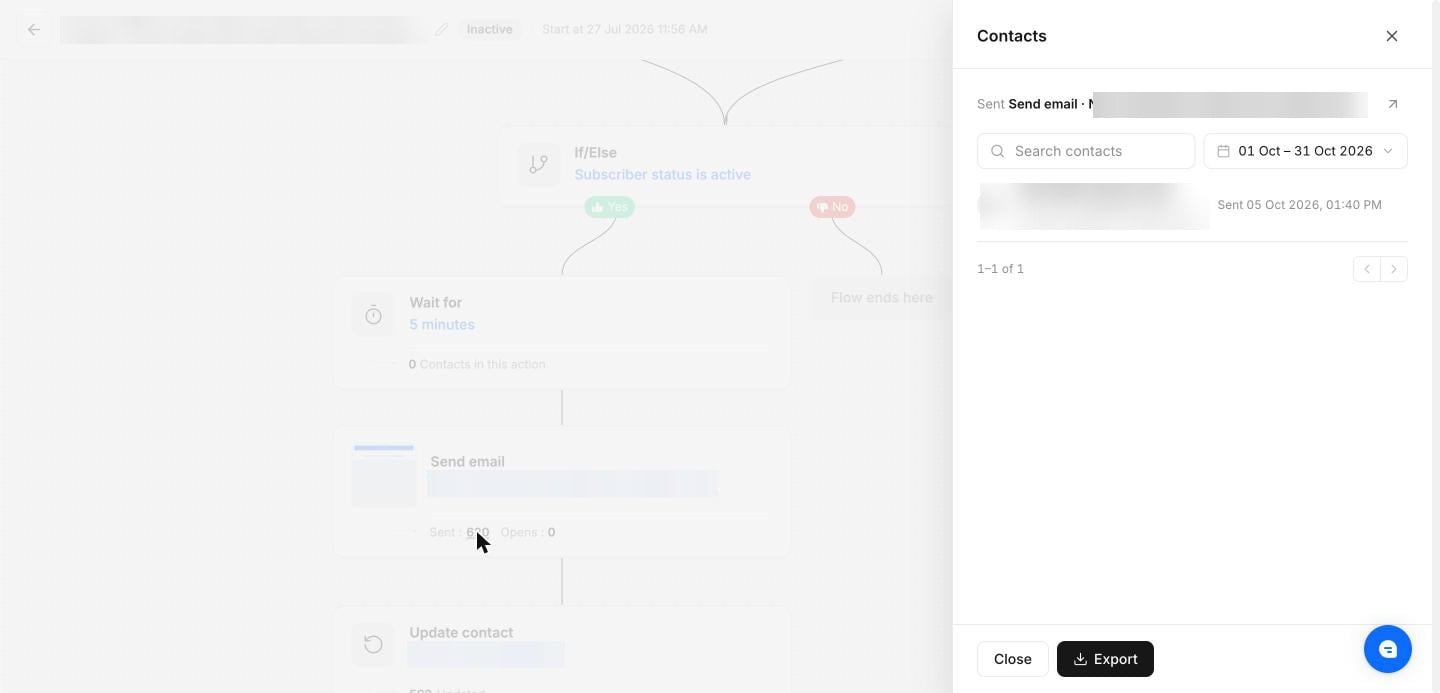
Type an address into "Search contacts" to find one particular contact in the list.
Click on the date field, which reads "All time" by default, and either pick one of the ready-made periods - "Today," "Yesterday," "This month," "This year," "Last week" or "Last month" - or choose your own start and end dates in the calendar.
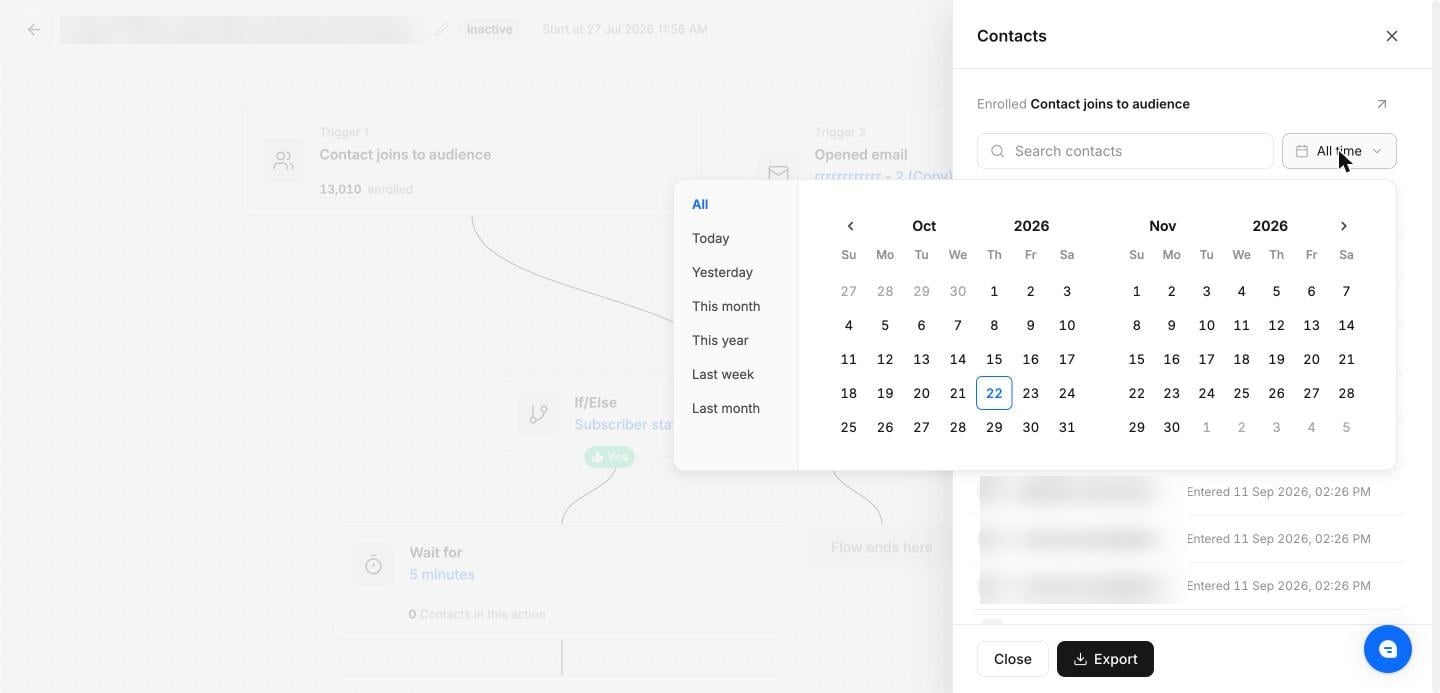
The list and the count both update to match the period you picked. In the example below the same automation drops from 13,010 contacts to 1.
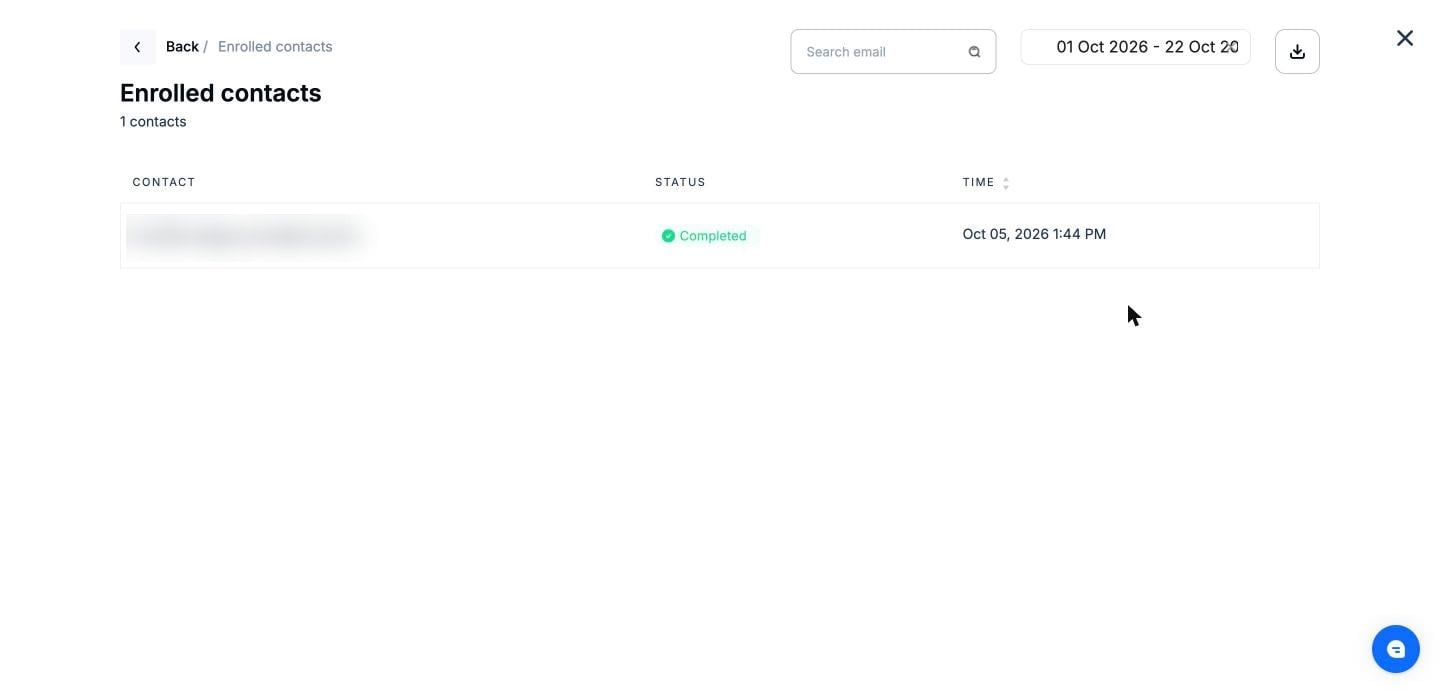
Note: The date range always applies to the count you opened, and each row tells you which date that is. A list opened from an enrolled count shows "Entered" against every contact, while one opened from an email step's Sent count shows "Sent," so you are always filtering on the event you are looking at.
Click on "Export." The file contains only the contacts currently shown, so in the example below it offers 1 contact rather than all 13,010.
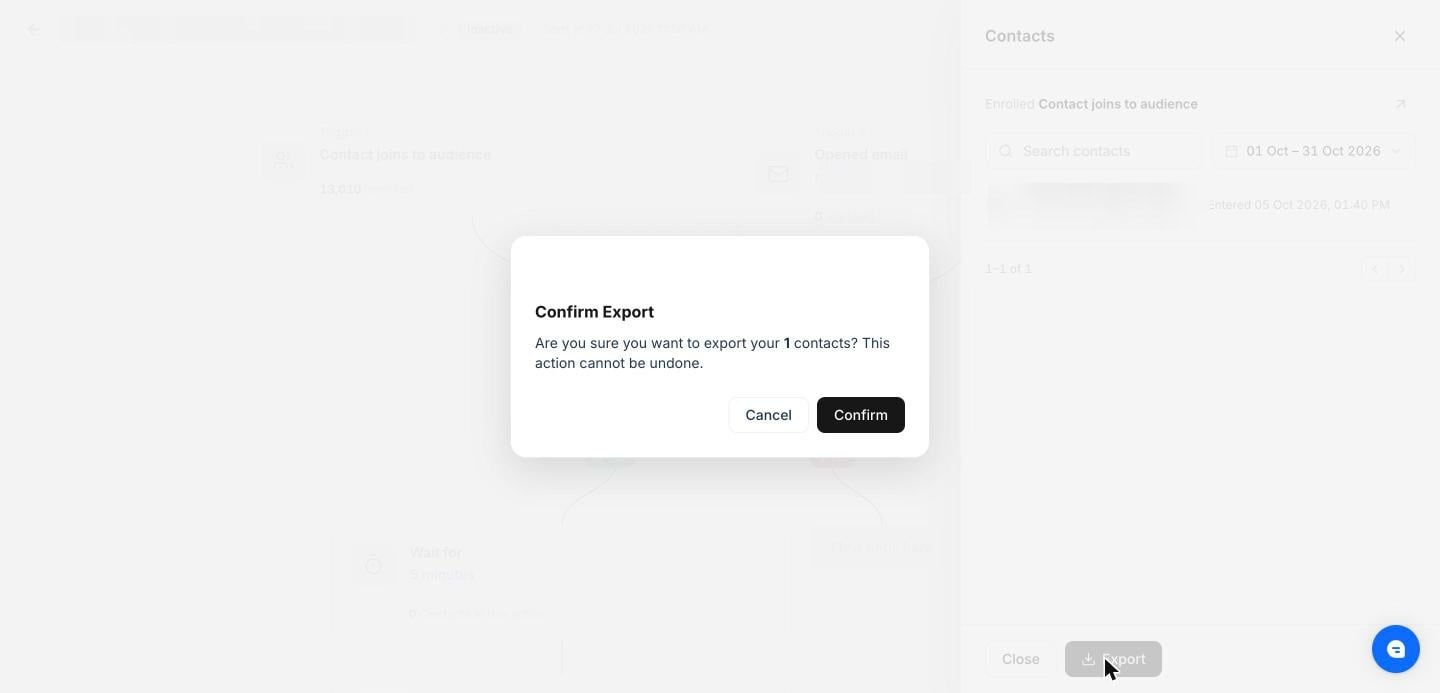
Click on "Confirm" to start the export. Mailercloud prepares the file in the background and emails it to the address on your account once it is complete, so you do not have to wait on the page.
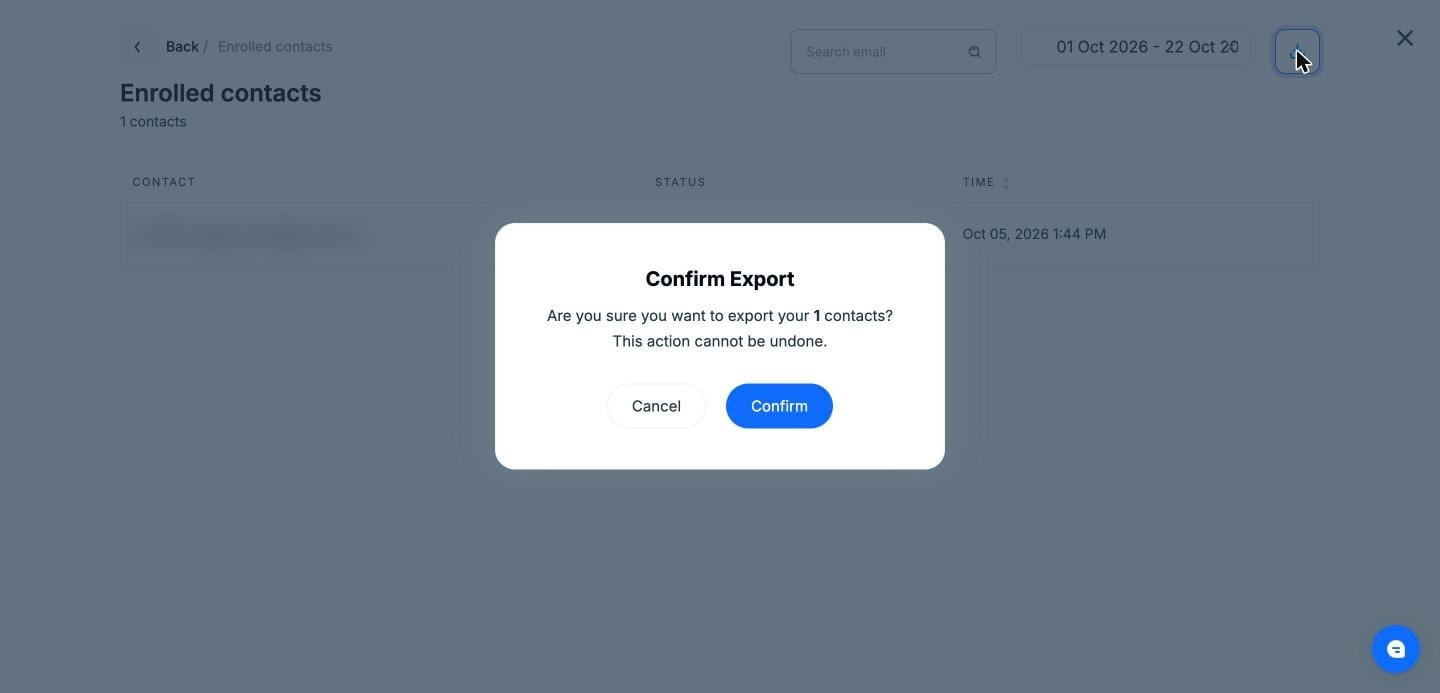
An export from a step exports that step only. To export everything the automation has done, use the "Export" button on the "Activities" tab of the report instead.
The search and the date range both apply to the export. Clear them if you want the complete list in the file.
The count in the confirmation message tells you how many contacts the file will contain, so you can check your filters before you export.
A step shows a count only once contacts have reached it. A step reading 0 simply means nobody has got that far yet.
If you encounter any difficulties or have further inquiries regarding viewing and exporting automation contacts, please don't hesitate to reach out to our support team. We are here to assist you every step of the way.