
After installing and activating Mailercloud's WordPress plugin, you can sync your registered WordPress users to a Mailercloud list. This is for the user accounts on your site — to capture leads from form submissions (Contact Form 7, WPForms, Elementor, and more), see How to connect your WordPress forms to Mailercloud. To sync your WordPress users, follow these steps:-
1. Under the Mailercloud section, appearing on the left-hand menu, select "Contact Sync".
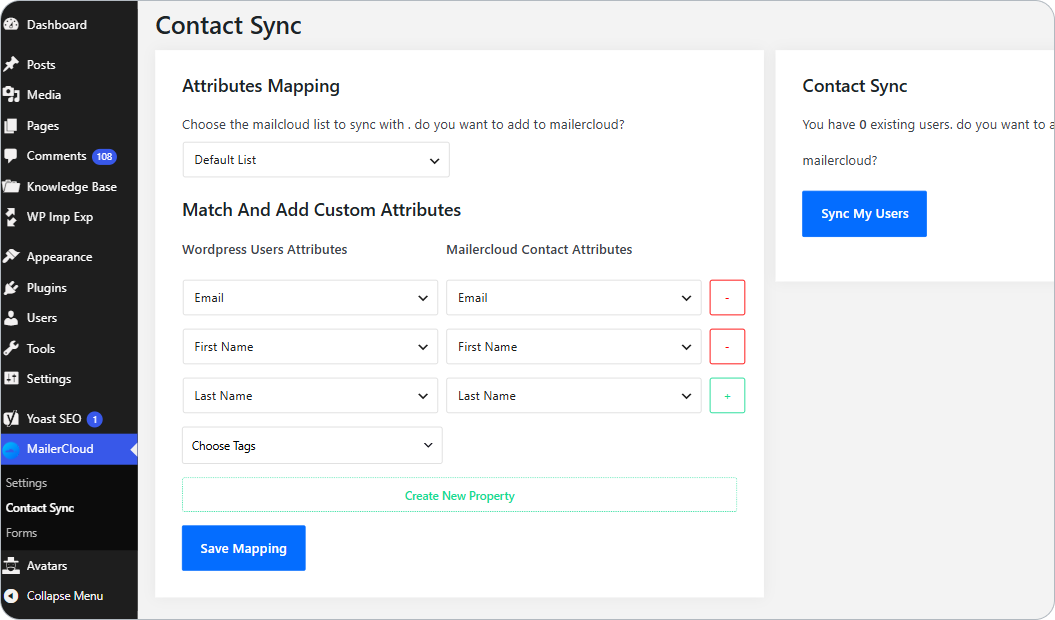
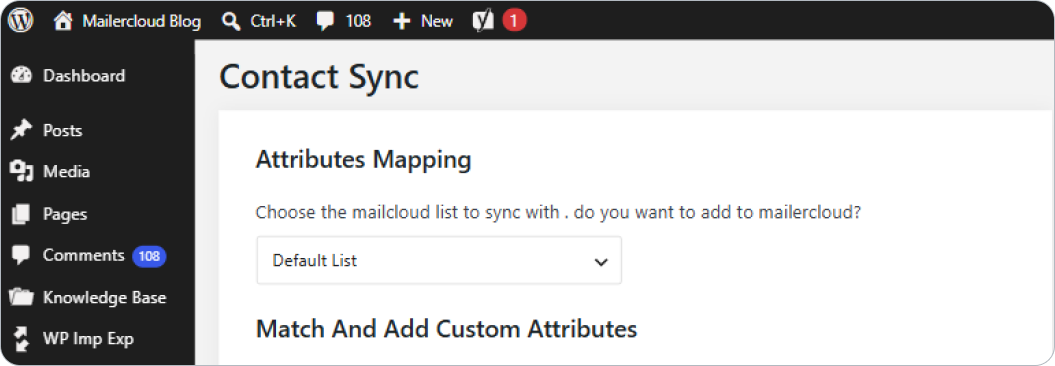
2. Towards your right window, you can choose the Mailercloud list that you want to synchronize.
3. Compare and match WordPress users’ attributes with the Mailercloud contact attributes.
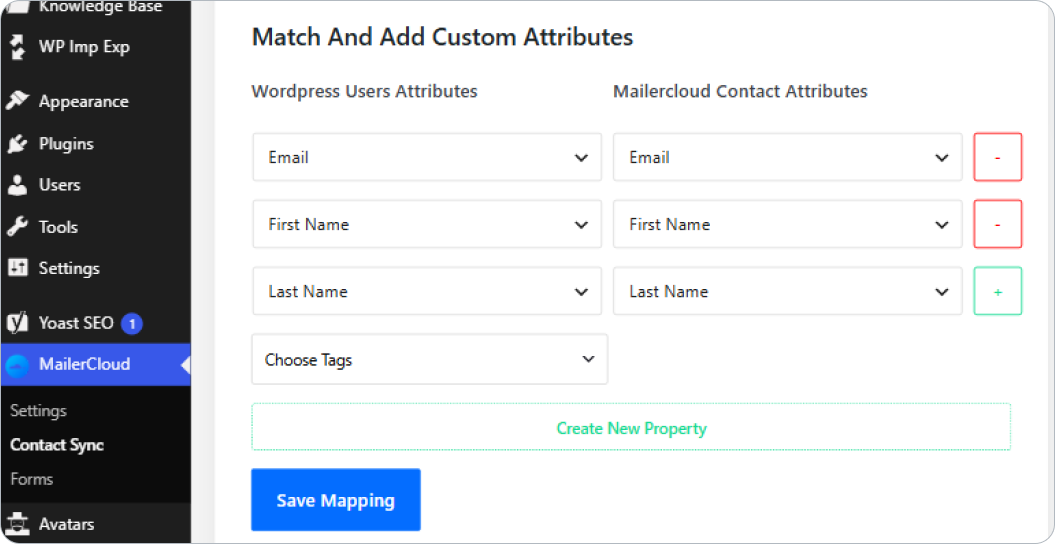
In case, you want to create a custom attribute, then you can do the same, with these steps:-
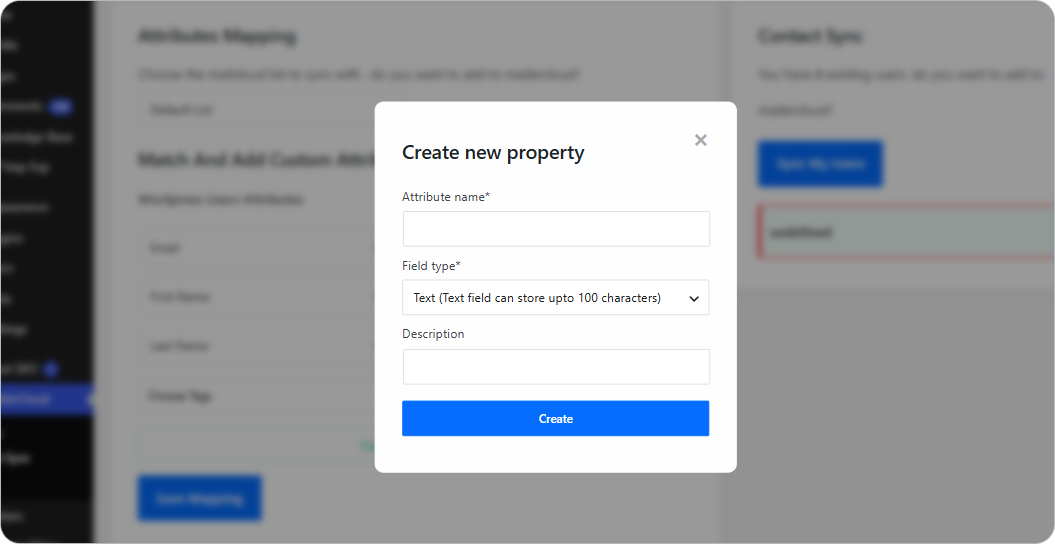
Click on “create new property”
Add an attribute name, such as Job title, Nickname, Display name, or any other, (up to 100 characters); Field type, such as phone number or others (up to 30 characters); and description like address, personal information, or others (up to 500 characters)
Click on the “Create” button, which will save your attribute automatically in the Mailercloud account
4. As a final step, click on the “Sync my users” button under the “Contact Sync” menu.
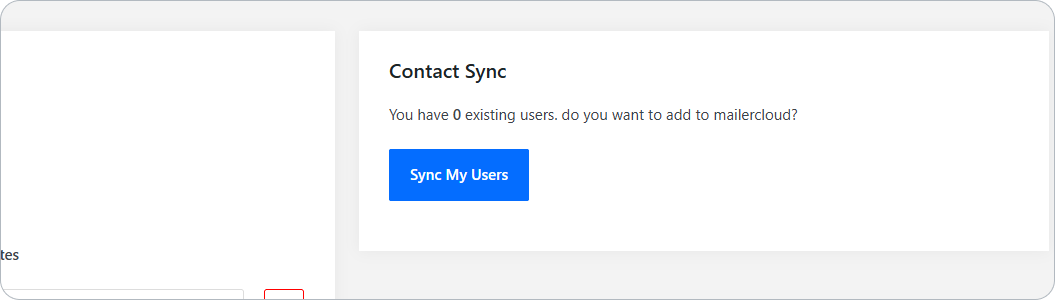
Upon completion of the above steps, your WordPress users will be synchronized to your chosen Mailercloud list. When a new user registers on your site, they'll be added to Mailercloud too. Note: this syncs registered users only — for leads who submit a form without creating an account, use the form connectors.