The Inbox Tracker add-on in Mailercloud helps you monitor where your emails land — Inbox, Spam, or Missed — across different email providers like Gmail, Yahoo, Outlook, and others.
This insight helps you identify deliverability issues and improve inbox placement performance.
Inbox Tracker is available as a paid add-on in Mailercloud.
To access it:
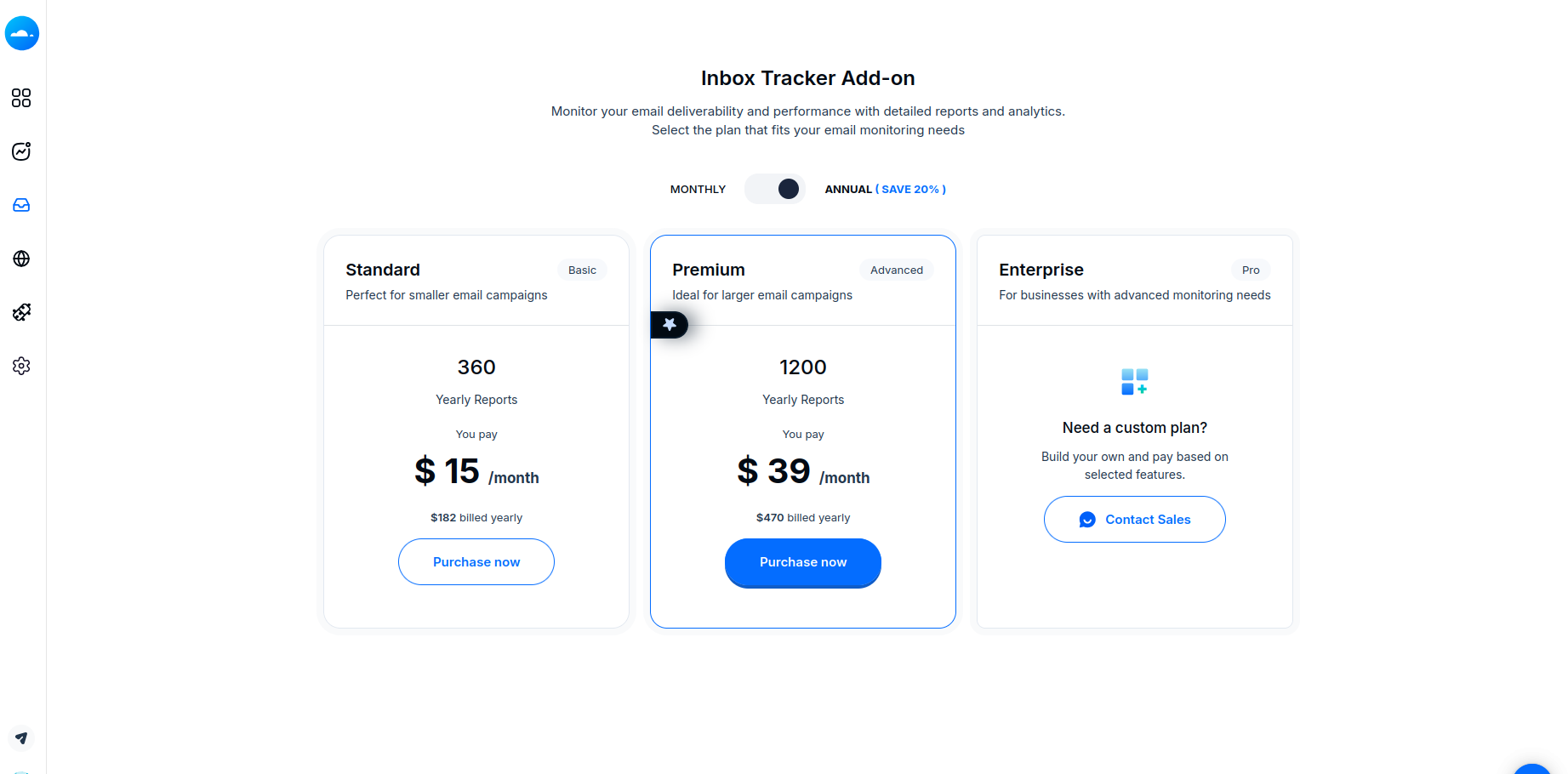
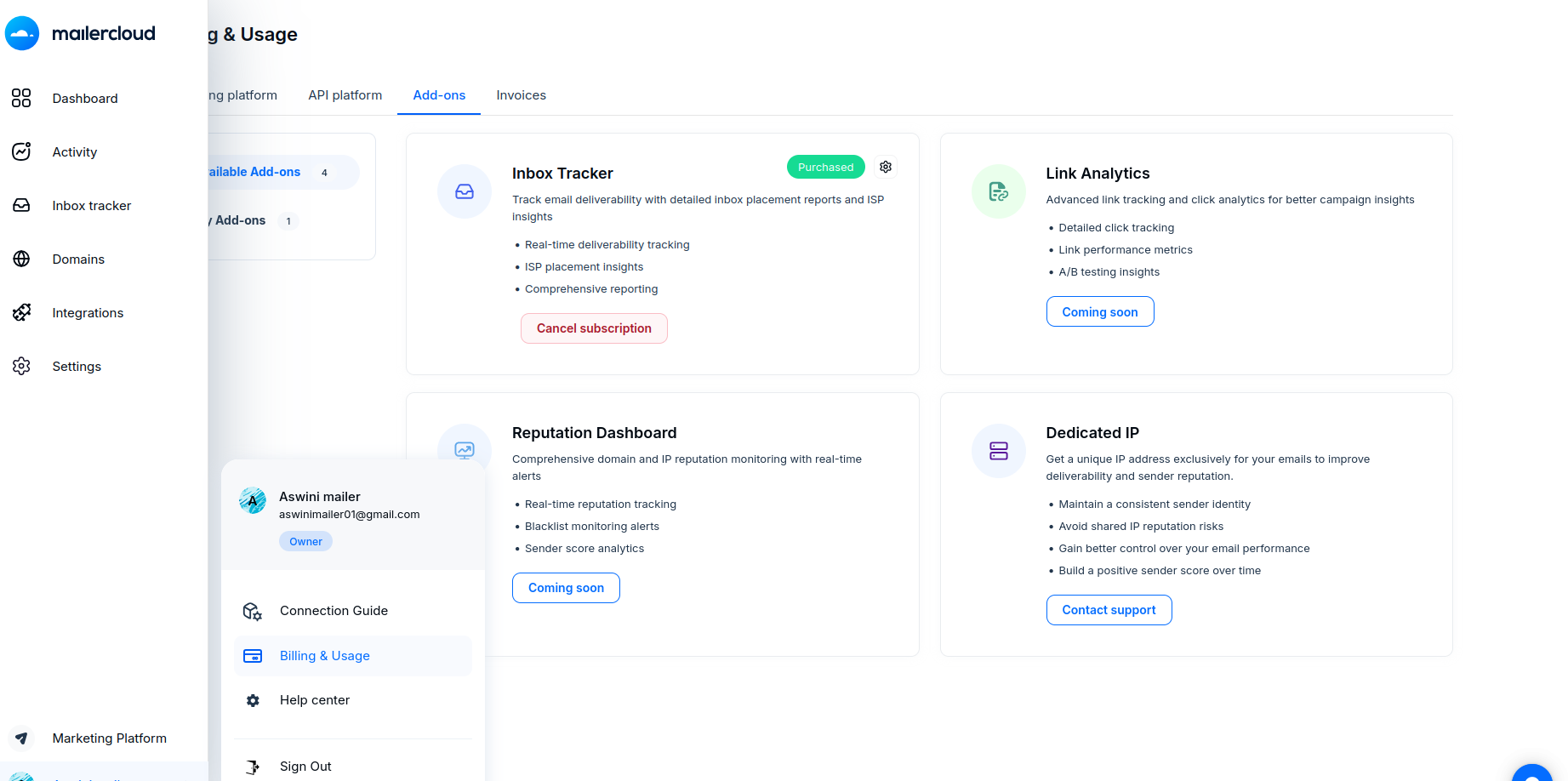
Go to the Billing & Usage section of your Mailercloud account.
Under Available Add-ons, locate Inbox Tracker and purchase a suitable plan.
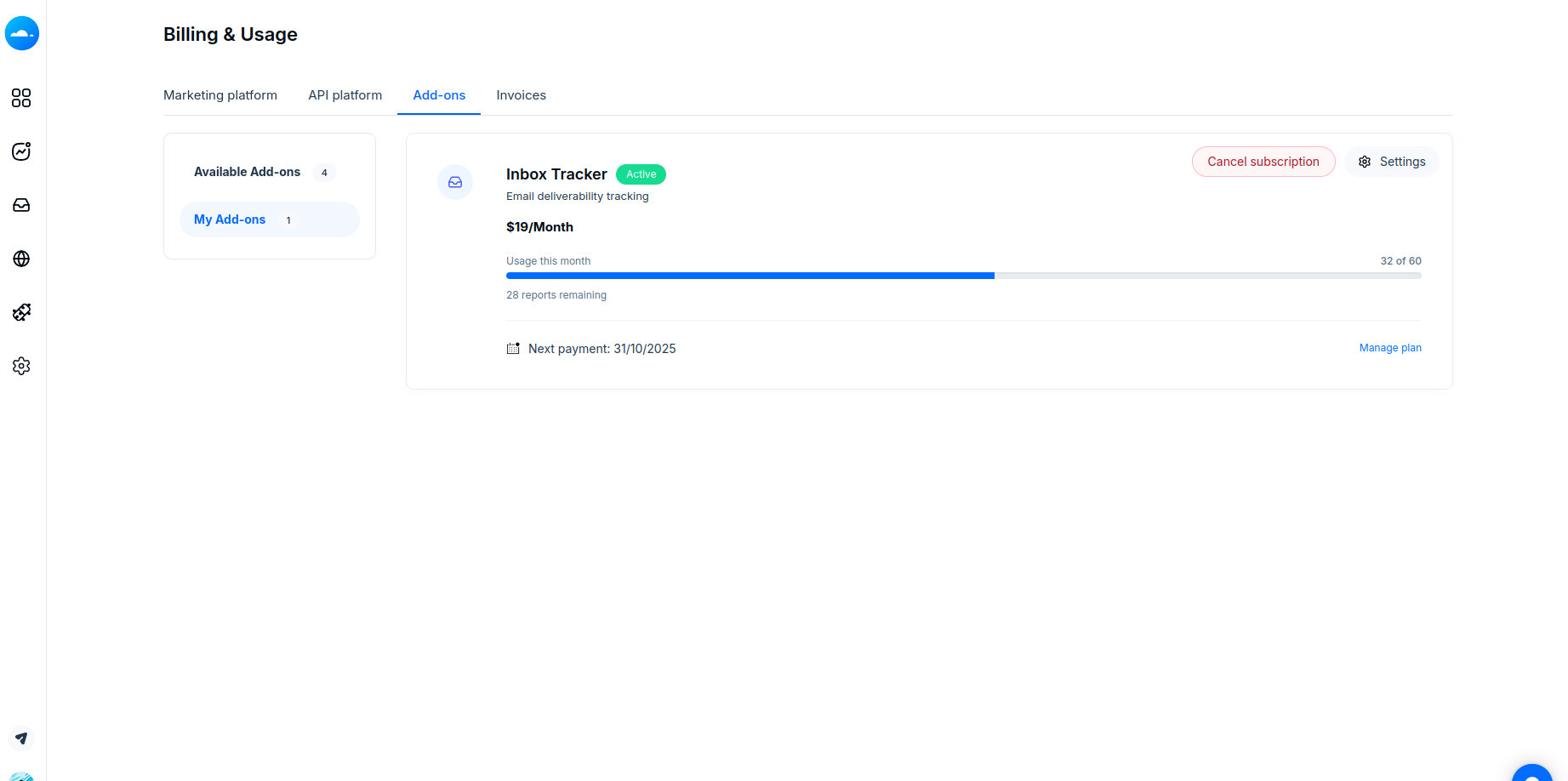
Once purchased, it will appear under the My Add-ons tab, where you can also track your plan usage details.
Login to your Mailercloud account.
Navigate to API Platform.
Go to Settings → Add-on Settings.
Here, you can:
Enable or disable the Inbox Tracker.
Configure the Seedlist Injection Threshold.
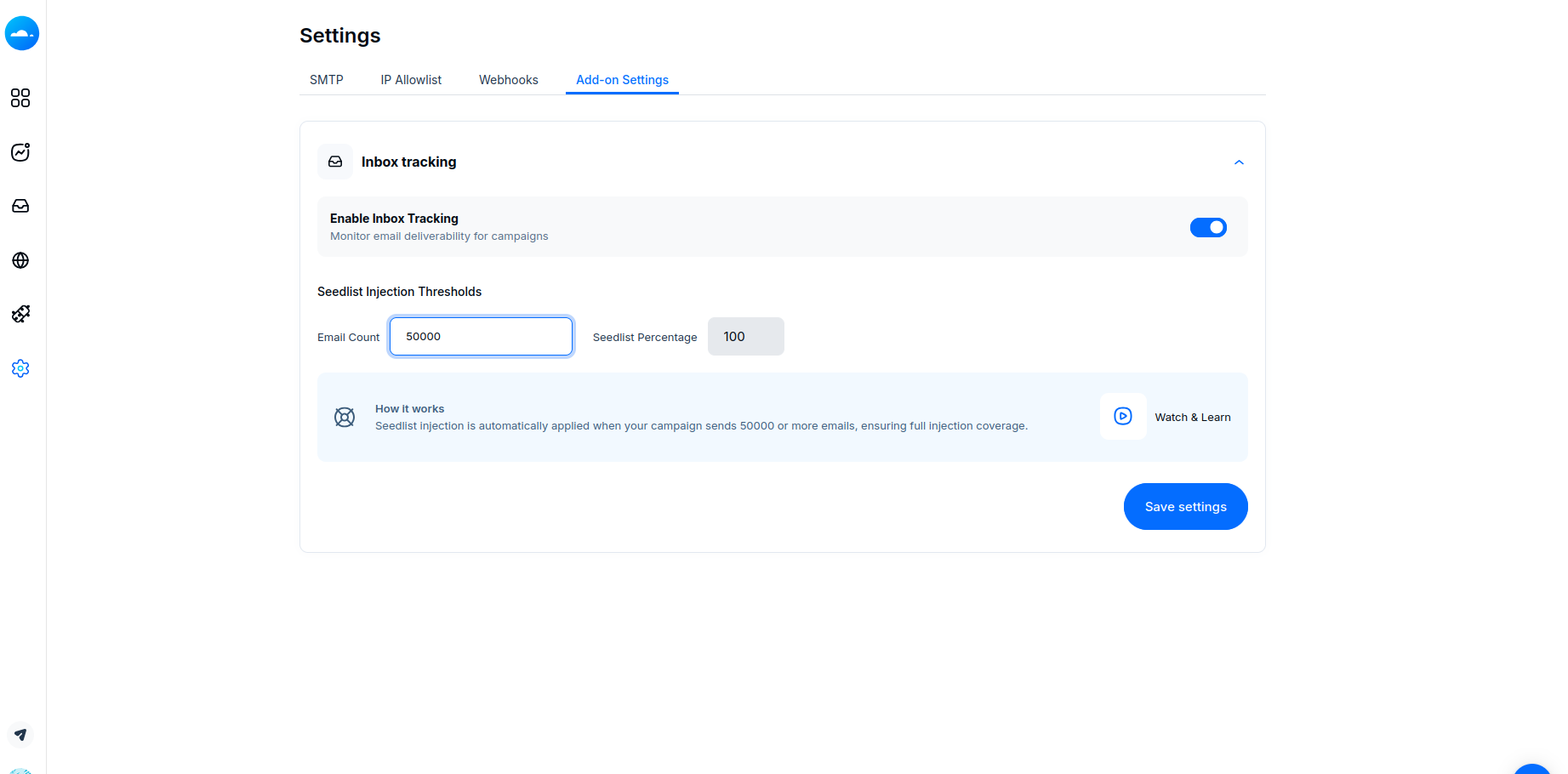
In email marketing and anti-spam systems, Seedlist Injection Threshold determines when an email is flagged for potential deliverability issues based on its performance with seedlist addresses.
For example:
If too many seedlist emails are marked as spam or bounce, it may indicate a deliverability issue.
If spam complaints exceed the threshold, it could negatively affect your sender reputation — leading to emails landing in spam folders or being blocked by certain providers.
Configuring a reasonable threshold helps maintain healthy sender performance.
To track inbox placement through the Email API, include the following parameters in your API request:
"inbox_tracking": true,
"campaign_id": "CMP-85"
These parameters allow the system to record and analyze inbox performance for the specified campaign.
The Campaign List section displays all campaigns with tracking data, including:
Campaign ID
Subject
Sent Count
Open Count
Inbox Rate
When you click on an Inbox Rate, you’ll see a provider-wise placement breakdown, showing how many emails reached the inbox, spam, or were missed for each email service provider.
Mailercloud provides a public API for retrieving campaign reports, including inbox tracking statistics.
"data": [
  {
    "campaign_id": "newcam",
    "subject": "email subject 100",
    "sent": "0",
    "opens": "0",
    "created_date": "2025-09-22 14:01:34",
    "inbox_percentage": 72.41,
    "spam_percentage": 23.1,
    "missed_percentage": 4.48,
    "providers": [
      {
        "inbox_percentage": "80.00",
        "missed_percentage": "5.00",
        "name": "gmail",
        "spam_percentage": "15.00"
      },
      {
        "inbox_percentage": "0.00",
        "missed_percentage": "0.00",
        "name": "outlook",
        "spam_percentage": "0.00"
      },
      {
        "inbox_percentage": "77.78",
        "missed_percentage": "8.89",
        "name": "yahoo",
        "spam_percentage": "13.33"
      },
      {
        "inbox_percentage": "60.00",
        "missed_percentage": "0.00",
        "name": "others",
        "spam_percentage": "40.00"
      }
    ]
  }
]
This report helps you analyze inbox placement trends by provider, allowing you to optimize deliverability and campaign performance.
Enable/Disable Tracker | API Platform → Settings → Add-on Settings |
Track Inbox Placement | Add |
View Results | Under Campaign List or via Public API |
Seedlist Threshold | Set to control spam/bounce tolerance for better sender reputation |
You can also enable or disable Inbox Tracking directly through SMTP for each email you send.
To do this, include the following headers in your SMTP email configuration:
| Set this to true to enable inbox tracking for a specific email, even if it’s turned off at the account level. |
| Use this header to pass the campaign ID for tracking purposes. |
mld-track-inbox: true
mld-track-campaign-id: CMP-85
This gives you more flexibility — allowing you to control inbox tracking per email rather than applying a single setting for all outgoing messages.